• ×
    Information
    Need Windows 11 help?
    Check documents on compatibility, FAQs, upgrade information and available fixes.
    Windows 11 Support Center.
  • post a message
  • ×
    Information
    Need Windows 11 help?
    Check documents on compatibility, FAQs, upgrade information and available fixes.
    Windows 11 Support Center.
  • post a message
Guidelines
Seize the moment! nominate yourself or a tech enthusiast you admire & join the HP Community Experts!
Archived This topic has been archived. Information and links in this thread may no longer be available or relevant. If you have a question create a new topic by clicking here and select the appropriate board.

HP Recommended
hp stream 14
Microsoft Windows 10 (64-bit)

i am writing to ask about he touchpad on my laptop. I would like to know why it is that i can two finger scroll. Im using the hp stream 14 32 gb model. all though it was ages ago i recall two finger scroll being on this laptop however now it is not working. i have installed synaptics drivers and tried changing settings that wee suggested to change on certain websites and videos. Since this laptop is so bad it might not have two finger scroll touchpad does anyone know if it does have a touchpad that supports this and if yes a fix? thanks.

1 REPLY 1
HP Recommended

@Crimson2


Welcome to the HP support community.


Follow the below steps to fix the issue:-

  1. Search Windows for TouchPad.

    From the results list click TouchPad settings.

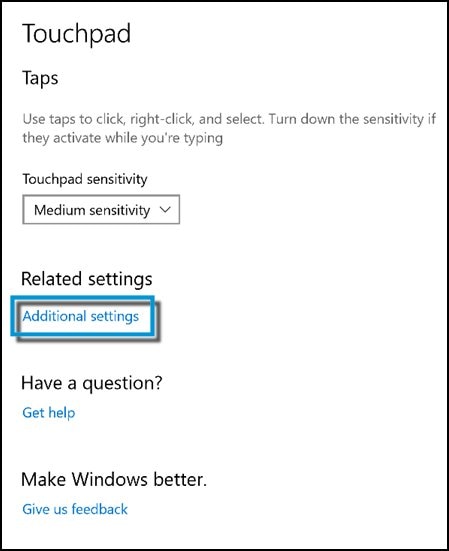
  2. Click Additional settings.

    Clicking Additional settings on the Touchpad window

  3. Open the TouchPad or ClickPad Settings.

    ClickPad settings

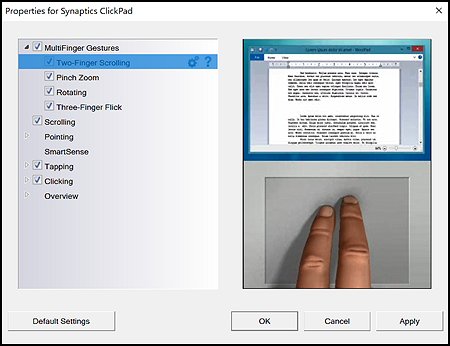
  4. Two-Finger Scrolling is located under MultiFinger Gestures. If you do not see Two-Finger Scrolling, click the Arrow icon  to the left of the MultiFinger Gestures checkbox.

  5. Two-Finger Scrolling. If the checkbox next to Two-Finger Scrolling does not contain a check mark, click the checkbox until a check mark displays to enable scrolling.

    Two-Finger Scrolling on the properties page

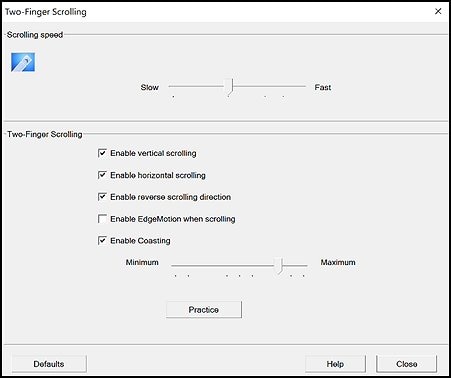
  6. Click the Settings icon  to adjust scrolling settings. You can make the following adjustments:

    Two-Finger Scrolling settings window

    • Scrolling speed - Adjusts the speed of scrolling.

    • Enable vertical scrolling - Allows scrolling by sliding your fingers up or down on the touchpad.

    • Enable horizontal scrolling - Allows scrolling by sliding your fingers left or right on the touchpad.

    • Enable reverse scrolling direction - Changes the direction of scrolling.

    • Enable EdgeMotion when scrolling - Continues scrolling when your fingers reach the edge of the touchpad.

    • Enable Coasting - Continues scrolling after you lift your fingers off the touchpad.

  7. Click the Close button to return to the properties screen.

  8. Click the Apply button to apply your changes, and then select OK to exit the properties screen.

Refer this HP document for more assistance:- Click here


I hope that helps.

To thank me for my efforts to help you, please mark my post as an accepted solution so that it benefits several others.

Cheers.


Sandytechy20
I am an HP Employee

Archived This topic has been archived. Information and links in this thread may no longer be available or relevant. If you have a question create a new topic by clicking here and select the appropriate board.
† The opinions expressed above are the personal opinions of the authors, not of HP. By using this site, you accept the <a href="https://www8.hp.com/us/en/terms-of-use.html" class="udrlinesmall">Terms of Use</a> and <a href="/t5/custom/page/page-id/hp.rulespage" class="udrlinesmall"> Rules of Participation</a>.