• ×
    Information
    Need Windows 11 help?
    Check documents on compatibility, FAQs, upgrade information and available fixes.
    Windows 11 Support Center.
  • post a message
  • ×
    Information
    Need Windows 11 help?
    Check documents on compatibility, FAQs, upgrade information and available fixes.
    Windows 11 Support Center.
  • post a message
Guidelines
Seize the moment! nominate yourself or a tech enthusiast you admire & join the HP Community Experts!
HP Recommended
HP DeskJet Ink Advantage 3777 All-in-One Printer

HI Team,


I am facing paper Jam in printer

1 REPLY 1
HP Recommended

Hi @Pinaki3,


Welcome to the HP Support Community. 


I'd be glad to help you! 


During printing the printer stops feeding pages, and the control panel displays an alternating E and 4. The Error icon , Paper Error icon , and Resume light also blink. This indicates that paper might be jammed inside the printer.

note:

Paper jams can be real or false. The printer might report a paper jam even when there is no jammed paper. The following steps apply to both real and false paper jams.

Step 1: Clear all paper from the input tray

Remove all loose and jammed paper from the input tray area.

  caution:

Remove all paper or objects from the input tray before removing paper or objects from any other areas of the printer. Damage to the printer can occur if the input tray is not cleared first.

  • Remove all paper from the input tray, including both loose and jammed paper.
  • Check for any jammed paper or objects in the input tray area, and then remove any jammed paper or objects you find.
  • To avoid tearing any whole sheets of paper, pull the paper with both hands.

note:

The input tray shield prevents foreign debris from falling into the paper path and causing paper jams. Do not remove the input tray shield.

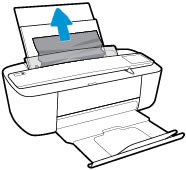
Removing jammed paper from the input tray

  • Press the Cancel button .
  • The printer tries to clear the jam automatically.
  • After removing all paper or objects from the input tray area, continue to the next step to remove any additional jammed paper from the output tray.


Click here for the remaining steps. 


Update firmware if available for your current OS. Click here


Hope this helps! Keep me posted for further assistance


Please mark this post as Accepted Solution” if the issue is resolved and if you feel this reply was helpful click “Yes”.

Nal_NR-
HP Community Moderator


† The opinions expressed above are the personal opinions of the authors, not of HP. By using this site, you accept the <a href="https://www8.hp.com/us/en/terms-of-use.html" class="udrlinesmall">Terms of Use</a> and <a href="/t5/custom/page/page-id/hp.rulespage" class="udrlinesmall"> Rules of Participation</a>.