• ×
    Information
    Need Windows 11 help?
    Check documents on compatibility, FAQs, upgrade information and available fixes.
    Windows 11 Support Center.
  • post a message
  • ×
    Information
    Need Windows 11 help?
    Check documents on compatibility, FAQs, upgrade information and available fixes.
    Windows 11 Support Center.
  • post a message
Guidelines
Seize the moment! nominate yourself or a tech enthusiast you admire & join the HP Community Experts!
HP Recommended

Hi,

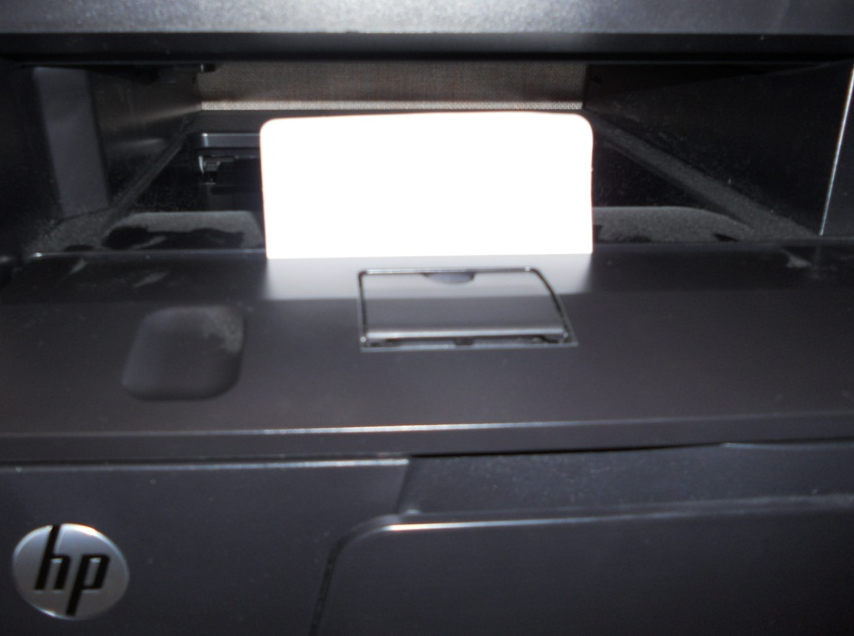
I have the same problem as described in several posts. The printer displays a message about a paper jam but there is none.


I followed the instructions given in  the troubleshooting video Paper Jam Issues (https://support.hp.com/ca-en/help/printer).  I also consulted the instructions mentioned in this solution

(https://h30434.www3.hp.com/t5/Printer-Paper-Jams-Feed-Issues/quot-Paper-jam-quot-error-message-displ...)

- Check the Paper Path Again

- Check the Printhead Area

- Reset the Printer

- Perform a Printer Reset

- Check for Firmware Updates

- On/Off

- Cleaned all rollers

- PrintScan software

- HP Support Assistant


I tried to Clear the Paper Jam Sensor but I could not locate it. Can you tell me more precisely where to find it?

Do I need to remove the cover to access it? (my printer no longer is on warranty).


Although the error message displayed deals with paper jam issues, something else worth mentioning is that the cartridge carriage does not position itself to the middle as usual,  when I open the cover.

I therefore also looked at the video Carriage  is jammed (https://support.hp.com/ca-en/help/printer) and tried the solutions it proposes, without success.  I tried to move the carriage manually on the carriage path. but it won't even move.


4 REPLIES 4
HP Recommended

Hi @VeryTiredUser,

Welcome to the HP Support Community.
 

Thank you for posting your query. I will be glad to help you.

It appears that your printer shows a paper jam error even when there is no visible paper jam. Here's a comprehensive guide to troubleshoot this issue:
 

Remove Packing Materials: Make sure all the packing materials have been removed, especially around the cartridge area. Sometimes, overlooked packaging remnants can cause issues.
 

Ensure all packaging is removed from the printer to avoid "Jam in Cartridge Area" errors.


Verify Paper Specifications: Ensure that the paper being used is compatible with your printer's specifications as outlined in the user guide.


Clear Paper Path:
 

  • Open all access doors on your printer.
  • Check and clear any fragments or obstructions in the paper path, including the print cartridge and fuser areas.


Genuine Cartridges: Confirm that you are using genuine HP toner cartridges. Non-genuine cartridges can sometimes cause unexpected issues.


Check Rear and Front Path:
 

  • Open the rear door and remove any paper remnants.
  • Use caution as the fuser can be hot.


Restart the Printer: Turn off and unplug the printer. Wait for a minute before plugging it back in and turning it on.


I hope this helps.


Take care and have an amazing day!
 

Did we resolve the issue? If yes, please consider marking this post as "Accepted Solution" and click "Yes" to give us a helpful vote - your feedback keeps us going!


Jerry_57

HP Support

HP Recommended

Thanks Jerry_57,


I confirm that I am using genuine HP ink cartridges and that absolutely no packing materials remain within the printer or anywhere within the paper path. 


I stiil did not receive an answer regarding the exact location of the Paper Jam Sensor in this printer,


Nor did I receive any information with the other problem recopied below:

"Although the error message displayed deals with paper jam issues, something else worth mentioning is that the cartridge carriage does not position itself to the middle as usual, when I open the cover.

I therefore also looked at the video Carriage is jammed (https://support.hp.com/ca-en/help/printer) and tried the solutions it proposes, without success. I tried to move the carriage manually on the carriage path. but it won't even move."


Thanks,


HP Recommended

Hi @VeryTiredUser,

Thank you for sharing the details.

Please help us with the Product serial number or the product number in a private message for further assistance.
 

Here is the link to find the product serial number: - Click here


Find product and serial numbers for HP PCs, printers, and accessories | undefined

To access your private messages, simply click the private message icon on the upper right corner of your HP Support Community profile, next to your profile and send a private message to me with the serial number, because we value your privacy.


Jerry_57

HP Support

HP Recommended

Hi Jerry_57,


Thanks for your reply.


I literally spent hours

- trying various solutions proposed on the HP support site, as well as in several printer support videos on YouTube specifically targeted to my printer model

- opening, taking aparts various parts as suggested and described in a few vey useful and well done videos on YouTube, and reassembling them


Well, despite doing all this, the very same paper jam error message still appears and the cartridge carriage still does not position itself to the middle as usual, when I open the cover.


I finally gave up on this printer purchased in 2018. I then spent several hours more selecting, buying and installing a new printer. I chose a laser printer this time, sincerely hoping that it will give me several years of troubleless usage.


I consider that it's definitely not normal for HP printer error messages to be so cryptic, like displaying a paper jam error when the problem clearly lies elsewhere in the printer, for example with the cartridge carriage or something else alltogether.


Patrice

† The opinions expressed above are the personal opinions of the authors, not of HP. By using this site, you accept the <a href="https://www8.hp.com/us/en/terms-of-use.html" class="udrlinesmall">Terms of Use</a> and <a href="/t5/custom/page/page-id/hp.rulespage" class="udrlinesmall"> Rules of Participation</a>.