-
×InformationNeed Windows 11 help?Check documents on compatibility, FAQs, upgrade information and available fixes.
Windows 11 Support Center. -

-
×InformationNeed Windows 11 help?Check documents on compatibility, FAQs, upgrade information and available fixes.
Windows 11 Support Center. -
- HP Community
- Printers
- Printer Paper Jams & Feed Issues
- printer has jam & feed issues

Create an account on the HP Community to personalize your profile and ask a question
12-21-2020 12:15 PM
We have had HP Office Jet Pro 6978 for just under or over a year. It was a Xmas gift 2019. It persistently jams, we clear it, it jams again, won't print, prints partial page, seems to have feed issues as well. Help please?
01-05-2021 02:11 PM
Welcome to the HP support community.
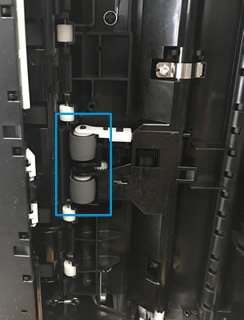
Clean the paper tray rollers
-
Carefully lift the printer and set it on its side.
-
While supporting the printer with one hand, pull the paper tray open to expose the paper rollers underneath the printer.

-
Lightly dampen a lint-free cloth with distilled water, and then squeeze any excess liquid from the cloth.
-
Press the cloth against the rollers inside the printer, and then rotate the rollers upwards with your fingers. Apply a moderate amount of pressure to remove any dust or dirt buildup.
-
Allow the rollers to dry completely (approximately 10 minutes).
-
Close the paper tray, and then set the printer upright.
Clean the paper feed rollers from inside the ink cartridge access area.
-
Turn off the printer, and then disconnect the power cord.
WARNING:
Disconnect the power cord before reaching inside the printer to avoid risk of injuries or electric shock.
-
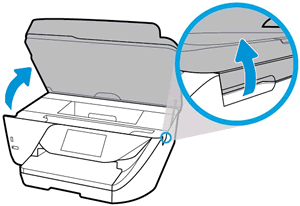
Open the ink cartridge access door.

-
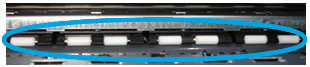
Lightly dampen a lint-free swab with distilled or filtered water.
-
Press the swab against the rollers inside the printer, and then rotate the rollers upwards with your fingers. Apply a moderate amount of pressure to remove any dust or dirt buildup.

-
Allow the rollers to dry completely (approximately 10 minutes).
-
Close the ink cartridge access door.
-
Reconnect the power cord to the rear of the printer, and then turn on the printer.
You can refer this HP document for more assistance:- Click here
Let me know how it goes.
To thank me for my efforts to help you, please mark my post as an accepted solution so that it benefits several others.
Cheers.
Sandytechy20
I am an HP Employee