
-
×InformationNeed Windows 11 help?Check documents on compatibility, FAQs, upgrade information and available fixes.
Windows 11 Support Center. -
-
×InformationNeed Windows 11 help?Check documents on compatibility, FAQs, upgrade information and available fixes.
Windows 11 Support Center. -
- HP Community
- Printers
- Printer Paper Jams & Feed Issues
- tray 2 doesn't work

Create an account on the HP Community to personalize your profile and ask a question
Your account also allows you to connect with HP support faster, access a personal dashboard to manage all of your devices in one place, view warranty information, case status and more.

It has been a while since anyone has replied. Simply ask a new question if you would like to start the discussion again.

05-17-2021 12:16 PM
 HP Recommended
Product: HP Officjet Pro 8620
Operating System: Microsoft Windows 10 (64-bit)
Hello,
I bought a 2. tray for my HP Officejet Pro 8620. If I try to print ion paper from this tray the printer says: No more Paper in the tray. On start (If I restart the printer) it take a sheet of paper an put it thru the printer without any printing on it. What can I do?
Thanks
Thies
5 REPLIES 5


05-17-2021 01:11 PM
HP Recommended
Some places to check / adjust the setup include:
- The printer might not be aware of the paper loaded in the printer.
- Paper size/type loaded in Tray 2 might not be supported.
- There might be a missing configuration or setup - does Windows know that the second Tray has been installed?
- Source (Tray) set to "automatic" (in print software) might not be enough - select the Source / Tray in your printing application
- Settings might be incorrect - for example, some combinations of paper size, paper type are not supported in a particular job setup. This particular issue usually results in an error to the effect and not simply a blank page...
- Unknown - it might be necessary to uninstall / restart computer / install a fresh copy of the Full Feature Software.
- Although likely done by now (most recent update at this writing was January 2021), it might be needful to update the printer Firmware.
- The setup might benefit from downloading and running the Doctor to uncover / correct spurious issues.
Start...
Load the paper into the printer according to the instructions in the User Guide
Sections to Load Paper - starting on Page 23 - and the Tray setup on Page 30
Reminder: Tray 2 supports plain paper - heed the warnings in the "Load paper" sections.
Tray "Installed" setup in Windows
Control Panel > icon view > Devices and Printers >
Right-Click Printer > Printer Properties > tab Device Settings >
Beneath Installable Options > Tray # > Select Installed > OK
Check / Adjust / Retain the Paper at the Printer Display Panel
Section is not applicable to printers lacking a printer display panel.
Open Printer Tray,
If you have not yet done so, add desired paper type
Wait a couple of seconds…
Close Tray
IF applicable for your printer:
Look for a message on the Printer Control / Display Panel,
Click Modify (wording varies), set the paper size and type, Click OK
Note – Printer Display Panel > Adjusting the paper size:
If the size of your Paper Size is not in the Drop-down menu,
Select Custom (likely the last selection in the list)
=-=-=-=-=-=-=-=-=-=-=-=-=-=-=-=-=-=-=-=-=-=-=-=-=-=-=-=-=-=-=-=-=-=-=-=-=-=-=
Embedded Web Server (EWS)
EWS option is applicable to network connected printers.
If the printer is on the network,
If the EWS feature is supported on your printer,
Use the Embedded Web Server (EWS) to view / configure your printer.
Open your favorite browser > type / enter Printer IP address into URL / Address bar
Tab Settings > Preferences > Tray and Paper Management
If applicable, check the Advanced section (at the bottom of the Tray and Paper Management menu)
Click Apply to save changes
NOTES
- Size not listed in the Drop-down menu? Select Custom (likely the last selection in the list)
- EWS is also available in HP Smart Windows and HP Smart Mobile > Settings > Advanced
- Features and options differ by printer model and type.
=-=-=-=-=-=-=-=-=-=-=-=-=-=-=-=-=-=-=-=-=-=-=-=-=-=-=-=-=-=-=-=-=-=-=-=-=-=-=
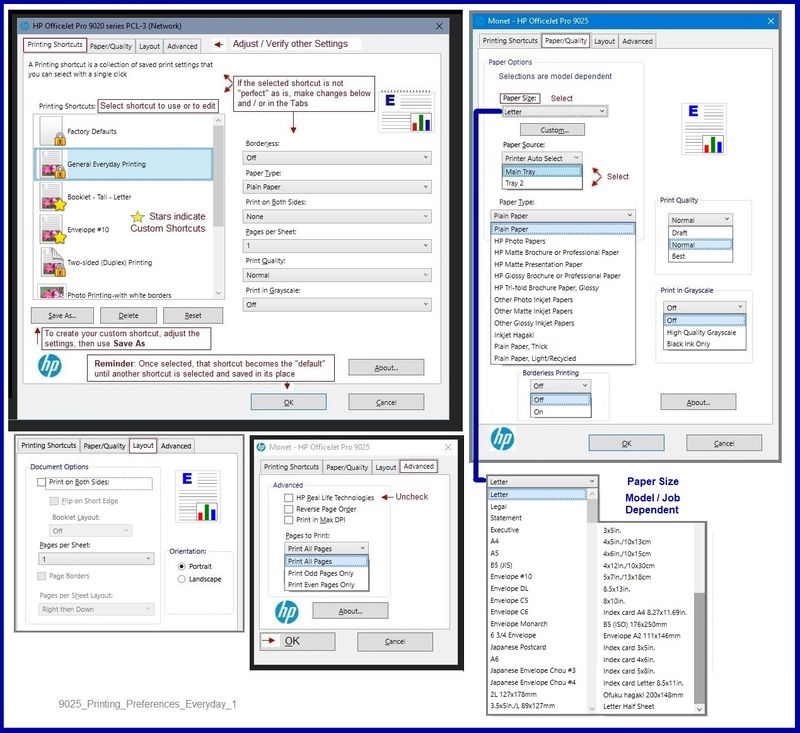
Set the Preferences – Windows
This section is not applicable to Mobile Printing.
Printing Preferences are available directly from the driver and / or might be called "Printer Properties" / "Shortcuts" (or similar) from within printing software / applications.
Preferences and Envelopes:
Select / leave Printing Preferences shortcut to "Everyday Printing" or something equally benign.
- - - - - - - - - - - - - - - - - - - - - - - - - - - - - - - - - - - - - - - - - - - - - - - - - - - - - - - - - -
Preparation > Check / enable the printer as the “Default Printer”
Settings > Devices > Printers and scanners
UNCHECK (clear box) Let Windows manage my default printer
Select (Left-Click) your printer from the list of printers > Manage > Set as Default
- - - - - - - - - - - - - - - - - - - - - - - - - - - - - - - - - - - - - - - - - - - - - - - - - - - - - - - - - -
Printing Preferences - Selections
Settings > Devices > Printers and scanners
Left-Click on (your) Printer > Manage > Printing Preferences
Next
Tab Printing Shortcuts > Click / Highlight your preferred shortcut > Click Apply > Click OK to exit
Make changes to a Shortcut (Model Dependent)
- Select shortcut (locked or custom) >
- Adjust the settings for paper, source (tray), other settings
- Check all sub-menus in all Tabs
- Click OK to save / leave sub menu
Custom Shortcut
Save the edited shortcut or use “Save As” or “Create Custom Shortcut” to save as a new / different file name
Click OK to save the setup
Side Bar: Scan Menu for HP Scan
Open More > section,
Check / adjust settings in each sub-section
Click OK to save sub-menu changes
=-=-=-=-=-=-=-=-=-=-=-=-=-=-=-=-=-=-=-=-=-=-=-=-=-=-=-=-=-=-=-=-=-=-=-=-=-=
Example
Printing Preferences
References / Resources
Resource – Choose the right doctor for the job
Open Website
HP Print and Scan Doctor for Windows
Click the orange Download Now option / box
Wait!
If the problem / issue is one of
- Printer is Offline
- Cannot print in Color
- Duplex printing has disappeared
THEN
Select / Answer question “Is print offline?” = YES
Answering Yes selects the “right doctor” version for these issues.
NOTES – The “Offline” doctor
As a result of repairing issues,
Offline / Color check / Duplex check version of the Doctor may replace the printer or add a “(Copy 1)” version of the driver in Devices and Printers.
Open Control Panel > icon view > Devices and Printers
Right-Click on the printer name > Printer Properties > Tab General >
In the top box, Edit the name of the printer (For example, remove the part that says “Copy 1”)
Click Apply / OK to save change
NOTE: The name change may take a bit of time (a few minutes), else Restart the computer and log in.
++++++++++++++++++++++++++++++++++++++++++++++++++++++++++++++++++++++
Verify results. If necessary, set the newly added / renamed printer as the default.
A secondary “Scan” printer may be added, that is, the “Do not Delete” driver / printer. As it says, do not delete the entry.
==============================================================================
Printer Software / Full Driver
HP Officejet Pro 8620 e-All-in-One Printer series Full Feature Software and Drivers
Printer Firmware
HP Officejet Pro 8610/8620/8630/8640/8660 and HP OfficeJet 8600 Series Printer Firmware Updater
HP Printer Home Page - References and Resources – Learn about your Printer - Solve Problems
“Things that are your printer”
NOTE: Content depends on device type and Operating System
Categories: Alerts, Access to the Print and Scan Doctor (Windows), Warranty Check, HP Drivers / Software / Firmware Updates, How-to Videos, Bulletins/Notices, Lots of How-to Documents, Troubleshooting, Manuals > User Guides, Product Information (Specifications), more
When the website support page opens, Select (as available) a Category > Topic > Subtopic
HP Officejet Pro 8620 e-All-in-One Printer series
Thank you for participating in the HP Community.
The Community is a separate wing of the HP website - We are not an HP business group.
Our Community is comprised of volunteers - people who own and use HP devices.
Click Thumbs Up to say Thank You.
Question Resolved / Answered, Click "Accept as Solution"
Dragon-Fur
05-18-2021 07:49 AM - edited 05-18-2021 07:52 AM
HP Recommended
Thank you for your detailed answer.
I use plain paper size A4
In Windows I set tray 2. I can choose this. If I choose tray 1 the printer works well.
But I think the printer does not recognize the tray 2. The tray 2 cannot be selected in the EWS.

I downloaded the firmware. But I cannot install it. I get the message: not applicable

Do you have any ideas?
Thanks
Thies
05-18-2021 08:01 AM
HP Recommended
The images are awaiting approval - the one that shows your private information will likely be rejected.
Doesn't matter - we don't need it.
Firmware is likely already updated to the same version trying to "update".
I agree that the printer cannot see Tray 2.
If Windows can now see Tray 2 as "installed", then that might mean the physical installation is OK.
OR, it might only mean the command was accepted and the hardware is still not convinced the tray is physically installed.
? Remove the tray assembly from the bottom of the printer - reseat it (put it back in place) after checking for dirt, tape, other "oddness".
So, what?
Not sure.
Try Restarting the printer using Step 2 from this document:
Printer Turns Off Unexpectedly or Repeatedly
Thank you for participating in the HP Community.
The Community is a separate wing of the HP website - We are not an HP business group.
Our Community is comprised of volunteers - people who own and use HP devices.
Click Thumbs Up to say Thank You.
Question Resolved / Answered, Click "Accept as Solution"
Dragon-Fur
05-19-2021 09:57 AM
HP Recommended
It seems to see the printer the tray not correct.
I put the tray out of the printer an started it completely new. (I unplugged the power cord from the printer. Wait 60 seconds, plugged it in. The printer works well with on tray. I switched it off, unplugged the power cord, moved the tray to the prepared location, setted the printer on top of the tray, plugged the cord in the printer and switched it on.) First it pulled a page of paper from tray 2 without printing anything on it. In Windows I can enable the tray 2, but not on the printer (see photo).
I have no Idea. I bought a second tray. I have two of this, both doesn't works. 😪


05-19-2021 10:12 AM
HP Recommended
Unfortunately, I have no idea what else to suggest.
Yes, instructions in the User Guide are simple and straight forward (page 30).
Warning to use only plain paper in Tray 2 - page 32.
I am assuming that EWS is also ignoring the addition of Tray 2 (page 32 and previous post).
? If I have anything to add, I will post back.
Thank you for participating in the HP Community.
The Community is a separate wing of the HP website - We are not an HP business group.
Our Community is comprised of volunteers - people who own and use HP devices.
Click Thumbs Up to say Thank You.
Question Resolved / Answered, Click "Accept as Solution"
Dragon-Fur

Be alert for scammers posting fake support phone numbers and/or email addresses on the community.
If you think you have received a fake HP Support message, please report it to us by clicking on "Flag Post".
† The opinions expressed above are the personal opinions of the authors, not of HP. By using this site, you accept the Terms of Use and Rules of Participation.


Didn't find what you were looking for?
Ask the community
† The opinions expressed above are the personal opinions of the authors, not of HP. By using this site, you accept the <a href="https://www8.hp.com/us/en/terms-of-use.html" class="udrlinesmall">Terms of Use</a> and <a href="/t5/custom/page/page-id/hp.rulespage" class="udrlinesmall"> Rules of Participation</a>.