• ×
    Information
    Need Windows 11 help?
    Check documents on compatibility, FAQs, upgrade information and available fixes.
    Windows 11 Support Center.
  • post a message
  • ×
    Information
    Need Windows 11 help?
    Check documents on compatibility, FAQs, upgrade information and available fixes.
    Windows 11 Support Center.
  • post a message
Guidelines
Join the HP Community Solve‑a‑thon | Help Others & Share Your Solutions | Live on Zoom | 2:30 PM to 2:30 AM IST | Every Wednesday Click here to know more
Archived This topic has been archived. Information and links in this thread may no longer be available or relevant. If you have a question create a new topic by clicking here and select the appropriate board.

HP Recommended
HP DeskJet 2752 All-in-One Printer
Other

I've watched videos repeatedly...they make the process look effortless.  

When I try putting the cartridge in the carriage,  it feels like I have to be forceful and I am afraid of

breaking the carriage.

   Anyone else have this problem?

  I welcome any advice

1 REPLY 1
HP Recommended

Hi @Goz2,


Welcome to the HP Support Community


I'd like to help!


I understand you are unable to replace the ink cartridge 


Follow the instructions to replace the ink cartridge -


  1. Turn on the printer.

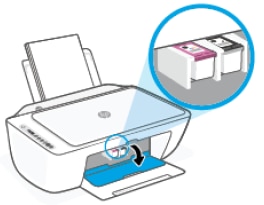
  2. Open the ink cartridge access door.

    The carriage moves to the center of the printer.


  3. DeskJet 2700


    Opening the ink cartridge access door


  4. Wait until the printer is idle and silent before you continue.

  5. Lightly press down on the ink cartridge to release it, and then pull the ink cartridge out of its slot.

    Removing the ink cartridge
  6. Remove the new ink cartridge from its packaging, and then remove the plastic tape using the pull tab.

       CAUTION: 

    Do not touch the copper-colored contacts or the ink nozzles. Handling these parts can result in clogs, ink failure, and bad electricalconnections.

    Removing the plastic tape

  7. Hold the ink cartridge by its sides with the nozzles toward the printer, and then insert the ink cartridge into its slot.

    • The tri-color ink cartridge () goes in the slot on the left.

    • The black ink cartridge () goes in the slot on the right.

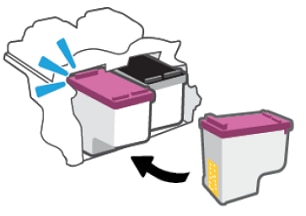
  8. Slide the cartridge into the slot at a slight upward angle, and then push up on the cartridge until it snaps into place.

    Snapping the ink  cartridge into place

  9. Repeat these steps to replace the other ink cartridge, if necessary.

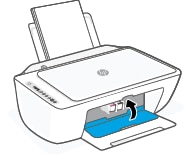
  10. Close the ink cartridge access door.

    DeskJet 2700

    Closing the ink cartridge access door


Hope this helps! Keep me posted. 


Please click “Accept as Solution” if you feel my post solved your issue, it will help others find the solution.

Click the “Yes" on the bottom right to say “Thanks” for helping

Archived This topic has been archived. Information and links in this thread may no longer be available or relevant. If you have a question create a new topic by clicking here and select the appropriate board.
† The opinions expressed above are the personal opinions of the authors, not of HP. By using this site, you accept the <a href="https://www8.hp.com/us/en/terms-of-use.html" class="udrlinesmall">Terms of Use</a> and <a href="/t5/custom/page/page-id/hp.rulespage" class="udrlinesmall"> Rules of Participation</a>.