• ×
    Information
    Need Windows 11 help?
    Check documents on compatibility, FAQs, upgrade information and available fixes.
    Windows 11 Support Center.
  • post a message
  • ×
    Information
    Need Windows 11 help?
    Check documents on compatibility, FAQs, upgrade information and available fixes.
    Windows 11 Support Center.
  • post a message
Guidelines
Seize the moment! nominate yourself or a tech enthusiast you admire & join the HP Community Experts!
Archived This topic has been archived. Information and links in this thread may no longer be available or relevant. If you have a question create a new topic by clicking here and select the appropriate board.

HP Recommended
Envy 5661
Microsoft Windows 7 (64-bit)

I have a new HP Envy 5661 that I was trying to scan photos with this morning. I am using Windows 7 and tried a scan using Windows 7 direct method and also from the features directly from the printer. I have tried several photos and they all come out looking soft, not the crisp clean scans I would get from my old HP combo printer-scanner.


I am using the setting in Windows 7 for photo scanning, and have played with the DPI settings and nothing has made them look good.


Please help.

1 REPLY 1
HP Recommended

Hi@Ritzbitz1 


Hope this helps. Let me know how this goes. I genuinely hope the issue gets resolved without hassles and the unit works great. Please reach out for any issues and I'll be there to assist you


HP Printers - Fixing Scan Quality Issues

This document is for HP multifunction printers.
When you scan, the computer file or printed output has vertical lines, incorrect colors, color bands, or poor resolution.
Figure : Example of a scan with vertical lines
Example of a scan with vertical white or black lines
Figure : Example of a file or printout with color bands
Example of a file or printout with  color bands
Step 1: Confirm the issue is not printing-related
The steps in this document resolve quality issues when scanning only.
If quality issues occur when printing from the computer, do not continue with these steps. Go to HP Customer Support, type your printer model number if necessary, then search for print quality to find the Fixing Poor Print Quality document for steps to resolve the issue.
If quality issues occur when scanning, continue to the next step.
Step 2: Clean the scanner
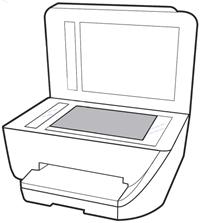
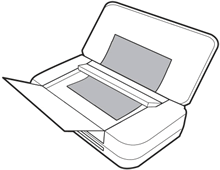
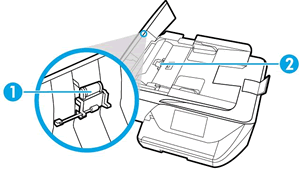
Fingerprints, smudges, dust, or debris on the scanner glass, under the scanner lid, or in the document feed slot can cause lines and color bands. Clean these parts with a soft, lint-free cloth sprayed with glass cleaner.
Read one of the following sections for steps to clean these components, depending on your printer type.
Printer with flatbed scanner glass and lid
Printer with a document scan feeder
Printer with flatbed scanner glass
Printer with a document feeder
Step 3: Clean the automatic document feeder (ADF) rollers
If your printer has an automatic document feeder (ADF), dust or paper residue on the rollers or separator pad inside the ADF can result in scan quality issues. Open the ADF, then clean the ADF rollers and separator pad.
 NOTE:
The location of the ADF rollers might be different depending on your printer, but the following steps still apply.
  1. Gather the following materials:
    • A clean, lint-free cloth, or any cloth that does not come apart or leave fibers
    • Distilled, filtered, or bottled water (tap water might damage the printer)
  2. Remove the original document from the ADF.
  3. Turn off the printer.
  4. Disconnect the power cord from the rear of the printer.
  5. Open the ADF cover.
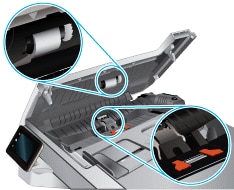
  6. Find the paper pick rollers and the separator pad inside the ADF.
    Figure : Example of the paper pick rollers and separator pad in a LaserJet printer
    The paper pick rollers and separator pad
    Figure : Example of the paper pick rollers and separator pad in a OfficeJet printer
  7. Lightly dampen a clean, lint-free cloth with filtered or distilled water, then squeeze any excess liquid from the cloth.
  8. Use the damp cloth to wipe any residue off the paper pick rollers and the separator pad.
  9. Leave the ADF cover open for two minutes to allow the paper pick rollers and separator pad to dry.
  10. Close the ADF cover.
  11. Reload the original document print side up in the document feeder tray. Gently slide the document into the printer as far as it can go.
  12. Slide in the paper width guides until they are snug against the paper.
    Do not push the paper width guides in so far that they bend the paper.
  13. Reconnect the power cord to the rear of the printer.
  14. Turn on the printer, then try to scan.
If the issue persists, continue to the next step.
Step 4: Change the scan settings
Change the scan settings to increase resolution, adjust the color palette, or increase the contrast.
Step 5: Reset the printer
Resetting the printer can force some types of scanners to calibrate which might fix the problem.
  1. Remove any items from the scanner glass and automatic document feeder (ADF), then close the scanner lid.
  2. With the printer turned on, disconnect the power cord from the printer and from the wall outlet or power strip.
  3. Wait at least 60 seconds.
  4. Plug the power cord back into a wall outlet.
     NOTE:
    HP recommends connecting the printer power cord directly to a wall outlet.
  5. Reconnect the power cord to the printer.
  6. Load the original document or photo, then try to scan.
    If the issue persists, continue to the next step.
Service or replace your HP product if you completed all preceding steps.
To see if your product is still under warranty, go to the warranty check website http://www.support.hp.com/checkwarranty. Contact HP Support to schedule a repair or replacement. If you are in Asia Pacific, Contact HP Support to find a local service center in your area.
Repair fees might apply for out-of-warranty products.


To simply say thanksplease click the "Thumbs Up" button to give me a Kudos to appreciate my    efforts to help.


If this helps, please mark this as “Accepted Solution” as it will help several others with the same issue to get it resolved without hassles. 


Take care now and have a splendid week ahead. 


Archived This topic has been archived. Information and links in this thread may no longer be available or relevant. If you have a question create a new topic by clicking here and select the appropriate board.
† The opinions expressed above are the personal opinions of the authors, not of HP. By using this site, you accept the <a href="https://www8.hp.com/us/en/terms-of-use.html" class="udrlinesmall">Terms of Use</a> and <a href="/t5/custom/page/page-id/hp.rulespage" class="udrlinesmall"> Rules of Participation</a>.