This widget could not be displayed.

  • ×
    Information
    Need Windows 11 help?
    Check documents on compatibility, FAQs, upgrade information and available fixes.
    Windows 11 Support Center.
  • post a message
  • ×
    Information
    Need Windows 11 help?
    Check documents on compatibility, FAQs, upgrade information and available fixes.
    Windows 11 Support Center.
  • post a message
This widget could not be displayed.
Guidelines
Seize the moment! nominate yourself or a tech enthusiast you admire & join the HP Community Experts!
This widget could not be displayed.
Archived This topic has been archived. Information and links in this thread may no longer be available or relevant. If you have a question create a new topic by clicking here and select the appropriate board.

HP Recommended
HP Smart Tank 500 All-in-One
Microsoft Windows 10 (64-bit)

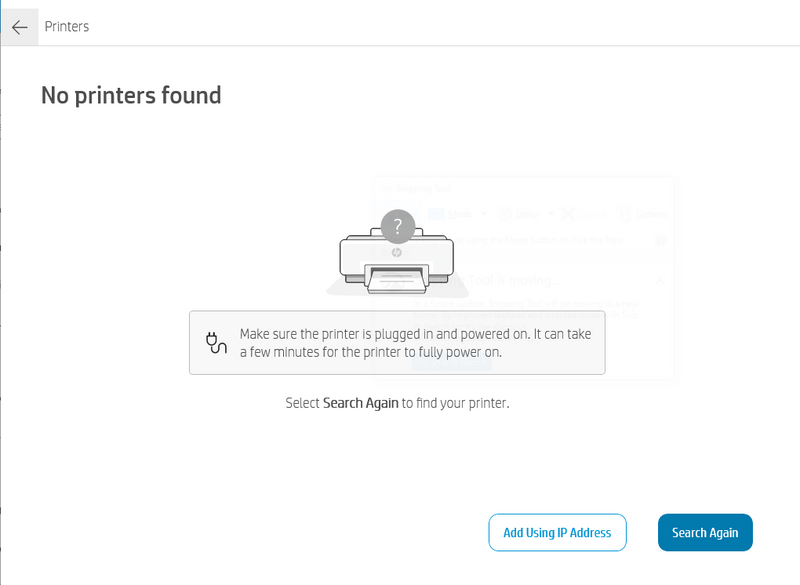
HP Smart can't find HP Smart Tank 500. Error prompt is attached ('No printers found'). Power is on (printer has light indicator). USB ports are connected (device can detect HP Smart Tank). I'm using Windows 10 Enterprise (16-bit). How is this fixed? I've installed it successfully in an older laptop a year ago.Capture.PNG

1 REPLY 1
HP Recommended

@kazej 

Hello,

Connect the USB cable only when the application prompts you to do so.

Follow the procedure below to resolve this issue:

  1. Turn on the printer.

  2. Close the HP Smart App.
  3. Disconnect the USB cable from your computer USB port.

  4. On the keyboard, press the Windows and R keys simultaneously. The Run window opens.

  5. Type control printers, and press the Enter key. The Devices and Printers window opens.
  6. Right-click on the name of your HP Smart Tank 500 series printer, then click Remove device, and then click Yes.

  7. Restart the computer.

  8. Make sure an open USB port is available on your computer. Do not connect the printer to a USB hub or docking station as the printer might not receive enough power to operate properly.

  9. On your computer, open HP Smart.

  10. Follow the guided installation to complete the setup. If the setup does not begin automatically, click the Plus () sign.


If this does not solve the problem, please use the HP Smart Tank 500 series Printer Full Software and Drivers to install your printer.

Don't hesitate to contact us in case of need.


Best regards,:Wink:


I'm not an HP employee. Did this message answer your question? Include it below as an Accept As Solution! Did you find this message useful?  Click on the thumbs up set to give a Compliment! Follow us on Facebook Assistance customers HP.

Archived This topic has been archived. Information and links in this thread may no longer be available or relevant. If you have a question create a new topic by clicking here and select the appropriate board.
† The opinions expressed above are the personal opinions of the authors, not of HP. By using this site, you accept the <a href="https://www8.hp.com/us/en/terms-of-use.html" class="udrlinesmall">Terms of Use</a> and <a href="/t5/custom/page/page-id/hp.rulespage" class="udrlinesmall"> Rules of Participation</a>.
This widget could not be displayed.