
-
×InformationNeed Windows 11 help?Check documents on compatibility, FAQs, upgrade information and available fixes.
Windows 11 Support Center. -
-
×InformationNeed Windows 11 help?Check documents on compatibility, FAQs, upgrade information and available fixes.
Windows 11 Support Center. -
- HP Community
- Archived Topics
- Printers Archive
- Re: Ink Tank Cartridge Failure

Create an account on the HP Community to personalize your profile and ask a question
Your account also allows you to connect with HP support faster, access a personal dashboard to manage all of your devices in one place, view warranty information, case status and more.
 This topic has been archived. Information and links in this thread may no longer be available or relevant. If you have a question create a new topic by clicking here and select the appropriate board.

08-18-2019 01:59 AM - last edited on 10-30-2020 03:57 PM by CommunityBot
 HP Recommended
Product: HP Ink Tank Wireless 415
Operating System: Microsoft Windows 10 (32-bit)
Suddenly I have started getting an error of Cartridge Failure. The color cartridge is showing the blinking red dot on the printer.
The HP cartridge is failed or damaged. This message has started showing on the HP application. I have removed the cartridge and reinstalled it but it is still showing me the same issue.
Kindly suggest
5 REPLIES 5


08-20-2019 10:34 AM
HP Recommended
Welcome to the HP Support Community.
Let's try to reset the Printer here:
Turn the printer on, if it is not already on.
- Wait until the printer is idle and silent before you continue.
- With the printer turned on, disconnect the power cord from the rear of the printer.
- Unplug the power cord from the wall outlet.
- Wait at least 60 seconds.
- Plug the power cord back into the wall outlet.
- NOTE: HP recommends connecting the printer power cord directly to the wall outlet.
- Reconnect the power cord to the rear of the printer.
- Turn on the printer, if it does not automatically turn on.
- Wait until the printer is idle and silent before you proceed.
Also, try connecting the Printer to a different wall outlet directly.
The printer might display an error if the printheads are not correctly installed. Perform the following steps for the printhead(s) indicated by the Printhead icons  on the printer control panel.
-
Close the output tray extender, and then rotate the output tray left to stow it in the printer.
-
Open the exterior door, and then open the printhead access door.
-
If the carriage is not visible, press and hold the Black Color Copy
 button for 3 seconds.
The carriage moves to the center of the printer.
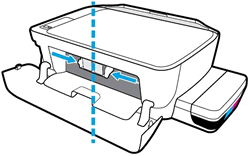
-
Gently push down on the blue carriage latch.
The blue carriage latch opens.
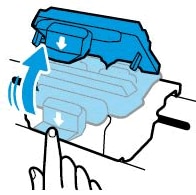
-
Lightly press down on the printhead to release it, and then pull the printhead out of its slot.
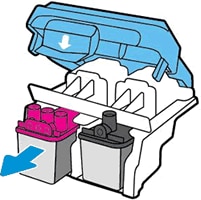
-
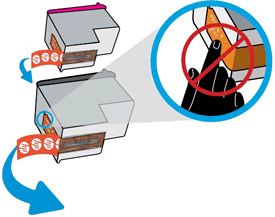
Make sure the plugs on top of the printhead have been removed.
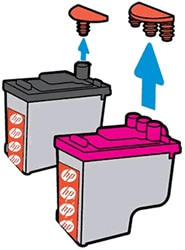
-
Make sure the tape from the printhead contacts has been removed.
CAUTION:
Do not touch the copper-colored contacts or the ink nozzles. Do not replace the protective tape on the contacts. Handling these parts can result in clogs, ink failure, and bad electrical connections.
-
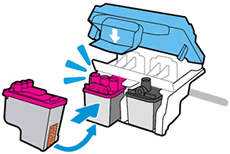
Slide the printhead at a slight upward angle into the empty slot, and then gently push up on the printhead until it snaps into place.
-
Insert the tri-color printhead into the left slot.
-
Insert the black printhead into the right slot.
-
-
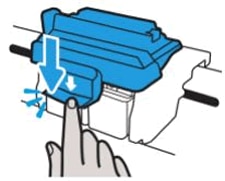
Close the blue carriage latch by pushing down firmly until the latch snaps into place.
-
Close the printhead access door.
-
Close the exterior door.
The priming process continues.
If you have a spare color ink cartridge, try that and see if you still get the error message.
Let me know if this helps.
If the information I've provided was helpful, give us some reinforcement by clicking the Accepted Solution button, that'll help us and others see that we've got the answers!
Thanks!
I am an HP Employee

08-26-2019 09:27 AM
HP Recommended
Hi sorry to jump in. I have the exact same problem and have followed your instructions but the issue still persists. Is there any other way to fix this without a different cartridge? I would have to buy another cartridge because I don't have a different cartridge.
08-27-2019 08:05 AM
HP Recommended
Welcome to the HP Support Community.
Unfortunately no. I hope this answers your question. Let me know if you need any further assistance.
If the information I've provided was helpful, give us some reinforcement by clicking the Accepted Solution button, that'll help us and others see that we've got the answers!
Thanks!
Have a great day!
I am an HP Employee
This topic has been archived. Information and links in this thread may no longer be available or relevant. If you have a question create a new topic by clicking here and select the appropriate board.
† The opinions expressed above are the personal opinions of the authors, not of HP. By using this site, you accept the Terms of Use and Rules of Participation.


Didn't find what you were looking for?
Ask the community
† The opinions expressed above are the personal opinions of the authors, not of HP. By using this site, you accept the <a href="https://www8.hp.com/us/en/terms-of-use.html" class="udrlinesmall">Terms of Use</a> and <a href="/t5/custom/page/page-id/hp.rulespage" class="udrlinesmall"> Rules of Participation</a>.