• ×
    Information
    Need Windows 11 help?
    Check documents on compatibility, FAQs, upgrade information and available fixes.
    Windows 11 Support Center.
  • post a message
  • ×
    Information
    Need Windows 11 help?
    Check documents on compatibility, FAQs, upgrade information and available fixes.
    Windows 11 Support Center.
  • post a message
Guidelines
Seize the moment! nominate yourself or a tech enthusiast you admire & join the HP Community Experts!
Archived This topic has been archived. Information and links in this thread may no longer be available or relevant. If you have a question create a new topic by clicking here and select the appropriate board.

HP Recommended
HP 8610
  • IMG_0594.PNG
1 REPLY 1
HP Recommended

Hello , 


Confirm the issue is not printing-related 


Step 1 - Clean the scanner glass. 


Clean the scanner glass and underside of the scanner lid with a soft, lint-free cloth sprayed with glass cleaner.
 
  1. Turn the printer off, then disconnect the power cord.
  2. Lift the scanner lid.
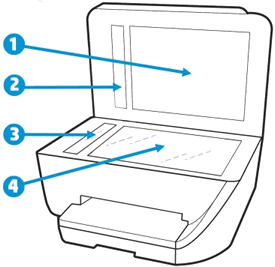
  3. Spray a soft, lint-free cloth with glass cleaner, then wipe the scanner glass, glass strip (if present), the white backing under the scanner lid, and the white strip under the lid (if present) until clean, dry, and streak-free.
     CAUTION:
    To protect the interior printer parts, do not spray the cleaner directly on the glass or on the underside of the lid.
    Figure : Clean the scanner glass and under the lid, and any glass or white strips (if present)
    Clean the scanner glass and  under the lid, and any glass or white strips
    1. White scanner lid backing
    2. White ADF scanner lid strip (if present)
    3. Glass ADF scanner strip (if present)
    4. Main scanner glass
  4. Reconnect the power cord, turn on the printer, then close the scanner lid completely.
  5. Load the original document or photo, then try to scan. Make sure the original document or photo is in good condition and free of tears, creases, folds, staples, or tape.

            Step 2 - Reset the printer


Resetting the printer can force some types of scanners to calibrate which might fix the problem.
  1. Remove any items from the scanner glass and automatic document feeder (ADF), then close the scanner lid.
  2. With the printer turned on, disconnect the power cord from the printer and from the wall outlet or power strip.
  3. Wait at least 60 seconds.
  4. Plug the power cord back into a wall outlet.
     NOTE:
    HP recommends connecting the printer power cord directly to a wall outlet.
  5. Reconnect the power cord to the printer.
  6. Load the original document or photo, then try to scan or copy .


Let me know if this helps!

Have a beautiful day ahead! 


“ If you found this reply helpful”, you can let others know by

“Accepting This As The Solution.” You can also show your appreciation by “Giving Kudos.”

Archived This topic has been archived. Information and links in this thread may no longer be available or relevant. If you have a question create a new topic by clicking here and select the appropriate board.
† The opinions expressed above are the personal opinions of the authors, not of HP. By using this site, you accept the <a href="https://www8.hp.com/us/en/terms-of-use.html" class="udrlinesmall">Terms of Use</a> and <a href="/t5/custom/page/page-id/hp.rulespage" class="udrlinesmall"> Rules of Participation</a>.