
-
×InformationNeed Windows 11 help?Check documents on compatibility, FAQs, upgrade information and available fixes.
Windows 11 Support Center. -
-
×InformationNeed Windows 11 help?Check documents on compatibility, FAQs, upgrade information and available fixes.
Windows 11 Support Center. -
- HP Community
- Archived Topics
- Printers Archive
- Re: Multiple Scanner Choices When trying to scan

Create an account on the HP Community to personalize your profile and ask a question
Your account also allows you to connect with HP support faster, access a personal dashboard to manage all of your devices in one place, view warranty information, case status and more.
 This topic has been archived. Information and links in this thread may no longer be available or relevant. If you have a question create a new topic by clicking here and select the appropriate board.

06-08-2017 09:43 AM
 HP Recommended
Product: HP 8620 Officejet
Operating System: Microsoft Windows 10 (64-bit)
I uninstalled and reinstalled my software for this printer several times. Each time after installation it leaves the name of each printer in numerical sequence. When I attempt to scan, a dialogue box comes up showing all of the previous scanners as follows:
HP Officejet 8620 (Net)
Hp Officejet 8620 (Net) #2
HP Officejet 8620 (Net) #3
Whenever I select Scan.exe, that is what occurs as well as any software that I attempt to scan from.
I need to be able to remove all of these so I only have the one that actually works. Two of the above cannot communicate with the software.

Please advise
5 REPLIES 5


06-08-2017 09:05 PM
HP Recommended
Hi,
Thanks for using the HP Forums.
Would suggest that you delete all the instances in the "Devices and Printers" and then Uninstall/Reinstall the FULL feature software.
Please Uninstall and Reinstall the FULL feature software following these steps:
1. Uninstall the software in your computer
2. Download and save the FULL feature software (do not install it online)
The following resource will help you :
http://123.hp.com/us/en/
Key in your printer model, Operating System and download & install the FULL feature software.
3. Install the FULL feature “Saved” software
Once you have downloaded and installed the FULL feature software, you will be able to print and scan.
If you are not sure how to do this, the following resource will walk you through the steps:
How to Uninstall Download & Reinstall a Printer software
Hope that helps!
I am an HP Employee. Although I am speaking for myself and not for HP.
Click Helpful = Yes to say Thank You.
Question / Concern Answered, Click "Accept as Solution"

Click Helpful = Yes to say Thank You.
Question / Concern Answered, Click "Accept as Solution"
06-09-2017 09:44 AM
HP Recommended
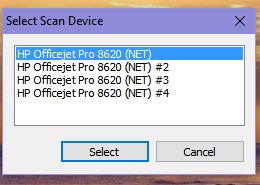
My printer is woking just fine. However, when I attempt to scan I again am getting a dialog window showing now 4 choices of scanners. EACH TIME I DELETE AND REINSTALL THE SOFTWARE, IT ADDS ANOTHER SCANNER CHOICE AS SHOWN ATTACHED. Any suggestions sure would be appreciated. If you have contact with HP perhaps they have a solution.
06-09-2017 11:08 AM
HP Recommended
Hi,
Can you try tis:
Testing Printers
1. Click the Windows "Start" button and select "Devices and Printer."
2. Right-click the original version of the printer and select "Printer Properties."
3. Click "Print Test Page" from the General tab to test the printer's functionality.
4. Look for a yellow exclamation point in front of the printer in the Devices and Printer window, which indicates a problem. If you don't see an exclamation point, but the printer does not print the test page, right-click the printer and select "See What's Printing." Look for an error in the Status column. Make sure the printer is turned on and connected to your computer before giving up on it.
5. Repeat the process for each copy, if you conclude the original printer does not work. Locate a copy that works and keep that copy.
Removing Printer Copies
1. Open the "Devices and Printers" window again.
2. Right-click the copy you want to delete and select "Remove Device."
3. Click "Yes" in the confirmation window. If you had to keep a copy, you might want to rename it, so it appears to be the original version without having "(Copy #)" appended.
Renaming Printers
1. Right-click the printer from the Devices and Printers window and select "Printer Properties."
2. Delete "(Copy #)" from the top field of the General tab.
3. Click "OK."
Thanks.
I am an HP Employee. Although I am speaking for myself and not for HP.
Click Helpful = Yes to say Thank You.
Question / Concern Answered, Click "Accept as Solution"
Click Helpful = Yes to say Thank You.
Question / Concern Answered, Click "Accept as Solution"
06-09-2017 04:35 PM
HP Recommended
Thank you for your reply. However, under Devices and Printers in Windows 10, there only shows ONE PRINTER.
When right clicking the HP OFFICEJET PRO 8620 (Network),i selected Scan Profiles. It showed several scanners with numbers. I attempted to delete all but one (default). Still, when I attempt to use the scanner multiple choices as previously sent still appear. THERE MUST BE SOMEPLACE IN MY COMPUTER WHERE I CAN GET TO THESE SCANNERS AND DELETE THEM.
This is a major issue each time I need to scan. As mentioned before, prior to this new installation, I deleted everything in the registry and in Windows 10 that showed HP or Hewlett Packard and YET THESE SCANNERS KEEP COMING UP.
i run HP Rin and Scan Doctor 5.0 and it brings up 3 ersions of the same printer. Yet, in Device and Printers it only shows one PRINTER. I am attaching a image for you to see.

06-12-2017 04:52 PM
HP Recommended
Again, I appreciate your quick response. Unfortunetly, your suggestion is good if all of the printers show up in Devices and Printers. However, they all do not show up in the Windows feature. In Devices and Printers ( Windows 10), only shows one version of the HP printer. When I open HP Scan, it shows the 4 different printers with the # number next to each one.
These must be somewhere on the hardrive. I tried the registry as well as a search of Windows 10 an the 4 printer names do not come up anywhere. Only when I attempt a scan using HP software. This seems to be a real mystery even for a knowledgable person such as yourself. It is extremely frustrating.
Perhaps you can come up with another favorble suggestion. I really appreciate your efforts.
CrankyHanky
This topic has been archived. Information and links in this thread may no longer be available or relevant. If you have a question create a new topic by clicking here and select the appropriate board.
† The opinions expressed above are the personal opinions of the authors, not of HP. By using this site, you accept the Terms of Use and Rules of Participation.


Didn't find what you were looking for?
Ask the community
† The opinions expressed above are the personal opinions of the authors, not of HP. By using this site, you accept the <a href="https://www8.hp.com/us/en/terms-of-use.html" class="udrlinesmall">Terms of Use</a> and <a href="/t5/custom/page/page-id/hp.rulespage" class="udrlinesmall"> Rules of Participation</a>.