• ×
    Information
    Need Windows 11 help?
    Check documents on compatibility, FAQs, upgrade information and available fixes.
    Windows 11 Support Center.
  • post a message
  • ×
    Information
    Need Windows 11 help?
    Check documents on compatibility, FAQs, upgrade information and available fixes.
    Windows 11 Support Center.
  • post a message
Guidelines
Join the HP Community Solve‑a‑thon | Help Others & Share Your Solutions | Live on Zoom | 2:30 PM to 2:30 AM IST | Every Wednesday Click here to know more
Archived This topic has been archived. Information and links in this thread may no longer be available or relevant. If you have a question create a new topic by clicking here and select the appropriate board.

HP Recommended
Photosmart Premium C309g-m
Microsoft Windows 7 (64-bit)

When printing for any software program, it prints fine. However; when I try to make a copy on the paper glass, the copy comes out blank with a message = Paper Mismatch  Please help me find the fix to this issue. Thanks

3 REPLIES 3
HP Recommended

@Helper4


Thanks for taking an interest in the HP Support Forums! After reading your post I see that you are getting paper mismatch error message on HP Photosmart premium c309-m printer. I would like to help you out with this issue today.

  • Adjust the paper size setting.
  • Check the paper source setting.
  • Reset the printer.

Click here and refer the document to perform the above troubleshooting steps.


Let me know how it goes.


Cheers.

Sandytechy20
I am an HP Employee

HP Recommended

Thanks for this information. The adgust size and check paper setting appear to relate to printing from the Computer. I'm not having a problem with those documents printing. Only when my source is directly on the printer.  Nevertheless, I'll try the third 'reset the printer' suggestion. I did that previously but didn't unplug from the wall.  I just unplugged from the printer. I'm not home right now but will try this when I return. Thanks again. 


Also, getting the new HP cartridges (all 5) show on the printer software (computer and printer screen) to have a problem. The 4 color cartridges show ? and the blank only half full. Again, these are brand new cartridges. I'm going to also replace these before I continue to the reset printer function. The printer will currently not allow me to ALIGN OR CLEAN. 

HP Recommended

@Helper4


Hi,


as @sandytechy20 is out of the office today, I'll take it from here. I read that you are facing an issue with copying and not printing. Also, I read that the new original black ink cartridge shows as half full. Not to worry, I'll do my best to help you.


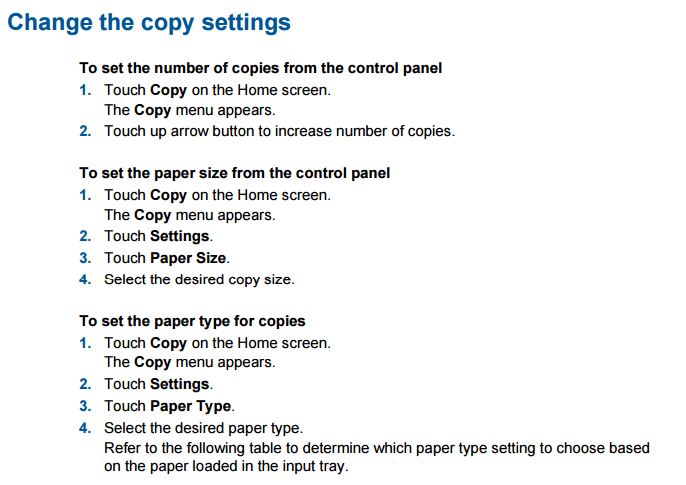
To change paper size and type while copying, please perform the following steps:


Also, refer to the supported paper sizes for copy from page no. 48 from the user guide.


For the black cartridge which shows that ink level is half full, please perform the following steps before you replace it:

  • Turn on the printer.

  • From the Home screen on the printer control panel, touch the right arrow .

  • Touch Ink Supplies.

    The current estimated ink levels display.

Figure : Example of ink levels

Image: Ink levels on control panel


NOTE: Ink level warnings and indicators provide estimates for planning purposes only. When an indicator shows low-ink levels, consider having a replacement ink cartridge available to avoid possible printing delays. You do not need to replace ink cartridges until print quality becomes unacceptable.


If the black ink level is still showing up as half full then I suggest you to perform the following steps:

  • Disconnect the power cable from the printer while the printer is still ON.
  • Disconnect any other cables if connected the printer.
  • Press and hold the printer’s power button for 15 seconds.
  • The printer should be directly connected to the wall outlet and not to a surge protector. Reconnect the power cable to print and the printer should power ON by itself. If the printer doesn’t power ON then please manually power it ON.

Check the ink levels again and if the ink level appears to be half then please perform steps as mentioned in Step 4 and Step 8 from this link


I sincerely hope this fixes the issue. Let me know how it goes. Cheers! 🙂

Archived This topic has been archived. Information and links in this thread may no longer be available or relevant. If you have a question create a new topic by clicking here and select the appropriate board.
† The opinions expressed above are the personal opinions of the authors, not of HP. By using this site, you accept the <a href="https://www8.hp.com/us/en/terms-of-use.html" class="udrlinesmall">Terms of Use</a> and <a href="/t5/custom/page/page-id/hp.rulespage" class="udrlinesmall"> Rules of Participation</a>.