• ×
    Information
    Need Windows 11 help?
    Check documents on compatibility, FAQs, upgrade information and available fixes.
    Windows 11 Support Center.
  • post a message
  • ×
    Information
    Need Windows 11 help?
    Check documents on compatibility, FAQs, upgrade information and available fixes.
    Windows 11 Support Center.
  • post a message
Guidelines
Seize the moment! nominate yourself or a tech enthusiast you admire & join the HP Community Experts!
Archived This topic has been archived. Information and links in this thread may no longer be available or relevant. If you have a question create a new topic by clicking here and select the appropriate board.

HP Recommended
HP 4520 printer
Microsoft Windows 10 (32-bit)

Printer has been idel for 2 months. Went to print, page blank. Ran diganostics, plenty of ink. Cleaned heads 3 times. Now color is OK, black only showing light gray on test page. When try to print document, nothing comes through at all.

3 REPLIES 3
HP Recommended

@stuck11


Let me take a moment to thank you for posting on the HP Support Forums. 


I understand that you have an HP ENVY 4520 All-in-One Printer and the cartridges stopped printing after 2 months of being left idle.You have clean the cartridges and now the color ink prints fine. However, the blank cartridges prints light gray. Fabulous analysis. Spectacular diagnosis of the issue before posting. Kudos to you for that.


It is quite possible the ink has dried out. If the cartridges are left unused in the printer then the ink nozzles dry out and thereby the ink flow stops during printing. For additional details on how to store opened cartridges, you may refer to this link: http://hp.care/2kekmHU.


Meanwhile, before you go ahead and replace the black cartridge, please try to clean it manually and then try to print by following the below steps:


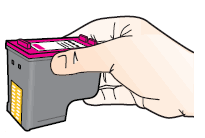
Figure: Hold the ink cartridge by its sides

Image: Hold the ink cartridge by its sides.


NOTE: Do not touch the copper-colored contacts or the ink nozzles. Touching these parts can result in clogs, ink failure, and bad electrical connections.


Figure: Do not touch the contacts or nozzles

Image: Do not touch the contacts or nozzles.

  • Lightly moisten a foam-rubber swab or lint-free cloth with distilled water, and then squeeze any excess water from it.

  • Clean the face and edges around the ink nozzle with the swab.


NOTE: Do not clean the ink nozzle plate.


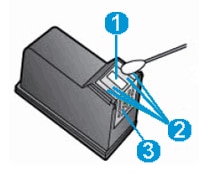
Figure: Clean the area around the ink nozzle

Image: The ink nozzle and ink cartridge contacts.


  • Nozzle plate - Do not clean

  • Area surrounding ink nozzle - Do clean

  • Ink cartridge contacts - Do not clean

  • Either let the ink cartridge sit for 10 minutes to allow the cleaned area to dry, or use a new swab to dry it.

  • Hold the ink cartridge by its sides with the nozzles toward the printer, then slide the ink cartridge forward into the slot.

  • Close the lid on the ink cartridge slot to secure the ink cartridge into place.

  • Repeat these steps to clean, then reinsert the other ink cartridge.

Hope this information helps. Keep me posted. Cheers! 🙂

HP Recommended

No luck. Afraid to use the more drastic options on YouTube. Guess I will have to buy a new cartridge, and that better work!


Thanks

HP Recommended

@stuck11


You are welcome. 🙂 I appreciate you taking your valuable time to troubleshoot.


Feel free to let me know how it goes. All the best! 🙂

Archived This topic has been archived. Information and links in this thread may no longer be available or relevant. If you have a question create a new topic by clicking here and select the appropriate board.
† The opinions expressed above are the personal opinions of the authors, not of HP. By using this site, you accept the <a href="https://www8.hp.com/us/en/terms-of-use.html" class="udrlinesmall">Terms of Use</a> and <a href="/t5/custom/page/page-id/hp.rulespage" class="udrlinesmall"> Rules of Participation</a>.