
-
×InformationNeed Windows 11 help?Check documents on compatibility, FAQs, upgrade information and available fixes.
Windows 11 Support Center. -
-
×InformationNeed Windows 11 help?Check documents on compatibility, FAQs, upgrade information and available fixes.
Windows 11 Support Center. -
- HP Community
- Archived Topics
- Printers Archive
- Re: computer cannot recognize it

Create an account on the HP Community to personalize your profile and ask a question
Your account also allows you to connect with HP support faster, access a personal dashboard to manage all of your devices in one place, view warranty information, case status and more.
 This topic has been archived. Information and links in this thread may no longer be available or relevant. If you have a question create a new topic by clicking here and select the appropriate board.

03-19-2017 08:52 PM
 HP Recommended
Product: Laserjet Pro MFP M125a
Operating System: Microsoft Windows 7 (32-bit)
Hello .
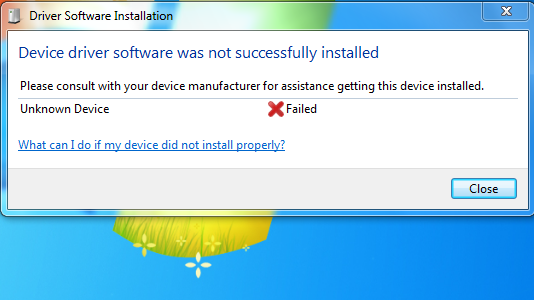
I have the Laserjet Pro MFP M125a . the problem is that suddenly the printer is not recognisable by my windows 8 . it still works on scanner print mode and no error apears. but computer cannot recognize it. i tryed to install it on windows 7 32bit. and the computer writes that an unknown device is connected, and hp software cannot find the printer connected on my computer. i have tested mode than 2 different usb cables. How can i reset it to see it something changes? what else i can do in order my computer to see the printer?
Note:
I am try the following steps and check if that solves the issue.
- Click Start, and then click Run.
- In the Open box, type devmgmt.msc, and then click OK. Device Manager opens.
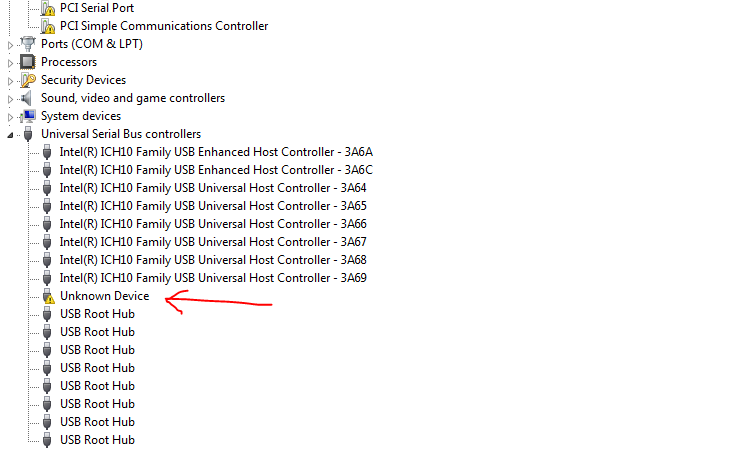
- Expand Universal Serial Bus controllers. ...
- Right-click the affected USB Root Hub, and then click Uninstall to remove it.
- Restart the computer
and using wint 7 -8 -and win 7 64bit
but... this problem Not Fix Please Help me
4 REPLIES 4


03-20-2017 03:51 PM
HP Recommended
Thank you for posting on HP Forums,
The Riddle_Decipher is at your service.
As I Understand your computer cannot recognise the printer anymore,
Don't worry as I'll be glad to help you, although, to provide an accurate solution, I'll need a few more details to dissect your concern:
Have you attempted to install the original or latest drivers from the HP website?
Did you try a firmware upgrade for your printer? if not please do.
If issue persists, please try the below steps,
Let's start with a root level removal of existing drivers and here's how to do it:
1.) In Windows, search for and open Programs and features
2.) Select your HP Printer
3.) Select Uninstall
4.) In Windows, search for and open Devices and printers
5.) In the Devices and Printers windows look for your HP printer. If you see it listed right-click on it and choose 'Delete' or 'Remove Device'
6.) Open up the run command with the "Windows key + R" key combo.
7.) Type printui.exe /s and click Ok. (Note: there is a space in between "printui.exe" and "/s")
8.) Click on the "Drivers" tab
9.) Look for HP Printer driver. If you see it Click on it and click Remove at the bottom
10.) Select Ok
11.) Select Apply and Ok on the Print Server Properties windows
12.) Close Devices and Printers
Install the latest drivers from the Official HP Website: Click here
Keep me posted,
If the information I've provided was helpful,
Give us some reinforcement by clicking the solution and kudos buttons,
That'll help us and others see that we've got the answers!
Good Luck.
Riddle_Decipher
I am an HP Employee
Learning is a journey, not a destination.
Let's keep asking questions and growing together.
03-23-2017 02:10 AM
HP Recommended
I m Trying
1.) In Windows, search for and open Programs and features
2.) Select your HP Printer
3.) Select Uninstall
4.) In Windows, search for and open Devices and printers
5.) In the Devices and Printers windows look for your HP printer. If you see it listed right-click on it and choose 'Delete' or 'Remove Device'
6.) Open up the run command with the "Windows key + R" key combo.
7.) Type printui.exe /s and click Ok. (Note: there is a space in between "printui.exe" and "/s")
8.) Click on the "Drivers" tab
9.) Look for HP Printer driver. If you see it Click on it and click Remove at the bottom
10.) Select Ok
11.) Select Apply and Ok on the Print Server Properties windows
12.) Close Devices and Printers
and use difrent computer's
same problem in all pc's
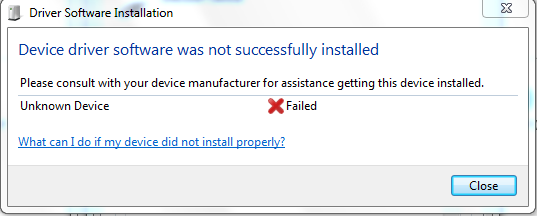
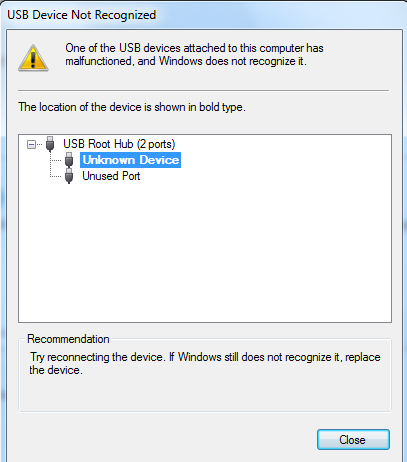
windows cannot recognize it unknown device
i m Just Connct printer Cable and show this massages

03-23-2017 09:12 AM
HP Recommended
You've done a remarkable job performing the steps suggested earlier, great work 🙂
And don't worry, as we should be able to fix this up with a few more steps and I'll be with you until we ensure this issue is fixed.
I understand your concern, the fact that you've already tried different USB ports & other computers as well,
Since none of the previously recommended steps has worked,
I have an alternative we can put to use, try the steps below:
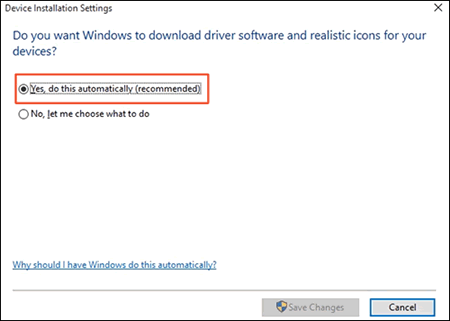
Step 1: Set Windows Update to automatically download driver software
Open the Windows Device Installation Settings and confirm that your computer is set to automatically download driver software.
-
Search Windows for change device installation, and then click the Change device installation settings Control Panel setting in the list of results.
Device Installation Settings window displays.
-
Select the Yes option, and then click Save Changes.
Figure : Example of selecting the Yes option
Step 2: Connect your printer to the computer
Connect your printer to the computer with a USB cable or through your local network so Windows can detect your printer during the print driver installation.
CLICK HERE FOR MORE DETAILS AND STEP BY STEP INSTRUCTIONS
Let me know how that pans out,
Feel free to post your query for any other assistance as well,
It's been a pleasure interacting with you and I hope you have a good day ahead.
If you wish to show appreciation for my efforts, mark my post as Accepted Solution.
And click on the Purple Thumbs up icon at the bottom of my comment.
Regards,
Riddle_Decipher
I am an HP Employee
Learning is a journey, not a destination.
Let's keep asking questions and growing together.
This topic has been archived. Information and links in this thread may no longer be available or relevant. If you have a question create a new topic by clicking here and select the appropriate board.
† The opinions expressed above are the personal opinions of the authors, not of HP. By using this site, you accept the Terms of Use and Rules of Participation.


Didn't find what you were looking for?
Ask the community
† The opinions expressed above are the personal opinions of the authors, not of HP. By using this site, you accept the <a href="https://www8.hp.com/us/en/terms-of-use.html" class="udrlinesmall">Terms of Use</a> and <a href="/t5/custom/page/page-id/hp.rulespage" class="udrlinesmall"> Rules of Participation</a>.