
-
×InformationNeed Windows 11 help?Check documents on compatibility, FAQs, upgrade information and available fixes.
Windows 11 Support Center. -
-
×InformationNeed Windows 11 help?Check documents on compatibility, FAQs, upgrade information and available fixes.
Windows 11 Support Center. -
- HP Community
- Archived Topics
- Printers Archive
- paper jam

Create an account on the HP Community to personalize your profile and ask a question
Your account also allows you to connect with HP support faster, access a personal dashboard to manage all of your devices in one place, view warranty information, case status and more.
 This topic has been archived. Information and links in this thread may no longer be available or relevant. If you have a question create a new topic by clicking here and select the appropriate board.

03-22-2017 02:38 PM
 HP Recommended
Product: Officejet Pro 8500
Operating System: Linux
My printer stopped printing for a paperjam. I've followed the multistep instructions on line to clear the jam. Now, I can't proceed because the error has been superceded by one for low ink cartridges - cyan and magenta. I can fiddle with the menu to barely get back to printing but get a paper jam error.
Can I set to print b&w and get around the cartridge error? What else can I do to resolve the original problem: paper jam?
8 REPLIES 8

03-22-2017 06:58 PM - edited 03-22-2017 06:59 PM
HP Recommended
Hi DonM1,
Welcome to HP Forum! Have you tried these steps to clear paper jam from this link?
1. Make sure there is no loose paper from input and output tray.
2. Remove duplexer and check that there is no jammed paper.
You can check if the printer works when you print a self-test report. However, all the cartridges need to be full. Otherwise, there is always an error blinking, which will block any printing job. To assess if your printer works fine without paper jam, try to do a Copy B&W instead. Let me know if this works for you.
Although I am a HP employee, I am speaking for myself and not for HP.
***Click Kudos! if this solution works for you or if you like this post.***
***Click Kudos! if this solution works for you or if you like this post.***


03-22-2017 07:09 PM
HP Recommended
The Officejet 8500 has separate ink supplies and printheads, with plumbing to connect them. The printer will require ink in all the colors even to print in black. This is to avoid ink in the plumbing or printhead that could damage the printing system.
You will need to replace the depleted cartridges before printing will be allowed.
Bob Headrick, HP Expert
I am not an employee of HP, I am a volunteer posting here on my own time.
If your problem is solved please click the "Accept as Solution" button
If my answer was helpful please click "Yes" to the "Was this post helpful" question.
03-23-2017 11:37 AM
HP Recommended
Bob,
Thanks for your response. Sometimes as I fiddle with the menu, there's a quick status about a printer jam. But the system as quickly reverts ot the message about the ink cartridges. So, it seems that the system can make this check without printing and damaging the heads. I'm trying to avoid the expense of buying ink when I don't even know if the system is salvageable. As I wrote before, I've gone through the multi-step process on the support web site without success in clearing the jam. I think, therefore, that the problem is with a sensor. Is this the likely issue? Is it reasonable to conclude that the printer is not salvageable because of the cost to diagnose and repair?
Regards,
Don
03-23-2017 11:44 AM
HP Recommended
Cleavender,
Thanks for your response. I've been through the extensive troubleshooting page on the website and found no paperjams. I'm hoping for a way to suspend or interrupt all other tasks in order to do a check for a paperjam only and to then revert to its previous status. I'm getting the feeling that this is not possible.
Don
03-23-2017 12:38 PM
HP Recommended
For the paper jam issue - does the paper move into the printer and get stuck at some point, of does the paper not get picked up at all? Paper jams can be "real", where the paper is actually obstructed at some point, or "false" where the paper is not being picked up to feed through the printer.
The real ones are typically caused by torn paper, left in the mechanism from clearing a previous jam. This is typically resolved with a flashlight and perhaps tweezers to clear out the stray bits. It is also possible the issue is a problem with a sensor, so the progress of the paper through the printer is not being detected.
The false ones are typically due to the rollers getting slick and not properly grabbing the paper. They are typically cleared by cleaning the rollers.
I do not know what you have already done, or what your results have been so it is hard to suggest whether it is worth investing in a new set of cartridges. Do you know how many pages have been printed in the life of the printer? I think this information would be available from the Embedded Web Server (EWS) of the printer by visiting the IP address of the printer in your browser. This should work assuming your printer is on the network, and the info should be available even if the printer is in an error state with the cartridges.
Bob Headrick, HP Expert
I am not an employee of HP, I am a volunteer posting here on my own time.
If your problem is solved please click the "Accept as Solution" button
If my answer was helpful please click "Yes" to the "Was this post helpful" question.
03-24-2017 11:47 AM
HP Recommended
Bob,
I followed the protocol on support.hp.com/us-en/document/c01617494 — all the steps. I have cleaned the rollers. The previous owner (my son) says that he only printed 150-200 pages; so, assume less than 1000. The printer has sat for about 2yr so the ink probably dried out. Could I refill with alcohol or distilled water just to test a b&w page without damaging printing heads?
I connected to the printer and got to a login page with a Motorola logo. Is this correct? I don't have motorola equipment on my local net. I failed to login as I don't know the password. My son says he did not reset. Do you know the default login?
Don
03-24-2017 12:51 PM
HP Recommended
OK, 1K pages or less is in the "like new" category.
If you were going to try something to refill I would not use alcohol, this could cause problems with the printheads and/or the plumbing. Distilled water may be OK. With such little usage the print cartridges are probably the original ones. The Officejet 8500 was subject to ink expiration enforcement to protect the printheads and plumbing from thickening ink.
What exactly is the error message on the printer? A carriage jam message would indicate the printer is having trouble moving the printheads, this may be caused by a paper jam but is a different issue. Is the ink message that the ink is depleted, or some other message?
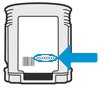 What is the date on the print cartridges?
I have no idea about the Motorola logo - is this on the front panel of the printer or on your PC?
Bob Headrick, HP Expert
I am not an employee of HP, I am a volunteer posting here on my own time.
If your problem is solved please click the "Accept as Solution" button
If my answer was helpful please click "Yes" to the "Was this post helpful" question.
03-25-2017 08:28 AM
HP Recommended
Bob
What exactly is the error message on the printer?
Replace the following depleted ink cartridges to resume printing (magenta) (cyan)
What is the date on the print cartridges?
2012/12/17
I have no idea about the Motorola logo
My mistake. That was from a Vonage/Motorala router that I had overlooked. I was following your suggestion to access the printer from the local net but do not know the printer's IP address. Google search info was that 192.168.1.141 is default for HP printers. Obviously not in this case.
Continuing thanks.
This topic has been archived. Information and links in this thread may no longer be available or relevant. If you have a question create a new topic by clicking here and select the appropriate board.
† The opinions expressed above are the personal opinions of the authors, not of HP. By using this site, you accept the Terms of Use and Rules of Participation.


Didn't find what you were looking for?
Ask the community
† The opinions expressed above are the personal opinions of the authors, not of HP. By using this site, you accept the <a href="https://www8.hp.com/us/en/terms-of-use.html" class="udrlinesmall">Terms of Use</a> and <a href="/t5/custom/page/page-id/hp.rulespage" class="udrlinesmall"> Rules of Participation</a>.