• ×
    Information
    Need Windows 11 help?
    Check documents on compatibility, FAQs, upgrade information and available fixes.
    Windows 11 Support Center.
  • post a message
  • ×
    Information
    Need Windows 11 help?
    Check documents on compatibility, FAQs, upgrade information and available fixes.
    Windows 11 Support Center.
  • post a message
Guidelines
Join the HP Community Solve‑a‑thon | Help Others & Share Your Solutions | Live on Zoom | 2:30 PM to 2:30 AM IST | Every Wednesday Click here to know more
Archived This topic has been archived. Information and links in this thread may no longer be available or relevant. If you have a question create a new topic by clicking here and select the appropriate board.

HP Recommended
HP office jet 4658
Other

Hi 

When I scan a multi page document through the document feeder on the printer it no longer comes out a s a whole document but just as separate pages, this has just started happening, any suggestions?

5 REPLIES 5
HP Recommended

@Crodwick


Welcome to HP support community.


Which operating system is installed on the computer to which this printer is connected?

Which application are you using to scan?


Reply with the requested information for more assistance.

Cheers.

Sandytechy20
I am an HP Employee

HP Recommended

I am guessing your file type was changed from a PDF to a jpg.  A jpg can only be one page because it's a photo file type.  If you set it to pdf it can be a multipage file. 

I am an HP employee.
HP Recommended

Hello,


I am using Catalina and the app is HP smart


Thanks

HP Recommended

Thanks, but do I set it on the app? I have looked but it does not seem to have that facility


Regards Tony 

HP Recommended

@Crodwick


Let us try these steps: 

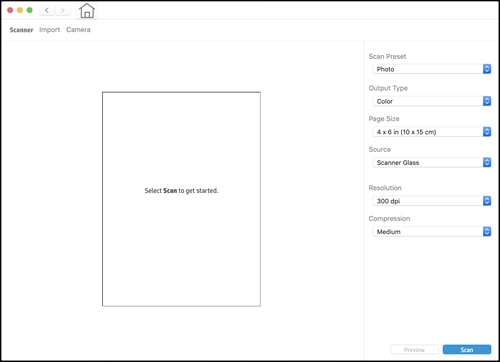
  1. Open HP Smart app, Click the Scan tile.

  2. From the Scan window, change any settings to match the scan job, and then click Scan.

    The scanned document or image displays on the Preview window.

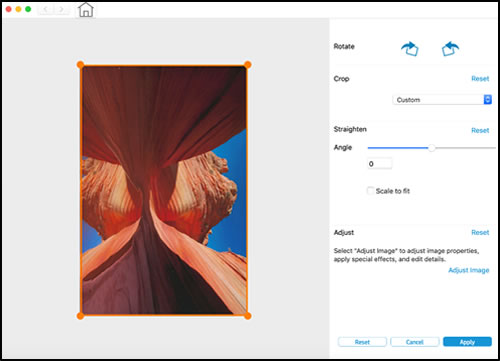
  3. Click Edit.

  4. Adjust the border, rotate, crop, or straighten the image, if necessary, and then click Apply.

    Example of an editable scan

  5. Click Add Pages to add pages to your scan job, if necessary, and then print, save, or share the scan.

Alternatively, you may use Apple Image Capture to scan from your MAC (recommended)

Refer to this document to know how. here you also have an option to save multiple page documents or multiple images into a single file.


Let me know how this goes.


If you feel my post solved your issue, please click “Accept as Solution”, it will help others find the solution. Click the “Kudos/Thumbs Up" on the bottom right to say “Thanks” for helping!

KUMAR0307
I am an HP Employee

Archived This topic has been archived. Information and links in this thread may no longer be available or relevant. If you have a question create a new topic by clicking here and select the appropriate board.
† The opinions expressed above are the personal opinions of the authors, not of HP. By using this site, you accept the <a href="https://www8.hp.com/us/en/terms-of-use.html" class="udrlinesmall">Terms of Use</a> and <a href="/t5/custom/page/page-id/hp.rulespage" class="udrlinesmall"> Rules of Participation</a>.