-
×InformationNeed Windows 11 help?Check documents on compatibility, FAQs, upgrade information and available fixes.
Windows 11 Support Center. -

-
×InformationNeed Windows 11 help?Check documents on compatibility, FAQs, upgrade information and available fixes.
Windows 11 Support Center. -
- HP Community
- Archived Topics
- Printers Archive
- Error: The HP Scan application cannot find an email applicat...

Create an account on the HP Community to personalize your profile and ask a question
05-11-2022 09:07 AM
When using HP Scan application with HP ScanJet Pro 2000 s1 and scanning to email the following message pops up: "The HP Scan application cannot find an email application installed on the computer. Please ensure your email application is installed and properly configured."
Outlook is installed and set as the default. If I right click a document in windows and do 'Send To' -> 'Mail Recipient' and Outlook message pops up.
Tried reinstalling both Office 365 apps and the scan application.
This work on my previous PC also Windows 10 64-bit.
05-11-2022 10:06 AM
Welcome to the HP User Community.
Not sure - perhaps the previous PC had the 365 patch installed (in addition to the full driver scanner software)
First - Install the Full Feature Software / full driver printer - scanner software
HP ScanJet Pro 2000 s1 Full Feature Software and Driver
After the installation is complete, Restart the computer and sign in
Next - Install the patch
Scan to Office 365 Plug-in Software
Example
Right-Click on the downloaded installation package and select to Run as Administrator
References / Resources
Software and drivers for HP ScanJet Pro 2000 s1 Sheet-feed Scanner
HP Printer Home Page - References and Resources – Learn about your Printer - Solve Problems
“Things that are your printer”
When the website support page opens, Select (as available) a Category > Topic > Subtopic
NOTE: Content depends on device type and Operating System
Categories: Alerts, Access to the Print and Scan Doctor (Windows), Warranty Check, HP Drivers / Software / Firmware Updates, How-to Videos, Bulletins/Notices, Lots of How-to Documents, Troubleshooting, Manuals > User Guides, Product Information (Specifications), more
Open
HP ScanJet Pro 2000 s1 Sheet-feed Scanner
Thank you for participating in the HP Community.
Our Community is comprised of volunteers - people who own and use HP devices.
05-16-2022 09:00 AM - edited 05-16-2022 10:27 AM
OK.
I might be missing something - I don't use (have never used) Office / Microsoft 365.
I do have Microsoft 2021 Professional installed - might behave in a similar manner OR could be completely different. ??
In so much that I am aware, there is not too more you can do from within HP Scan.
(As you know), there is a switch in HP Scan to select the email client.
Assuming the switch works, when the "email" option is selected, the content is scanned - (then) the operation is turned over to the mail client.
Example
9025_HP_Scan_PDF_to_Email_2
What else?
Based on the little I can find on the subject,
HP Smart for Windows might - or might NOT - work with your scanner.
??
Might be worth a try.
If the HP Smart application does install,
If, after installing, the application can "add" your printer / scanner,
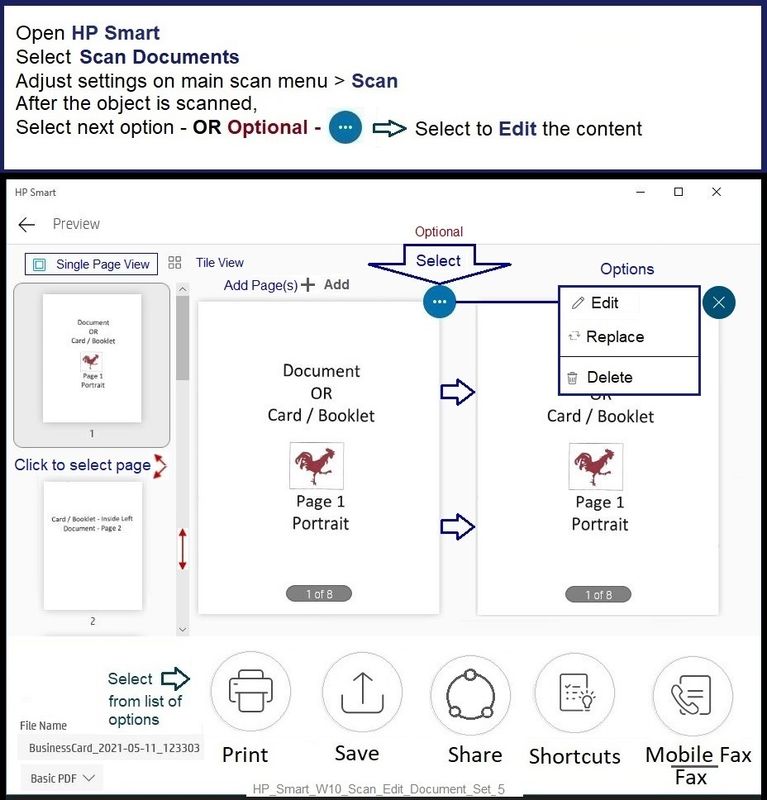
HP Smart does support scanning and then "Sharing" (send to email).
Prerequisite:
Before using the Share option in HP Smart,
Add the "sender" email address to the Windows Mail app.
HP Smart can scan and then "Share" the scanned content to a number of locations, including "Mail".
General Example
HP_Smart_W10_Scan_Edit_Select_8
HP_Smart_W10_Scan_Edit_Document_Set_5
HP Smart for Windows
HP Smart is an application available in the Microsoft Store
OR
Open the Homepage / Support Website for your printer
Category Software and Drivers > Check/ Get the App
>>> Open and Read >>> HP printer setup (HP Smart app)
NOTES:
- Disconnect from Virtual Private Network (VPN) connection before downloading.
- Turn on Wi-Fi on your computer or mobile device and connect to your network. If the computer is connected to the network with an Ethernet cable, temporarily disconnect the cable and use the Wi-Fi connection during the setup.
- HP Smart requires that you sign into the application using your HP Account credentials.
- When working through a browser to access HP Smart, be sure you have Cookies enabled. If cookies are enabled and you are having trouble, clear Cache and Cookies. And / Or … Try a different browser – assign that browser as the Default. (Note: Chrome not working? Use / Assign a different default browser.)
- Where possible, HP Smart benefits (likes) having the Full Feature Software / full driver printer software installed. For example, full driver provides access to Shortcuts and Printing Preferences.
- Document includes the HP Smart application download links for Windows and Mobile devices, plus an FAQ section to assist with questions / issues.
- FAQ examples:
- What are the requirements to use the HP Smart app?
- Which printers are compatible with the HP Smart app?
- Why do I need to sign in or create an account to use the HP Smart app features?
- Which languages does the HP Smart app support?
- Older versions of the HP Smart app no longer support the required login feature.
- Update the application to the latest version to access / use HP Smart
- FAQ examples:
===================================================
Thank you for participating in the HP Community.
Our Community is comprised of volunteers - people who own and use HP devices.
Click Helpful = Yes to say Thank You
Question / Concern Answered, Click "Accept as Solution"