• ×
    Information
    Need Windows 11 help?
    Check documents on compatibility, FAQs, upgrade information and available fixes.
    Windows 11 Support Center.
  • post a message
  • ×
    Information
    Need Windows 11 help?
    Check documents on compatibility, FAQs, upgrade information and available fixes.
    Windows 11 Support Center.
  • post a message
Guidelines
Seize the moment! nominate yourself or a tech enthusiast you admire & join the HP Community Experts!
Archived This topic has been archived. Information and links in this thread may no longer be available or relevant. If you have a question create a new topic by clicking here and select the appropriate board.

HP Recommended
HP Pavilion 10-k012ca x2 Detachable PC
Microsoft Windows 10 (32-bit)

Hi Folks,


My Tablet is trying to upgrade for several weeks from Win 10 v1607.

The upgrade requires 8GB of space on the C Drive, but this just isn't possible with the onboard resources.


I have added a 32 GB stick and loaded the Windows Fall Creators Update via the stick. ( Windows 10 32 bit version )


The progress originally took 28 hours ands failed the first time.

( The version remained at 1607 after the update. )


The second attempt has taken 2 days at it is now at 5 % completion.


Has anyone else successfully upgraded to the currently supported version ?

What did you do ??


Thanks

1 ACCEPTED SOLUTION

Accepted Solutions
HP Recommended

Hey there Riddle,


I am finally successful in upgrading to the Fall Creators Upgrade to v1709.


My Storage usage on the C drive was 25 GB out of 29.

The Hibernation file was only 800 MB.


The upgrade needed a minimum of 8GB free on the C Drive.


( Note that the option to leverage a smaller space requirement on the C drive while including incremental space on the SD Card or USB Thumb Drive never did work.)  This avenue would run through the upgrade ( Taking 48 hours to complete) however it would result in failure each time.


I inspected by C drive carefully and found 4 GB + consumed in my USER folder structure.

Most space was located under the Microsoft Apps folders.


So I began removing installed apps one by one.

( Recall that I have already removed Office 365 to get to the current volumes )


The two major changes that freed enough space were:

1) Mcaffee Security Package

2) The abanonded Outlook OST file at 850MB )


WIth this I now had 8.4 GB free and the native upgrade package started to work.

The entire upgrade took 18 hours to complete and concluded sucessfully at version 1709.


I will say this Microsoft Upgrade has been the most challenging and troublesome package I've ever dealt with.

The fact that it was forced, due to OS end of support should have required Microsoft to perform more testing.

Moreover the requirement for 8 + GB of space ( only on the C drive ) forces the end user to remove all applications.

The end to end time required for this particular upgrade ( Assuming I freed the C drive originally ) would have been 21 hours from start to finish.


At this point everything works except for Edge. ( Edge opens, URL bar is greyed out, and evetnually closes after 50 seconds )


I downloaded FireFox from another PC and loaded it via USB drive. ( Nice work around )


I finally have a fully functional Tablet Again.

🙂


View solution in original post

7 REPLIES 7
HP Recommended


@Piper724

Thank you for joining HP Forums. 

I'll be glad to help you!


As I understand you need help with the low disk space due to which the device isn't installing the update/upgrade,

Don't worry as I'll be glad to help, however, to provide an accurate resolution, I need a few more details: 

Have you attempted to use an external storage (for files, movies, music, etc..) as there are no options of relocating system files to another drive?


While you respond to that, here's what you can do:

  • Run the Disk Cleanup tool, and then at the bottom of the window that pops up, click on "Clean up system files". Check everything, hit OK, and let it run. You will free up several GB for sure.
  • Another thing to do is disable hibernate file. Run CMD as Administrator, and type the following:
  • powercfg hibernate off
  • Enjoy your extra space!

For a related link on HP Forums: Click here (Though the header/title may be different, the steps will help resolve your concern).

Resolving Low Disk Space Errors: Click here 


Keep me posted,

If the information I've provided was helpful, 

give us some reinforcement by clicking the solution and kudos buttons, 

that'll help us and others see that we've got the answers!

Good Luck.

Riddle_Decipher
I am an HP Employee


Learning is a journey, not a destination.
Let's keep asking questions and growing together.
HP Recommended

Hey there,


I do have a 64 GB SD card loaded and moved everything I could to the Card.

Moreover I completely un-installed O365 since this takes a lot of space.


But I still don't have sufficient room.


I'll try stalling the Hibernate file, that's a good idea.


I am  trying the ISO install again, that last time I ran it, it took 3 days to complete from a 32 GD USB thumb drive.


This latest upgrade to WIN 10 is brutal.

😞


HP Recommended


@Piper724

Thank you for replying,

Please take your time and get back to me with the results of the steps to turn off the hibernation,

I'll be awaiting your response and would be glad to help.


Also, ensure you make use of a recovery manager to reinstall the OS as its recommended by HP.

Feel free to post your query for any other assistance as well,

It's been a pleasure interacting with you and I hope you have a good day ahead.


If you would like to thank me for my efforts to help you, 

 feel free to give me a virtual high-five by clicking the 'Thumbs Up' icon below, 

Followed by clicking on the "Accept as solution" button.

Have a great day!

Riddle_Decipher
I am an HP Employee


Learning is a journey, not a destination.
Let's keep asking questions and growing together.
HP Recommended

Hey there Riddle,


I am finally successful in upgrading to the Fall Creators Upgrade to v1709.


My Storage usage on the C drive was 25 GB out of 29.

The Hibernation file was only 800 MB.


The upgrade needed a minimum of 8GB free on the C Drive.


( Note that the option to leverage a smaller space requirement on the C drive while including incremental space on the SD Card or USB Thumb Drive never did work.)  This avenue would run through the upgrade ( Taking 48 hours to complete) however it would result in failure each time.


I inspected by C drive carefully and found 4 GB + consumed in my USER folder structure.

Most space was located under the Microsoft Apps folders.


So I began removing installed apps one by one.

( Recall that I have already removed Office 365 to get to the current volumes )


The two major changes that freed enough space were:

1) Mcaffee Security Package

2) The abanonded Outlook OST file at 850MB )


WIth this I now had 8.4 GB free and the native upgrade package started to work.

The entire upgrade took 18 hours to complete and concluded sucessfully at version 1709.


I will say this Microsoft Upgrade has been the most challenging and troublesome package I've ever dealt with.

The fact that it was forced, due to OS end of support should have required Microsoft to perform more testing.

Moreover the requirement for 8 + GB of space ( only on the C drive ) forces the end user to remove all applications.

The end to end time required for this particular upgrade ( Assuming I freed the C drive originally ) would have been 21 hours from start to finish.


At this point everything works except for Edge. ( Edge opens, URL bar is greyed out, and evetnually closes after 50 seconds )


I downloaded FireFox from another PC and loaded it via USB drive. ( Nice work around )


I finally have a fully functional Tablet Again.

🙂


HP Recommended

@Piper724

Thank you for responding,

It's great to have you back 😉


I'm glad you've got it up and running, that said, here's another trick to resolve the issue with the Microsoft Edge:

  • When you open Edge at the top right you will see 3 Dots.
  • Click on that to open the Menu. You should see
  • Open with Internet Explorer. If this is grayed out (inactive) scroll down to Settings and click on that.
  • Settings Menu will open and click on
  • Change my Default. This will open System and Default Apps should be open.
  • Scroll to Web Browser and click on box below the heading which is probably showing Edge in the box.
  • You now will see options in there (Firefox may be there if you downloaded it) but Internet Explorer will be there.
  • Just click on IE and then close out. DO NOT touch Reset box!!!

You should now have IE Icon on the Task bar and it will be your Default Browser.


If you would like to thank me for my efforts to help you, 

 feel free to give me a virtual high-five by clicking the 'Thumbs Up' icon below, 

Followed by clicking on the "Accept as solution" button.

Have a great day!

Riddle_Decipher
I am an HP Employee


Learning is a journey, not a destination.
Let's keep asking questions and growing together.
HP Recommended

Hey there Riddle,


EDGE is totally greyed out so I cannot access any menu items.


Wow ! 

IE is still here and works well!


Thanks for the tip on IE, great stuff.


I've just discovered another issue, which seems to be a patch loaded after 1709.

( Tablet will no longer Rotate properly.

I'll open a new thread for that.
🙂


Thanks so much,
Derek


HP Recommended

@Piper724

Thank you for replying with this detailed response 😉 

I appreciate your time and efforts,

Its true, everyone assume IE was removed but I'm glad you like it,
as it was merely hidden by Microsoft to promote edge.


That said, you could attempt creating a new user account,

And if that doesn't make a difference, try the below steps to reinstall Microsoft edge:


Microsoft’s new web browser is still finding its footing in a market dominated by established browsers such as Chrome, Firefox, and even the company’s legacy browser, Internet Explorer. One function you still might need to use from time to time is reset the browser to its factory default settings. Resetting Edge will correct glitches that might be affecting the browser.

  • Restore Default Settings in Microsoft Edge
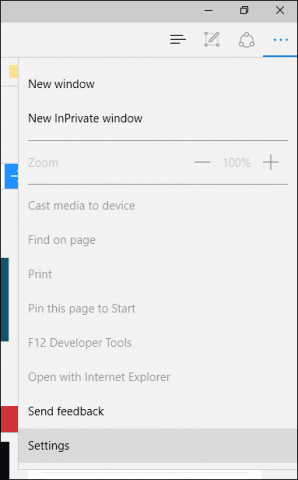
  • Launch Microsoft Edge and then click the More Actions menu then click Settings.

reset edge 1
 

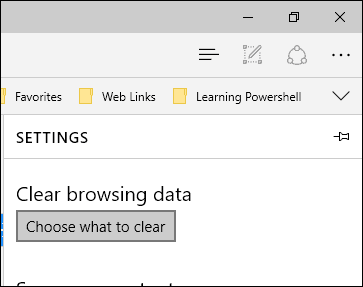
Scroll down to Clear browsing data then click Choose what to clear.
 

 reset edge 2
 

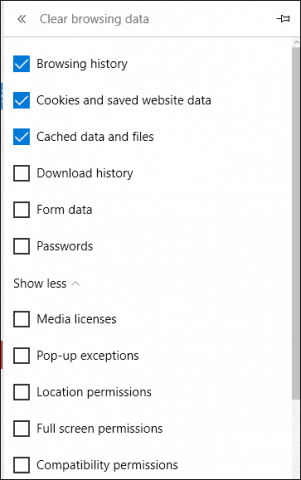
By default, Browsing History, Cookies, saved website data, and Cached data files are checked, but you can choose from additional data options in the list. The Show more collapsed menu reveals other options to select.
 

reset edge 3
 

To reset the entire browser, check all options, then click Clear
 

reset edge 4


What if Microsoft Edge is Not Opening or all options are grayed out?
 

If you experience an issue where Microsoft Edge doesn’t open, try resetting the browser manually.

  • This part is more geeky and advanced, but it will help solve the issue. Press Windows key + R and type: C:\Users\%username%\AppData\Local\Packages.
  • Open the folder labeled Microsoft.MicrosoftEdge_8wekyb3d8bbwe and delete all of its content.
  • If you experience problems removing the content in the folder, review this article for instructions how to take ownership of a folder, and try again.

(The above link is 3rd party and is not owned by HP, I've posted this only so that I may help you resolve this issue by going beyond by support boundaries, please ignore the ads and take only the free suggestions)
 

reset edge 6
 

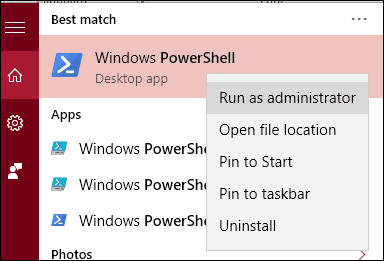
Next, click Start and type: powershell and right-click PowerShell and select Run as administrator.
 

 reset edge 5
 

Proceed to launch PowerShell with administrator privileges, then issue the following command. This command will reinstall Microsoft Edge:

Get-AppXPackage -AllUsers -Name Microsoft.MicrosoftEdge | Foreach {Add-AppxPackage -DisableDevelopmentMode -Register “$($_.InstallLocation)\AppXManifest.xml” -Verbose}
 

powershell 1
 

The resulting output will appear in the PowerShell window. Exit PowerShell, then try launching Edge again.
 

powershell 2
 

Microsoft is expected to introduce extensions to Edge in the Windows 10 Redstone (currently in preview for Insiders) update coming later this year. It will be good to know how to use these functions if you encounter corrupt extensions.

(The above link is 3rd party and is not owned by HP, I've posted this only so that I may help you resolve this issue by going beyond by support boundaries, please ignore the ads and take only the free suggestions)


P.S: Thanks for creating a new thread for the other issue.


Let me know how that pans out

feel free to give me a virtual high-five by clicking the 'Thumbs Up' icon,

followed by clicking on 'Accepted as Solution' as it would help the community gain more knowledge,

And Have a great day Ahead!

Riddle_Decipher
I am an HP Employee


Learning is a journey, not a destination.
Let's keep asking questions and growing together.
Archived This topic has been archived. Information and links in this thread may no longer be available or relevant. If you have a question create a new topic by clicking here and select the appropriate board.
† The opinions expressed above are the personal opinions of the authors, not of HP. By using this site, you accept the <a href="https://www8.hp.com/us/en/terms-of-use.html" class="udrlinesmall">Terms of Use</a> and <a href="/t5/custom/page/page-id/hp.rulespage" class="udrlinesmall"> Rules of Participation</a>.