• ×
    Information
    Need Windows 11 help?
    Check documents on compatibility, FAQs, upgrade information and available fixes.
    Windows 11 Support Center.
  • post a message
  • ×
    Information
    Need Windows 11 help?
    Check documents on compatibility, FAQs, upgrade information and available fixes.
    Windows 11 Support Center.
  • post a message
Guidelines
Join the HP Community Solve‑a‑thon | Help Others & Share Your Solutions | Live on Zoom | 2:30 PM to 2:30 AM IST | Every Wednesday Click here to know more
Archived This topic has been archived. Information and links in this thread may no longer be available or relevant. If you have a question create a new topic by clicking here and select the appropriate board.

HP Recommended
Stream 14
Microsoft Windows 10 (64-bit)

I was having a chat with someone then it laged and overheated. It was plugged in that time. This not the first time this happend. Is it that battey? 

1 REPLY 1
HP Recommended

Hi @Nubhub,


Thanks for engaging in HP support Forums! This is a wonderful location to converse with the community, get assistance and find tips! I came across your post and wanted to assist you. 

As I understand the HP Stream laptop fan runs intermittently and slows down system with lag

Don't worry as I'll be glad to help, however, to provide an accurate resolution, I need a few more details: 

Did you know that these issues may occur due to incorrect power scheme selected after an update?

Does the computer shuts down due to overheating?

Is it making any excessive noise or heating the PC?


While you respond to that, here's what you need to do to resolve this issue,


Let's start off by performing a Hard reset on the notebook: A power reset (or hard restart) clears all information from the computer's memory without erasing any personal data. Performing a power reset might fix conditions such as Windows not responding, a blank display, software freezing, keyboard stops responding, or other external devices locking up.


Next thing, I would suggest here is to change the System Power Scheme to Balance in the BIOS.  


1.Turn on or restart the computer.  

2.Press F10 to enter the BIOS Setup.  

3.Select System Configuration.  

4.Select Boot Options > System Power Scheme.  

5.Change the option to Balance.  

6.Select F10 to Save and Exit the BIOS. 

7.Select Exit.

8. Restart the computer and then check.


If the issue persists, I would suggest here is to Plug in the power adapter. Log into Windows and open the HP Support Assistant and run the battery test. Post your results here.


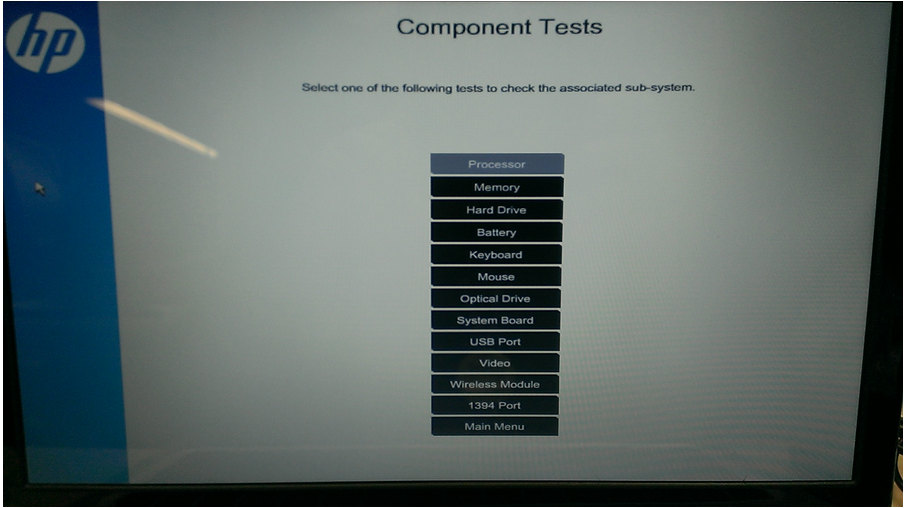
If you have the newer UEFI (v 5.1 or greater) environment installed --> press the power button --> tap the Esc key to invoke the startup menu --choose F2  the System Diagnostics  --> HP PC Hardware Diagnostics UEFI --> choose component tests --> Battery Test.


UEFI ver. 5.1.png


Please let me know if this resolves the issue, or if you require further assistance!


Eagerly waiting for your response!

I hope you have a good day ahead,

And Feel free to ask your queries as this forum has some of the best people in the world available and ready to help.

Regards,

Jeet_Singh
I am an HP Employee

Archived This topic has been archived. Information and links in this thread may no longer be available or relevant. If you have a question create a new topic by clicking here and select the appropriate board.
† The opinions expressed above are the personal opinions of the authors, not of HP. By using this site, you accept the <a href="https://www8.hp.com/us/en/terms-of-use.html" class="udrlinesmall">Terms of Use</a> and <a href="/t5/custom/page/page-id/hp.rulespage" class="udrlinesmall"> Rules of Participation</a>.