• ×
    Information
    Need Windows 11 help?
    Check documents on compatibility, FAQs, upgrade information and available fixes.
    Windows 11 Support Center.
  • post a message
  • ×
    Information
    Need Windows 11 help?
    Check documents on compatibility, FAQs, upgrade information and available fixes.
    Windows 11 Support Center.
  • post a message
Guidelines
Seize the moment! nominate yourself or a tech enthusiast you admire & join the HP Community Experts!
Archived This topic has been archived. Information and links in this thread may no longer be available or relevant. If you have a question create a new topic by clicking here and select the appropriate board.

HP Recommended
Example: Pavilion dm4
Microsoft Windows 7 (32-bit)
My cursor freezes intermittently and finally stop working
1 REPLY 1
HP Recommended

@ndara


Thanks for reaching out to us on HP Support Forums. 🙂 I came across your post and would like to assist.


I understand that you have an HP Pavilion dm4 series laptop. I read that the cursor freezes intermittently and then stops working. Not worry, I'll do my best to help you. 


To provide an accurate resolution, I need a few more details: 

  • Please let me know the exact laptop model no. This link will help you to find the model no: http://hp.care/2bygf7l
  • Do you have an external mouse to connect and check if it works properly?

Meanwhile, I recommend you to perform the following steps to isolate the issue and arrive at a fix: 

  • Power off the laptop.
  • Remove the battery out. If the battery is integrated and does not have a latch to release it then leave the battery inside the laptop.
  • Disconnected AC adapter from the laptop.
  • Press and hold the power button for 15 seconds.
  • Reconnect the battery and plug the AC adapter.
  • Power ON the laptop.

If the issue persists then let us run the hardware test on the touchpad. The following steps will help:

  • First let us download and install the tool for the hardware tests: http://ftp.hp.com/pub/softpaq/sp80501-81000/sp80721.exe
  • Please restart the laptop after the tool is installed.
  • Shutdown the laptop.
  • Turn on the laptop and immediately press Esc repeatedly, about once every second. When the menu appears, press the F2 key.

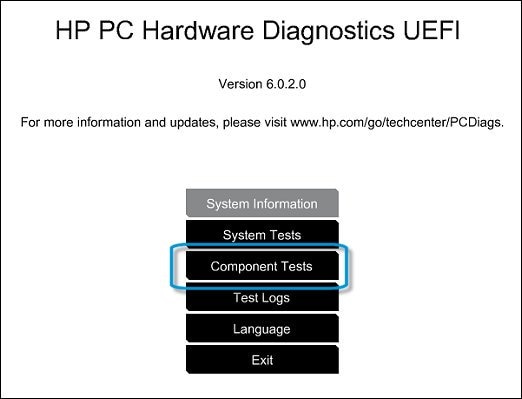
  • On the main menu, click Component Tests.


Figure : Selecting Component Tests from the main menu

Selecting Component Tests from the main menu


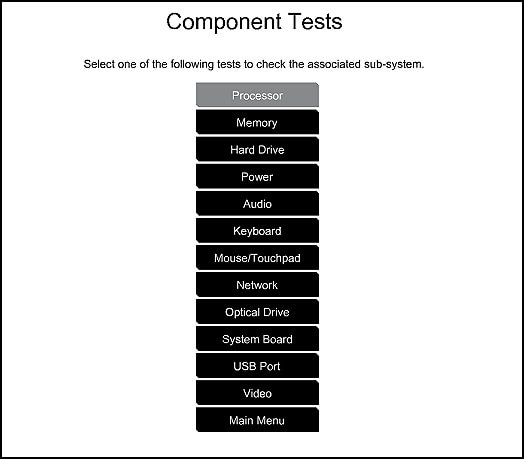
  • The Component Tests menu displays. Your Component Tests menu might be different, depending on the components installed on your computer.


Figure : Sample list of Component Tests

Sample List of the Component tests


  • Please initiate the Touchpad Tests - There are two mouse tests to determine if the mouse is functioning correctly - the Pointer Test and the Drag and Drop Test.

    To run the tests, click Mouse/Touchpad. Select the test you want to run, and then click Run once. Follow the instructions to complete the test.
    NOTE: Please disconnect the external mouse (if connected) during the touchpad test.

If the tests pass then please continue with the below steps. If the touchpad test fails then I suggest to contact our HP phone support team to explore the hardware service options for your laptop.

Example of the device manager:
Related image

  • Expand "Mice and other pointing devices". Right click on the touchpad drivers in it and select uninstall.
  • Close the device manager windows after the touchpad drivers are uninstalled. 
  • Please restart the laptop. During the restart, WIndows should reinstall the drivers for the touchpad. 

I sincerely hope this fixes the issue. Let me know how it goes. Good luck! 🙂


Archived This topic has been archived. Information and links in this thread may no longer be available or relevant. If you have a question create a new topic by clicking here and select the appropriate board.
† The opinions expressed above are the personal opinions of the authors, not of HP. By using this site, you accept the <a href="https://www8.hp.com/us/en/terms-of-use.html" class="udrlinesmall">Terms of Use</a> and <a href="/t5/custom/page/page-id/hp.rulespage" class="udrlinesmall"> Rules of Participation</a>.