
-
×InformationNeed Windows 11 help?Check documents on compatibility, FAQs, upgrade information and available fixes.
Windows 11 Support Center. -
-
×InformationNeed Windows 11 help?Check documents on compatibility, FAQs, upgrade information and available fixes.
Windows 11 Support Center. -
- HP Community
- Desktops
- Desktop Hardware and Upgrade Questions
- Re: Keyboard and mouse issue

Create an account on the HP Community to personalize your profile and ask a question
Your account also allows you to connect with HP support faster, access a personal dashboard to manage all of your devices in one place, view warranty information, case status and more.

It has been a while since anyone has replied. Simply ask a new question if you would like to start the discussion again.

07-29-2018 09:18 PM
 HP Recommended
Product: HP Pavillion Touchsmart All in One
Operating System: Microsoft Windows 10 (64-bit)
Computer powers on and shows the lockscreen, but the mouse and keyboard don’t work at all. I already tried replacing them, but no luck so im guessing it’s a problem with the computer. Any ideas on what to do?
Solved! Go to Solution.
1 ACCEPTED SOLUTION
Accepted Solutions


08-05-2018 05:09 PM
HP Recommended
Thank you for replying,
As I understand you are having issues with the keyboard and mouse not working after startup. Don't worry as I have a few steps which should help you resolve this issue.
Turn off filter keys:
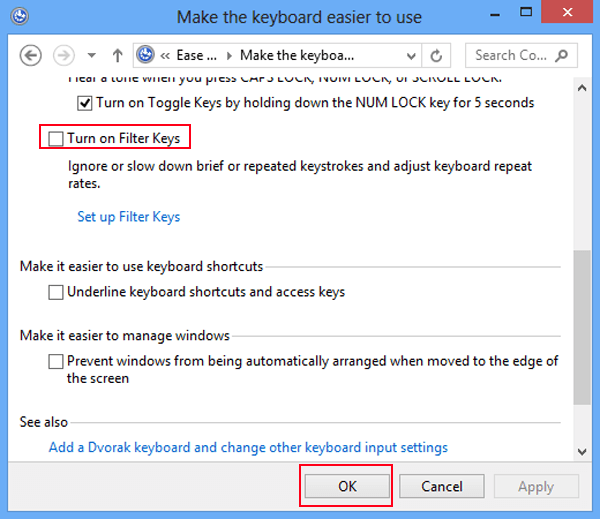
Turn it off through Ease of Access Center.
Step 1: Go to Ease of Access Center and open Make the keyboard easier to use.
Step 2: Unselect Turn on Filter Keys and click OK.
If the issue persists, I would suggest you try these steps here:
I recommend using the F11 during the restart, if the mouse works on that screen,
Initiate a system restore to an earlier date it had been working,
If the issue persists, perform a system refresh to reset the windows settings: Click here for instructions.
The last option would be to reinstall the windows using the factory shipped image (OEM) if you used the recovery manager before and yet the issue persists, you may want to get a recovery media from HP: Click here for details.
Let me know how that pans out
I hope you have a good day ahead,
And Feel free to ask any other queries as well,
Considering, this forum has some of the best people in the world available and ready to help.
Jeet_Singh
I am an HP Employee
5 REPLIES 5
07-30-2018 03:04 PM
HP Recommended
Thank you for posting on HP Support Forums. It is a great place to find the help you need, from other users, HP experts, and other support personnel. I see from your post that you are having issues with the keyboard and mouse not working. Don't worry we'll work together to help you find a solution.
To provide you with an accurate solution, I'll need a few more details:
Have you recently made any changes on the computer before the issue started?
Are you using Wireless keyboard and mouse or Is it Wired keyboard and mouse?
Have you tried to use an alternate USB keyboard and mouse and check if that works?
In the meantime, let's try these steps here:
Perform a Hard reset on the PC:
Many startup errors and other problems can be resolved by decreasing the amount of power stored in hardware components. Decreasing stored power is sometimes referred to as a "Hard Reset." Use the following steps to perform a hard reset on a computer:
-
Turn off the computer completely; disconnect the power cord from the back of the computer.
-
With the power off and the power cord disconnected, press the power button on the computer for 5 seconds. The power light indicator on or near the power button might turn on briefly but then go out.
-
Reconnect the power cord and turn on the power.
I would suggest you try to use an alternate USB keyboard and mouse and check if that helps.
If the computer boots up fine with the help of USB keyboard and the mouse then the issue is definitely to do with the wireless keyboard, you can try replacing the batteries as well as synchornizing the keyboard and the mouse.
If the computer does not boot up with the alternate keyboard and mouse then this could be a possible hardware failure.
I will share you a private message with details. Please watch your inbox for more information.
Let me know if this helps!
Have a great day ahead! 🙂
If I have helped you resolve the issue, feel free to give me a virtual high-five by clicking the 'Thumbs Up' icon below,
Followed by clicking on "Accept as Solution" from the drop-down menu on the upper right corner.
Jeet_Singh
I am an HP Employee
08-04-2018 07:39 PM
HP Recommended
No changes were made prior to this happening. I have already tried a different wireless mouse as well as a wired one and still no change. If i go to the startup menu when i first power up the computer, the mouse and keyboard works, but as soon as i continue to the lockscreen they stop working.
08-05-2018 05:09 PM
HP Recommended
Thank you for replying,
As I understand you are having issues with the keyboard and mouse not working after startup. Don't worry as I have a few steps which should help you resolve this issue.
Turn off filter keys:
Turn it off through Ease of Access Center.
Step 1: Go to Ease of Access Center and open Make the keyboard easier to use.
Step 2: Unselect Turn on Filter Keys and click OK.
If the issue persists, I would suggest you try these steps here:
I recommend using the F11 during the restart, if the mouse works on that screen,
Initiate a system restore to an earlier date it had been working,
If the issue persists, perform a system refresh to reset the windows settings: Click here for instructions.
The last option would be to reinstall the windows using the factory shipped image (OEM) if you used the recovery manager before and yet the issue persists, you may want to get a recovery media from HP: Click here for details.
Let me know how that pans out
I hope you have a good day ahead,
And Feel free to ask any other queries as well,
Considering, this forum has some of the best people in the world available and ready to help.
Jeet_Singh
I am an HP Employee
08-05-2018 05:55 PM
HP Recommended
Thank you for the update,
I appreciate your time and efforts,
I'm glad to hear you found the solution you were looking for.
Thanks for taking the time to let the community know about the solution.
You've been great to work with and it has been a genuine pleasure interacting with you.
I hope both you and your product works great and remain healthy for a long time 😉
Take care now and do have a fabulous week ahead. 🙂
Regards,
Jeet_Singh
I am an HP Employee

Be alert for scammers posting fake support phone numbers and/or email addresses on the community.
If you think you have received a fake HP Support message, please report it to us by clicking on "Flag Post".
† The opinions expressed above are the personal opinions of the authors, not of HP. By using this site, you accept the Terms of Use and Rules of Participation.


Didn't find what you were looking for?
Ask the community
† The opinions expressed above are the personal opinions of the authors, not of HP. By using this site, you accept the <a href="https://www8.hp.com/us/en/terms-of-use.html" class="udrlinesmall">Terms of Use</a> and <a href="/t5/custom/page/page-id/hp.rulespage" class="udrlinesmall"> Rules of Participation</a>.