
-
×InformationNeed Windows 11 help?Check documents on compatibility, FAQs, upgrade information and available fixes.
Windows 11 Support Center. -
-
×InformationNeed Windows 11 help?Check documents on compatibility, FAQs, upgrade information and available fixes.
Windows 11 Support Center. -
- HP Community
- Desktops
- Desktop Operating Systems and Recovery
- Re: HARD DRIVE TO SSD

Create an account on the HP Community to personalize your profile and ask a question
Your account also allows you to connect with HP support faster, access a personal dashboard to manage all of your devices in one place, view warranty information, case status and more.
Check out our WINDOWS 11 Support Center info about: OPTIMIZATION, KNOWN ISSUES, FAQs, VIDEOS AND MORE.

It has been a while since anyone has replied. Simply ask a new question if you would like to start the discussion again.

01-04-2020 07:17 AM
 HP Recommended
Product: P2-1113W
Operating System: Microsoft Windows 10 (64-bit)
Hello Everyone : I want to upgrade the hard drive on this hp computer to a ssd without reinstalling the windows10
Can you suggest hopefully a video on exactly how to do this, also is a ssd 125gb large enough, i don't have alot on my pc? Thanks
PS does hp have a video for this?
17 REPLIES 17

01-04-2020 10:12 AM
HP Recommended
To answer your last question first -- as far as I know, NO, HP does not have a video on this.
What I recommend is the following:
1) Download and install Macrium Reflect (MR) from here: https://www.macrium.com/reflectfree
2) Connect the new drive to the PC
3) Follow the instructions in this link: http://knowledgebase.macrium.com/display/KNOW/Cloning+a+disk
4) Shutdown the PC when done
5) Swap the drives and reboot the PC.
NOTE: To do this easily, the SDD has to be the same capacity as the HDD. IF you get an SDD that is a lot smaller, then before you do the cloning, you have to shrink the largest partition on the HDD (usually the OS partition), to the size such that it, and the other partitions, fit easily on the SSD.
You should boot from the new drive without any problems.
I am a volunteer and I do not work for, nor represent, HP

01-04-2020 04:51 PM
HP Recommended
You posted this in the Desktops section -- not Notebooks -- so you would have space in your desktop case to hold an SSD and since you are already using a Sata drive, an extra data plug and power plug with which to connect it to your PC.
That presumes you are planning on using a SATA SSD -- which is the same size and connector as a laptop HDD.
If you are planning on using an M.2 SSD, then you must first ENSURE that the motherboard in your PC will accept the model you are intending to buy.
I am a volunteer and I do not work for, nor represent, HP
01-04-2020 05:38 PM
HP Recommended
OK , then presuming you are migrating to a SATA SSD, simply shutdown the PC, open the case and do the following:
1) Find the narrow 1/4 inch wide DATA cable that connects your HDD to the motherboard. It will have two black plastic connectors on the cable, one at the end, and another a few inches away. Connect the open connector to the SSD.
2) Find the wider POWER cable that connects your HDD to the motherboard.
It will have two black plastic connectors on the cable, one at the end, and another a few inches away. Connect the open connector to the SSD.
3) Reboot the PC --it should boot from the HDD without a problem. If it does not, then it is trying to boot from the SSD. In that case, shutoff the PC, and swap the connectors on each cable so the the SDD is connected to the same plugs as was the HDD. Reboot the PC, it should now boot from the HDD.
Then go back to my reply about how to clone the HDD to the SDD.
Good Luck
I am a volunteer and I do not work for, nor represent, HP
01-05-2020 07:43 AM - edited 01-05-2020 07:43 AM
HP Recommended
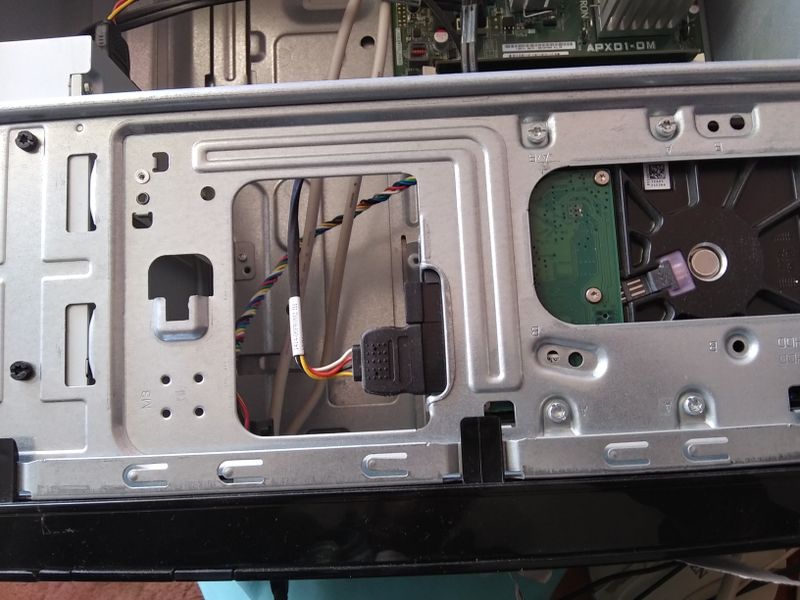
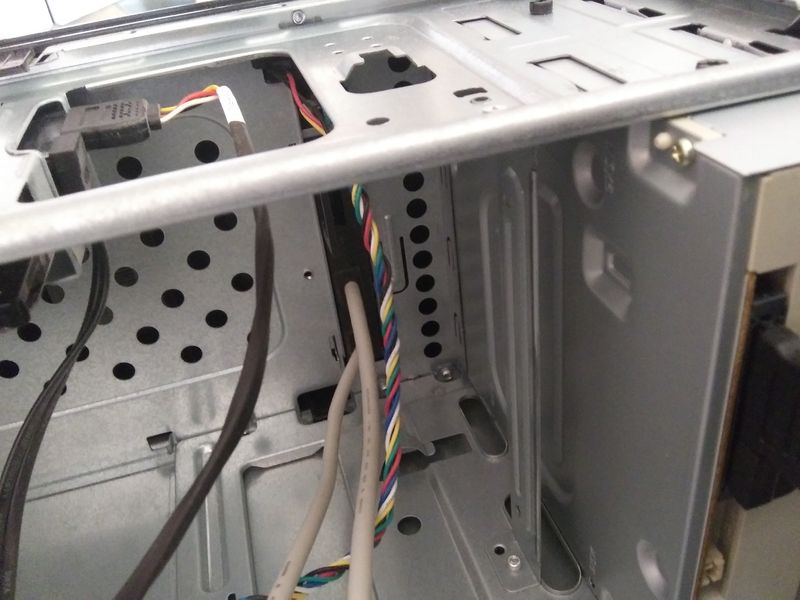
Maybe you can help me out here, i was just looking inside my hp p2-1113w I don;t see where the ssd could go, I don't have to take out the harddrive and put it in it's place do i ? Please let me know Thanks
01-05-2020 05:54 PM - edited 01-05-2020 05:56 PM
HP Recommended
An SSD weighs nearly nothing and has no moving parts, so unlike a hard drive that needs a mounting bracket, you can simply put the SSD anywhere it fits inside the case.
Also, on the second picture you posted, the cable on the left, that connects at a right-angle to the drive, is the DATA cable and the cable on the right is the POWER cable. There should be additional connectors on each of these cables you can use to connect the SSD.
I am a volunteer and I do not work for, nor represent, HP

Be alert for scammers posting fake support phone numbers and/or email addresses on the community.
If you think you have received a fake HP Support message, please report it to us by clicking on "Flag Post".
† The opinions expressed above are the personal opinions of the authors, not of HP. By using this site, you accept the Terms of Use and Rules of Participation.


Didn't find what you were looking for?
Ask the community
† The opinions expressed above are the personal opinions of the authors, not of HP. By using this site, you accept the <a href="https://www8.hp.com/us/en/terms-of-use.html" class="udrlinesmall">Terms of Use</a> and <a href="/t5/custom/page/page-id/hp.rulespage" class="udrlinesmall"> Rules of Participation</a>.