
-
×InformationNeed Windows 11 help?Check documents on compatibility, FAQs, upgrade information and available fixes.
Windows 11 Support Center. -
-
×InformationNeed Windows 11 help?Check documents on compatibility, FAQs, upgrade information and available fixes.
Windows 11 Support Center. -
- HP Community
- Desktops
- Desktop Operating Systems and Recovery
- Re: Hp support assistant wont open

Create an account on the HP Community to personalize your profile and ask a question
Your account also allows you to connect with HP support faster, access a personal dashboard to manage all of your devices in one place, view warranty information, case status and more.
Check out our WINDOWS 11 Support Center info about: OPTIMIZATION, KNOWN ISSUES, FAQs, VIDEOS AND MORE.

It has been a while since anyone has replied. Simply ask a new question if you would like to start the discussion again.

03-29-2019 02:18 AM
 HP Recommended
Windows just did a major update to Windows 10. This has automatically fixed my inability to do system restores however HP support assistant will still not open so I uninstalled it, did a disc and registry clean then reinstalled it but still to no avail. A system restore will be no good because I have no restore points from which to chose and I am back to square one again. Any further help please ??


03-30-2019 07:50 AM
HP Recommended
@Cabinhook
Let's try this method:
- Turn off antivirus software and the firewall.
-
Go to the HP Customer Support website. Enter your product number to find an updated version of HP Support Assistant for your computer.
-
Download and install the latest version of HP Support Assistant.
-
Restart the computer to complete the installation process.
When the system restart is complete, the HP Support Assistant
 icon displays on the task bar.
 -
Click the HP Support Assistant
icon to open the application.If HP Support Assistant is working correctly, you are done. Turn on the antivirus and firewall software.
If HP Support Assistant is still stuck gathering information, continue with the remaining steps.
-
Uninstall HP Support Assistant.
-
In Windows, search for an open Uninstall a program.
-
On the Programs and Features window, select HP Support Assistant, then click Uninstall.
Figure: Uninstall HP Support Assistant:

-
NOTE: If HP Support Assistant is not listed or does not uninstall correctly, install the latest HP Support Assistant version without uninstalling the old version. After HP Support Assistant is installed and working, repeat the uninstall steps.
-
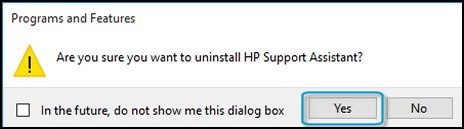
Click Yes on the Programs and Features screen to confirm that you want to uninstall HP Support Assistant. Restart your computer to complete the process.
Figure: Uninstall confirmation
-
-
-
When the uninstall process is complete, open a Web browser and go to the HP Support Assistant website. Follow these steps to download HP Support Assistant:
-
Click Download HP Support Assistant.
Figure: HP Support Assistant website

-
When the download bar is displayed at the bottom of the screen, click Save.
-
When the download completes, click Run, then follow the on-screen instructions. This might take a few minutes to complete.
-
When the installation completes, select Yes, then click Finish to restart the system.
-
When the system restarts, the HP Support Assistant
icon displays on the task bar. Click the icon to open the application.If HP Support Assistant is working correctly, you are done.
-
-
Keep me posted for further assistance.
ECHO_LAKE
I am an HP Employee
04-06-2019 05:26 PM
HP Recommended
One step forward and two steps back. I'm sorry to say that none of those steps have yielded a result but since that I have again lost my system restore capability and I think I know the culprit. For some time I have been using a back up program called AOMEI backupper. I downloaded and installed the latest version and hey presto no system restore function anymore. I uninstalled it again but system restore still no good and the same error code as before ie 0x81000203. Theres a dozen or more fixes for this on the net but I've been down that road before and none of them work so its back to square one again. I'm just wondering if its possible to reinstall the latest windows updates that fixed the system restore problem previously and then try again with HP support assistant. Cest la vie
Thanks, Jeff
04-07-2019 08:32 AM - edited 04-07-2019 08:36 AM
HP Recommended
I did go through the windows support manuals and online internet researching on reverting windows update.
And I've found this workaround to roll back windows update.
Let's try this method:
To do this, hit Windows+I to open the Settings app and then click the “Update & security” option. On the “Update & security” screen, switch to the “Windows Update” tab, and then click the “Update history” link. On the “View your updatehistory” screen, click the “Uninstall updates” link.
Keep me posted for further assistance.
ECHO_LAKE
I am an HP Employee
04-08-2019 04:29 PM
HP Recommended
By some miracle I have got HP support assistant to work and it loads in 10 seconds whereas from new it would take 90 seconds to load. No such luck with system restore though. On the flip side my optical drive is no longer recognosed and an error message refers to a registry corruption. I looked for a new driver to install on the support page for my unit to no avail. Are you able to help with this new problemm thanks, Jeff
04-09-2019 10:30 AM
HP Recommended
Firstly, let's clear the upper and lower registry filters:
Clear the registry filters for Device Manager error codes 10, 19, 31, 32, 39 or 41 using the following steps:
-
Unplug all non-essential external plug and play devices, especially cameras. Then complete the following steps.
-
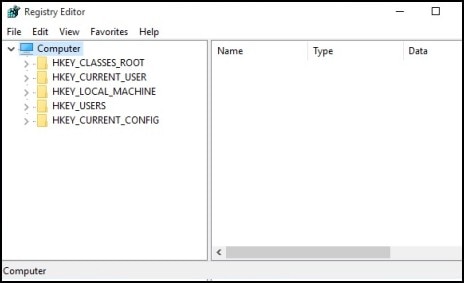
In Windows, search for and open regedit.
-
Select Computer in the main window.
-
Click File, click Export, type a filename that is easy for you to remember, then click Save.
A copy of the registry has been saved for back-up purposes to the Documents folder. If problems occur after using these steps, browse to the file and double-click it to restore the registry.
-
Click the arrow next to each of the following items in the list:
- HKEY_LOCAL_MACHINE
- SYSTEM
- CurrentControlSet
- Control
- Class
-
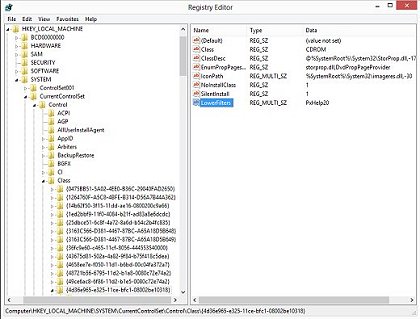
Select 4D36E965-E325-11CE-BFC1-08002BE10318. Make sure you have selected this exact key name.
-
If a LowerFilters value is listed on the right side of the Registry Editor window, select the LowerFilters value and press the Delete key. Confirm the deletion by clicking Yes.
-
If an UpperFilters value is also listed, select UpperFilters in the right side of the window and press the Delete key.
Confirm the deletion by clicking Yes.
-
Delete all other UpperFilters and LowerFilters values within the 4D36E965-E325-11CE-BFC1-08002BE10318 key if any exist.
-
Close the Registry Editor and restart the computer. (If this resolve the DVD drive issue, you can skip below steps)
Next, let's see if the drive appears in BIOS,
Use these steps:
-
Press and hold the power button for 5 seconds to turn off your computer completely.
-
Turn on the computer and immediately press the F10 key repeatedly until the BIOS Setup Utility screen displays.
-
Use the arrow keys to navigate to the System Configuration screen.
-
Select Boot Options, then press Enter.
-
On the Boot Options sub-screen, select Boot Order, then press Enter.
-
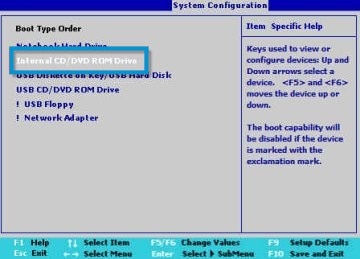
In the Boot Order list, look for a CD/DVD drive entry. Depending on your notebook model and specific CD/DVD drive, the entry name indicates the exact type of disc drive you have (for example, it might read Internal CD/DVD-ROM Drive).
-
Press Esc, then press Enter to Exit BIOS.
Also, check the drive name in Device Manager:
-
In Windows, search for and open Device Manager.
-
Double-click DVD/CD-ROM drives to expand the category. Please reply with the product model name.
Hope this helps! Keep me posted for further assistance.
Please click “Accept as Solution” if you feel my post solved your issue, it will help others find the solution.
ECHO_LAKE
I am an HP Employee
04-09-2019 05:05 PM
HP Recommended
@Cabinhook
Glad to hear! I would suggest trying creating a new restore point Click here to know more.
Also, you can backup all your personal files and data and initiate system factory recovery which will reinstall all original system software and will fix all software related issue.Click here to Perform a System Recovery (Windows 10)
Hope this helps!
Please click “Accept as Solution” if you feel my post solved your issue, it will help others find the solution.
ECHO_LAKE
I am an HP Employee

04-10-2019 11:41 AM
HP Recommended
@Cabinhook
Apologize for the inconvenience caused.
In this case, let's perform a system factory reset which will reinstall all original system software. Click here to "Perform a System Recovery" (Windows 10)
This should resolve software related issue.
Hope this helps!
Please click “Accept as Solution” if you feel my post solved your issue, it will help others find the solution.
ECHO_LAKE
I am an HP Employee

Be alert for scammers posting fake support phone numbers and/or email addresses on the community.
If you think you have received a fake HP Support message, please report it to us by clicking on "Flag Post".
† The opinions expressed above are the personal opinions of the authors, not of HP. By using this site, you accept the Terms of Use and Rules of Participation.


Didn't find what you were looking for?
Ask the community
† The opinions expressed above are the personal opinions of the authors, not of HP. By using this site, you accept the <a href="https://www8.hp.com/us/en/terms-of-use.html" class="udrlinesmall">Terms of Use</a> and <a href="/t5/custom/page/page-id/hp.rulespage" class="udrlinesmall"> Rules of Participation</a>.