-
×InformationNeed Windows 11 help?Check documents on compatibility, FAQs, upgrade information and available fixes.
Windows 11 Support Center. -

-
×InformationNeed Windows 11 help?Check documents on compatibility, FAQs, upgrade information and available fixes.
Windows 11 Support Center. -
- HP Community
- Desktops
- Desktop Video, Display and Touch
- Touchscreen stops working after a few minutes

Create an account on the HP Community to personalize your profile and ask a question
12-20-2018 04:20 PM
The touchscreen on my All in One works intermittently. It works after I first boot it up. If I go into device manager, the touchscreen shows and is enabled. If I disable it, then re-enable it, it works again for a few minutes. If I run the built in troubleshooters, the same thing happens (works for a few minutes). Windows says there are no new drivers (driver is dated 2006). Roll back driver is grayed out. When it works, it works fine. Any ideas??
12-21-2018 02:59 PM
Welcome to the HP Forums 🙂 I would like to take a moment and thank you for using this forum, it is a great place to find answers. For you to have the best experience on the HP forum, you could also visit our HP Forums Guide for First Time Here? Learn How to Post and More. I see from your post that you are having issues with the touchscreen not working on your HP notebook. Don't worry we're here to help you.
To provide you with an accurate solution, I'll need a few more details:
Have you recently made any software or hardware changes on the PC before the issue started?
Did this happen after a recent software update?
Have you checked if the touchscreen works fine in Bios?
In the meantime, let's try these steps here:
Perform a Hard reset on the notebook: Many startup errors and other problems can be resolved by decreasing the amount of power stored in hardware components. Decreasing stored power is sometimes referred to as a "Hard Reset". Use the following steps to perform a hard reset on a computer:
The best way to identify if this is either a hardware or a software issue is by checking if the Touch is working on BIOS screen
(Accessed by tapping on F10 while restarting the computer).
If it works on bios, it's a software issue: I would suggest here is to Run Windows Updates troubleshooter -
Download and install the troubleshooter from this link.
Now try to perform Windows Updates -
1) In the search box, type and open Windows Updates.
2) Check for updates.
3) If the updates are available, click on install and restart the computer.
If the issue still persists, I would suggest here is to reinstall the display drivers, along with this I would suggest here is to update the Bios and Chipset drivers from our HP support website, using this link.
Also, download and install HP support assistant on your PC. It should automatically download and install the latest updates and drivers for your PC.
Refer this link to know how to use HP support assistant.
Install the Touchscreen Firmware for AIO Pavilion 27 - Click here to download and install it.
If the issue persists, Attempt to run a test using the HP hardware diagnostic tool,
The touchscreen test can be reached by following the below steps:
NOTE: If the touchscreen test option is still absent then please download and install the HP UEFI Hardware Diagnostics menu via this link.The laptop needs to be restarted once the installation is complete. Then you may once again try to run the hardware tests.
- Shutdown the laptop.
-
Turn on the computer and immediately press Esc repeatedly, about once every second. When the menu appears, press the F2 key.
-
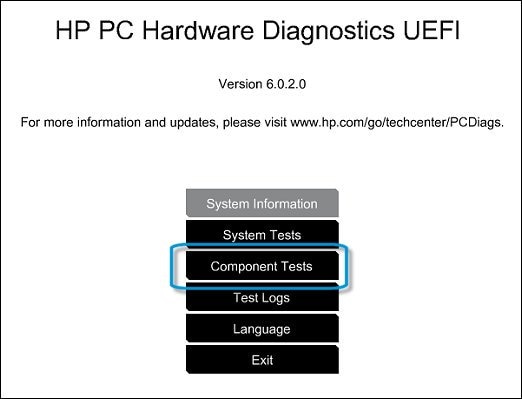
On the main menu, click Component Tests.
Figure : Selecting Component Tests from the main menu

-
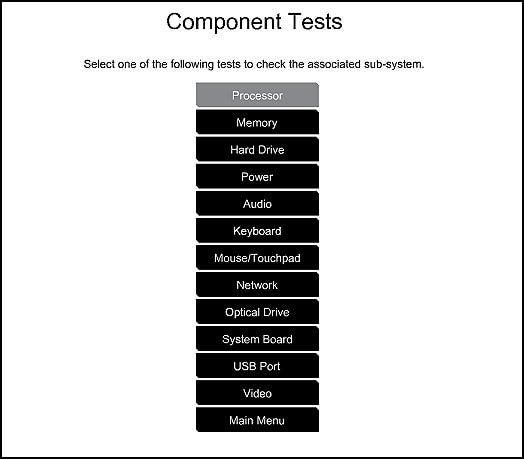
The Component Tests menu displays. Your Component Tests menu might be different, depending on the components installed on your computer.
Figure : Sample list of Component Tests

- Inside the component test, you should see an option for the Touch Screen Test - Quick interactive test to determine if the touch screen is functioning correctly. To run the test, click Touch Screen, and then click Run once.
Alternatively, I would suggest you go through the steps suggested in the support document for - HP PCs - Troubleshooting Touch Screen Issues (Windows 10, 😎
Could you please respond to this post with the details and with the results of the troubleshooting as this will help me in further assisting you.
Eagerly waiting for your response!
that said, If the information I've provided was helpful,
give us some reinforcement by clicking the solution and kudos buttons,
that'll help us and others see that we've got the answers!
Good Luck.
Jeet_Singh
I am an HP Employee
12-21-2018 03:36 PM
Thank you.
So this problem has persisted and is not known to have started after any particular software install. No hardware changes have been made.
I have not checked BIOS because when it works (on 2 separate user accounts on the machine and the login screen), it works fine.
All windows updates have been applied.
When I run the firmware update, I get this message:
This touch panel IC firmware update is for ILITEK only.
Please ignore this firmware update and exit this program.
The link at:
https://support.hp.com/in-en/document/c03488148
Is unable to find the problem.
Have not tried some of the other things, so at least you gave me some additional things to try.
12-22-2018 02:27 PM
Thank you for replying,
Please take your time and get back to me with the results,
I'll be awaiting your response and would be glad to help.
Feel free to post your query for any other assistance as well,
It's been a pleasure interacting with you and I hope you have a good day ahead.
If you wish to show appreciation for my efforts, mark my post as Accepted Solution.
And click on the Purple Thumbs up icon at the bottom of my comment.
Regards,
Jeet_Singh
I am an HP Employee