-
×InformationNeed Windows 11 help?Check documents on compatibility, FAQs, upgrade information and available fixes.
Windows 11 Support Center. -

-
×InformationNeed Windows 11 help?Check documents on compatibility, FAQs, upgrade information and available fixes.
Windows 11 Support Center. -
- HP Community
- Gaming
- Gaming Desktops
- Re: BIOS Update Impossible

Create an account on the HP Community to personalize your profile and ask a question
08-05-2020 06:17 AM
Hello everyone
I've a BIOS update for my H270 "Naples 8308" mothership, but impossible to update it. Actually my BIOS firmware version is "F.15 Rev.A" and i want to update it to the "F.16 Rev.A". I downloaded the executable from the official HP website and the HP Support Assistant. I tried to install it, but after the computer reboot, the BIOS software inform me, the installation cannot possible because it is impossible to open the BIOS image file.
For information, i have Windows 10 version 2004, lastest build.
Desktop driver page : https://support.hp.com/fr-fr/drivers/selfservice/omen-by-hp-880-000-desktop-pc-series/15776604/model...
So, how update it ? I need help 🙂
08-05-2020 04:16 PM
Hello @MrLilian
A word of caution before I offer a suggestion. If it ain't broke, don't fix it.
In other words... If you have no other reason to update the bios other than to know you have the latest update for security, I would not install the update. If the system is having a hard time already with the update, there's probably a good reason it wont install. Forcing it might cause a failure during the process and brick your system. Bricking your system means the motherboard is rendered useless. The only good thing is, if you are still under warranty, its covered.
If you still want to do this....
First, go into the bios and reset it to default, even if you haven't done anything to it. F10 at boot gets you in the bios. F10 again usually is the reset. F10 one more time will give you the option to Save and Exit.
Then grab a USB pen drive that's empty, a smaller drive works best between 2-16 GB.
This is the update for your motherboard... sp106149.exe
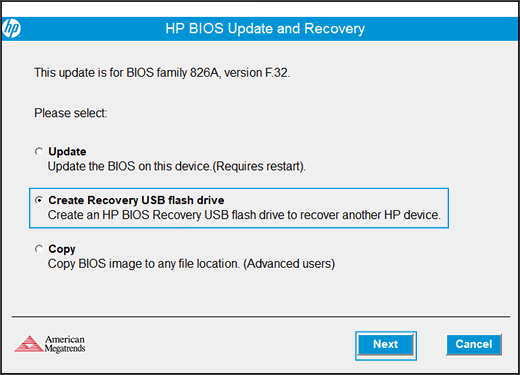
Run the file but choose to create a USB installer.
Example:

To use the USB drive to install the bios update...
- Turn on the original computer, and then immediately press the Esc key repeatedly, about once every second, until the Startup Menu opens.
- Press the F2 key to open the HP PC Hardware Diagnostics UEFI menu.
- Insert the USB flash drive that contains the BIOS update into an available USB port on the computer.
- If prompted, select your language.
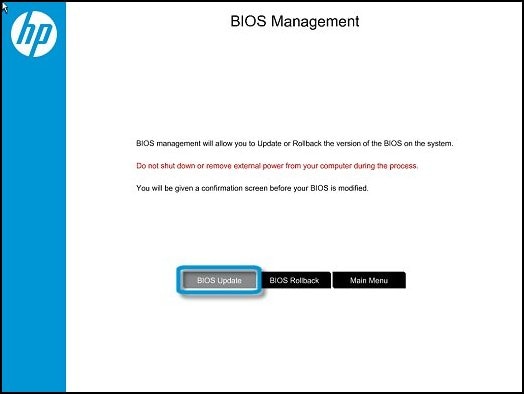
- Click Firmware Management or BIOS Management on the HP PC Hardware Diagnostics UEFI screen.

- Click BIOS Update.

- Click Select BIOS Image To Apply.
- Click HP_TOOLS - USB Drive.

- Click Hewlett-Packard.
- Click BIOS.
- Click Current.
- Select the BIOS update file that matches the System Board ID. The ID has a "0" before the board ID (example: 02291.bin). In your case the board ID is 8308 and you would need to put a zero in front of it.

- Click Apply Update Now. Type the administrator password if prompted.
- Wait while the BIOS update installs. The computer displays the installation progress.
caution:
Do not shut down or restart the computer until the update process completes. - When prompted, click Restart System, or wait for the computer to restart automatically. It might take a few minutes for the computer to restart.
note:
If the update fails, a failure screen displays with additional information. The system might run a BIOS recovery after restarting. Do not attempt to turn off the computer if this happens.note:
If a '251' or CMOS Checksum error displays after the update, go to Error: CMOS Checksum Bad to resolve the issue. - When the lock screen displays, sign in to your computer.
- Once Windows has booted, press the Control/Alt/S keys together to open the system info menu. it might take several seconds to open. It will have the bios version listed there.
08-06-2020 08:36 AM
You are missing my point... They don't make bios to simply fail at install, but if you are having issues as you stated, then obviously there is something that has went wrong on your system. I have no way of knowing what. So I suggest when that happens, to not try forcing it.
But I have given you the steps to take already. As I said, If you are covered under warranty, then you are covered if something goes wrong.