
-
×InformationNeed Windows 11 help?Check documents on compatibility, FAQs, upgrade information and available fixes.
Windows 11 Support Center. -
-
×InformationNeed Windows 11 help?Check documents on compatibility, FAQs, upgrade information and available fixes.
Windows 11 Support Center. -
- HP Community
- Gaming
- Gaming Notebooks
- Drivers

Create an account on the HP Community to personalize your profile and ask a question
Your account also allows you to connect with HP support faster, access a personal dashboard to manage all of your devices in one place, view warranty information, case status and more.

It has been a while since anyone has replied. Simply ask a new question if you would like to start the discussion again.

03-15-2021 03:12 PM
 HP Recommended
Product: Omen 15
Operating System: Microsoft Windows 10 (64-bit)
So i just upgraded my ssd to a bigger one and had to reinstall windows. But i was wondering do i have to download any drivers off the hp website or is my laptop ok? And when i alos go to download the omen command centre it just restarts my computer.
Solved! Go to Solution.
1 ACCEPTED SOLUTION
Accepted Solutions


03-18-2021 08:55 AM
HP Recommended
Hi@, Welcome to the HP Support Community!
Request you to follow the below-troubleshooting step.
Go to Download HP Support Assistant to install the tool.
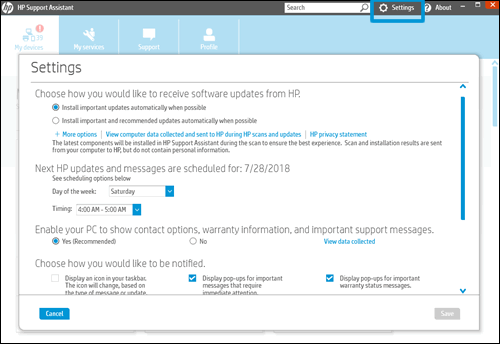
Change update schedule and notifications settings
Set preferences for when to check for software updates and how HP Support Assistant notifies you when updates or messages are available.
-
Click Settings at the top of the HP Support Assistant window.
-
Change the settings in each section to match your needs. Make sure to scroll down to see all the available settings.
Update the computer
Use HP Support Assistant to automatically install computer updates, such as updated drivers, system updates, and useful utilities.
-
Click My devices in the top menu, and then click Updates in the My PC or My notebook pane.

-
Click Check for updates and messages to scan for new updates.

-
Review the list of updates. Updates with a yellow information icon are recommended. Updates with a blue information icon are optional.
-
Click the update name for a description, version number, and file size.
-
Select the box next to any updates you want to install, and then click Download and install.
-
Perform any other update management actions as needed.
-
Postpone an update: Click Remind me, and then select a time preference.
-
Delete an available update: Click the Delete icon
 to remove the update from the list and record it in the action log.
 -
Review updates status: Click Action log below the list to view installed, postponed, or deleted updates.
-
Troubleshoot computer and device issues
Access diagnostic tools, guided troubleshooters, and how-to documents to troubleshoot hardware and software problems and specific issues and error states.
NOTE:These steps are for a computer. Available fixes, menus, and tools differ for other added devices.
-
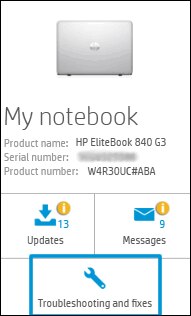
Click My devices in the top menu, and then click Troubleshooting and fixes in the My PC or My notebook pane.
-
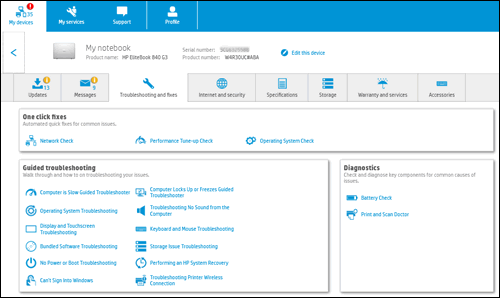
Select one of the options on the screen that relates to the issue you are experiencing.
-
Access additional resources and troubleshooting tools on the Internet and security, Specifications, and Storage tabs.
Add another HP device
HP Support Assistant also works with HP printers. Printers must connect directly to your computer or be on the same local network.
-
Turn on the device you want to add, make sure it is in a ready state, and that it is connected to the computer or local network.
-
On the My devices tab, click Add an HP device.

-
Click Detect my device to view a list of available devices to add. Additionally, you can click Manually add my device to use the product number and serial number to find your device.
-
Click your device name, type a nickname for your device, and then click Add to my devices.
Find product information (specifications, serial number, warranty status, etc.)
Gather information about your HP computer or device through My devices in HP Support Assistant. Review full specifications, lists of all installed software, disk drive status, warranty end date, and more.
-
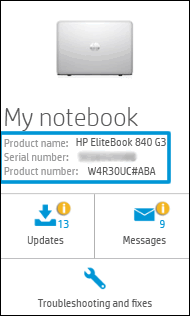
Product and serial numbers: These numbers are typically required to identify the correct drivers to install or are needed when contacting HP Customer Support. Find them on the tile for your computer or device.
-
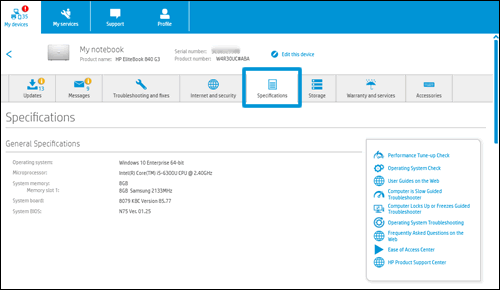
Product specifications: Click your product name on the My devices screen, and then click Specifications. Scroll down the page to view video, audio, and power specifications, and to view lists of installed software.
NOTE:
Click the Storage menu to view hard disk drive information, including available space.
-
Warranty status: Click your product name on the My devices screen, and then click Warranty and services.
If the last check was done at a prior date, click Refresh warranty status.
Fix problems related to HP Support Assistant
HP Support Assistant can help resolve computer and printer problems. However, there might be times when HP Support Assistant does not work as expected.
Resolve most HP Support Assistant issues by going to Download HP Support Assistant to install the latest version.
If problems continue, go to Troubleshooting HP Support Assistant (Windows 10, 8, 7) to troubleshoot specific HP Support Assistant error messages and issues.
Hope this helps! Keep me posted.
Please click “Accept as Solution” if you feel my post solved your issue, it will help others find the solution.
Click the “Kudos, Thumbs Up" on the bottom right to say “Thanks” for helping!
Have a great day!
1 REPLY 1
03-18-2021 08:55 AM
HP Recommended
Hi@, Welcome to the HP Support Community!
Request you to follow the below-troubleshooting step.
Go to Download HP Support Assistant to install the tool.
Change update schedule and notifications settings
Set preferences for when to check for software updates and how HP Support Assistant notifies you when updates or messages are available.
-
Click Settings at the top of the HP Support Assistant window.
-
Change the settings in each section to match your needs. Make sure to scroll down to see all the available settings.
Update the computer
Use HP Support Assistant to automatically install computer updates, such as updated drivers, system updates, and useful utilities.
-
Click My devices in the top menu, and then click Updates in the My PC or My notebook pane.
-
Click Check for updates and messages to scan for new updates.
-
Review the list of updates. Updates with a yellow information icon are recommended. Updates with a blue information icon are optional.
-
Click the update name for a description, version number, and file size.
-
Select the box next to any updates you want to install, and then click Download and install.
-
Perform any other update management actions as needed.
-
Postpone an update: Click Remind me, and then select a time preference.
-
Delete an available update: Click the Delete icon
to remove the update from the list and record it in the action log. -
Review updates status: Click Action log below the list to view installed, postponed, or deleted updates.
-
Troubleshoot computer and device issues
Access diagnostic tools, guided troubleshooters, and how-to documents to troubleshoot hardware and software problems and specific issues and error states.
NOTE:These steps are for a computer. Available fixes, menus, and tools differ for other added devices.
-
Click My devices in the top menu, and then click Troubleshooting and fixes in the My PC or My notebook pane.
-
Select one of the options on the screen that relates to the issue you are experiencing.
-
Access additional resources and troubleshooting tools on the Internet and security, Specifications, and Storage tabs.
Add another HP device
HP Support Assistant also works with HP printers. Printers must connect directly to your computer or be on the same local network.
-
Turn on the device you want to add, make sure it is in a ready state, and that it is connected to the computer or local network.
-
On the My devices tab, click Add an HP device.
-
Click Detect my device to view a list of available devices to add. Additionally, you can click Manually add my device to use the product number and serial number to find your device.
-
Click your device name, type a nickname for your device, and then click Add to my devices.
Find product information (specifications, serial number, warranty status, etc.)
Gather information about your HP computer or device through My devices in HP Support Assistant. Review full specifications, lists of all installed software, disk drive status, warranty end date, and more.
-
Product and serial numbers: These numbers are typically required to identify the correct drivers to install or are needed when contacting HP Customer Support. Find them on the tile for your computer or device.
-
Product specifications: Click your product name on the My devices screen, and then click Specifications. Scroll down the page to view video, audio, and power specifications, and to view lists of installed software.
NOTE:
Click the Storage menu to view hard disk drive information, including available space.
-
Warranty status: Click your product name on the My devices screen, and then click Warranty and services.
If the last check was done at a prior date, click Refresh warranty status.
Fix problems related to HP Support Assistant
HP Support Assistant can help resolve computer and printer problems. However, there might be times when HP Support Assistant does not work as expected.
Resolve most HP Support Assistant issues by going to Download HP Support Assistant to install the latest version.
If problems continue, go to Troubleshooting HP Support Assistant (Windows 10, 8, 7) to troubleshoot specific HP Support Assistant error messages and issues.
Hope this helps! Keep me posted.
Please click “Accept as Solution” if you feel my post solved your issue, it will help others find the solution.
Click the “Kudos, Thumbs Up" on the bottom right to say “Thanks” for helping!
Have a great day!

Be alert for scammers posting fake support phone numbers and/or email addresses on the community.
If you think you have received a fake HP Support message, please report it to us by clicking on "Flag Post".
† The opinions expressed above are the personal opinions of the authors, not of HP. By using this site, you accept the Terms of Use and Rules of Participation.


Didn't find what you were looking for?
Ask the community
† The opinions expressed above are the personal opinions of the authors, not of HP. By using this site, you accept the <a href="https://www8.hp.com/us/en/terms-of-use.html" class="udrlinesmall">Terms of Use</a> and <a href="/t5/custom/page/page-id/hp.rulespage" class="udrlinesmall"> Rules of Participation</a>.