
-
×InformationNeed Windows 11 help?Check documents on compatibility, FAQs, upgrade information and available fixes.
Windows 11 Support Center. -
-
×InformationNeed Windows 11 help?Check documents on compatibility, FAQs, upgrade information and available fixes.
Windows 11 Support Center. -
- HP Community
- Gaming
- Gaming Notebooks
- Re: Macro keys are not functioning properly

Create an account on the HP Community to personalize your profile and ask a question
Your account also allows you to connect with HP support faster, access a personal dashboard to manage all of your devices in one place, view warranty information, case status and more.

It has been a while since anyone has replied. Simply ask a new question if you would like to start the discussion again.



07-28-2019 10:59 PM
 HP Recommended
Hey,
that didn't work.
but I realized something
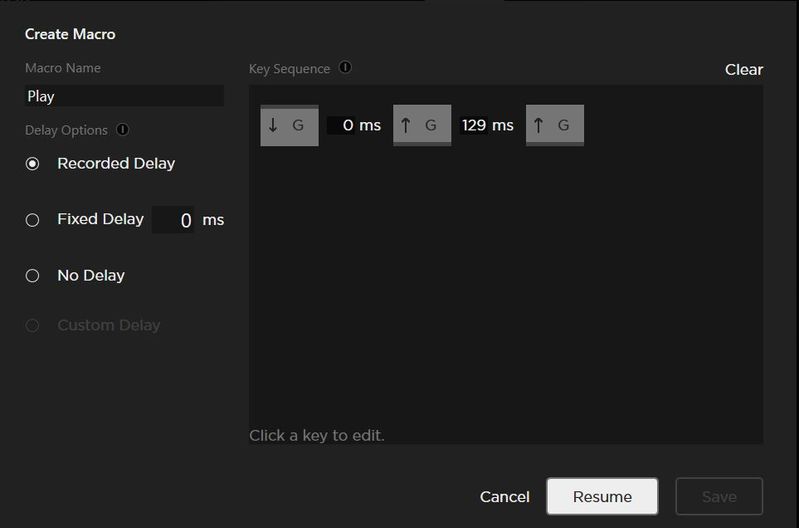
when I put the code (Fn+9) and save the code is not working instead it translates to letter G.
when I opened the command center again to check the code I found that the code saved is G and not Fn+F9

07-29-2019 02:00 PM
HP Recommended
Thank you for posting back.
The Macro Settings may be empty after updating the OMEN Command Center (OMCC) or the Fusion driver. This occurs if the HP Software and Services driver has not been updated.
Let's perform Windows Update and HP Support Assistant:
To check for updates now, select the Start button, and then go to Settings > Update & security > Windows Update, and select Check for updates.
Install updates from HP Support Assistant: Go to Download HP Support Assistant to install the tool.
- To open HP Support Assistant, double-click the HP Support Assistant icon
 .
. - Click My devices in the top menu, and then click Updates in the My PC or My notebook pane.
- Click Check for updates and messages to scan for new updates.
- Review the list of updates. Updates with a yellow information icon are recommended. Updates with a blue information icon are optional.
- Click the update name for a description, version number, and file size.
- Select the box next to any updates you want to install, and then click Download and install.
Hope this helps! Keep me posted for further assistance.
Please click “Accept as Solution” if you feel my post solved your issue, it will help others find the solution.
ECHO_LAKE
I am an HP Employee
07-29-2019 11:21 PM
HP Recommended
Thanks for answering.
I tried the updates and this is what happened:
1) Windows was fully updated already.
2) Hp support assistant software needed update, but the link provided was not working. But I updated it.
3) the updates found in the support assistant didnot install in the beginning until I turned off the anitvirus and then it worked smoothly.
4) the updates where Hp audio switch and intel storage technology.
5) after the updating, I restarted the laptop and still the same problem happens. I put the codes and close the command center then shortly after that open it again and all the codes are swapped to letters.
Also it is always the same letters (G,B,C,Q,P)
07-30-2019 04:30 PM
HP Recommended
@ALI_OSMAN
I would request you to contact our Support and our Support Engineers should be able to Remote into your computer and sort this out. HP Support can be reached by clicking on the following link: www.hp.com/contacthp/
ECHO_LAKE
I am an HP Employee
- « Previous
-
- 1
- 2
- Next »

Be alert for scammers posting fake support phone numbers and/or email addresses on the community.
If you think you have received a fake HP Support message, please report it to us by clicking on "Flag Post".
† The opinions expressed above are the personal opinions of the authors, not of HP. By using this site, you accept the Terms of Use and Rules of Participation.


Didn't find what you were looking for?
Ask the community
† The opinions expressed above are the personal opinions of the authors, not of HP. By using this site, you accept the <a href="https://www8.hp.com/us/en/terms-of-use.html" class="udrlinesmall">Terms of Use</a> and <a href="/t5/custom/page/page-id/hp.rulespage" class="udrlinesmall"> Rules of Participation</a>.