-
×InformationNeed Windows 11 help?Check documents on compatibility, FAQs, upgrade information and available fixes.
Windows 11 Support Center. -

-
×InformationNeed Windows 11 help?Check documents on compatibility, FAQs, upgrade information and available fixes.
Windows 11 Support Center. -
- HP Community
- Gaming
- Gaming Notebooks
- OMEN 15 2020 AMD Error code 43 every boot and never work fr...

Create an account on the HP Community to personalize your profile and ask a question
09-12-2020 06:15 PM
I just bought my HP Omen 15 2020 AMD, and I can't use my Nvidia graphic card RTX 2060 and probably because the error code 43 on device manager...
I already tried to install and reinstall driver from these source:
- Windows update default driver
- Driver from hp support
- WHQL driver from Nvidia
- Latest driver from Nvidia Geforce Experience
before installing I already tried clean all nvidia remainings manually and with DDU software
Note:
- I cleaned install the windows because before this I got the bluescreen that fixed by upgrading BIOS,
- already install all the software from the hp support for Omen 15 en000xx
- There is another yellow triangle on device manager on USB xHCI Host Controller
Thank you
09-15-2020 05:52 AM
Welcome to HP Community
I have gone through your Post and would like to help
Did you update the Drivers using the HP Support Assistant?
I suggest you download and run the HP Support Assistant from this Link: https://www8.hp.com/us/en/campaigns/hpsupportassistant/hpsupport.html?jumpid=va_r602_us/en/any/psg/p...
HPSA will automatically search for all the latest drivers for your Notebook
-
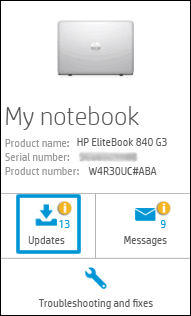
Click My devices in the top menu, and then click Updates in the My PC or My notebook pane.

-
Click Check for updates and messages to scan for new updates.

-
Review the list of updates. Updates with a yellow information icon are recommended. Updates with a blue information icon are optional.
-
Click the update name for a description, version number, and file size.
-
Select the box next to any updates you want to install, and then click Download and install.
Also ensure Windows is up to date.
Select the Start button, and then go to Settings > Update & security > Windows Update , and select Check for updates. If Windows Update says your device is up to date, you have all the updates that are currently available
Keep me posted how it goes
Thank you and have a wonderful day 😊
If the information I've provided was helpful, give us some reinforcement by clicking the "Solution Accepted" on this Post and it will also help other community members with similar issue.
KrazyToad
I Am An HP Employee
09-16-2020 05:28 AM - edited 09-16-2020 06:09 AM
@KrazyToad
Thanks for the answer but I've already tried your solution before this and it's not working.
Right now I've already sent my unit to HP Service Center and as many blog/post mention on the internet about error code 43 it's a hardware problem.
Right now the status of my case is on request for the mainboard... hopefully it'll arrive this Friday so I can get it on Saturday.
I really disappointed at start about this problem, but if the problem fixed after this I really glad I purchase HP brand notebook, because this problem could appear on any brand...
Right now I won't set for the solution yet as I'm waiting for the end result on HP service center.