• ×
    Information
    Need Windows 11 help?
    Check documents on compatibility, FAQs, upgrade information and available fixes.
    Windows 11 Support Center.
  • post a message
  • ×
    Information
    Need Windows 11 help?
    Check documents on compatibility, FAQs, upgrade information and available fixes.
    Windows 11 Support Center.
  • post a message
Guidelines
Seize the moment! nominate yourself or a tech enthusiast you admire & join the HP Community Experts!
Common problems for INSTANT INK, HP+ PLANS: INK AND TONER
We would like to share some of the most frequently asked questions about Instant Ink. Check out this link: HP INSTANT INK, HP+ PLANS: INK AND TONER. .
HP Recommended
Hp photosmart 6510

I cleand the cartidges but now there is a error on the screen and i dont know how to fix it.

1 REPLY 1
HP Recommended

@Maurius


Welcome to HP Support community.


Make sure that the cartridges are inserted correctly

  1. If the printer is off, press the Power button to turn on the printer.

  2. Open the cartridge access door. The carriage moves to the access area.

    Figure : Open the cartridge access door

    Image: Open the cartridge access door
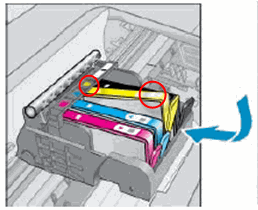
  3. Check the color icons on the ink cartridges and the carriage. Make sure that the color icon on each cartridge label matches the color icon on the carriage slot.

    Figure : Match the colored icons

    Image: Match the colored icons
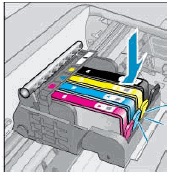
  4. Run your finger along the top of the cartridges to check for any unseated cartridges in the carriage. Press down on any cartridge that is higher than the others to firmly snap the cartridge into its slot.

    Figure : Snap the cartridge into its slot

    Image: Snap the cartridge into its slot
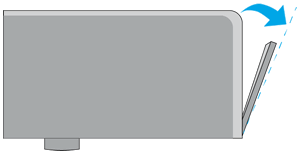
  5. If the cartridge does not snap into place, or does not seat properly, remove the cartridge from the carriage. Gently bend the tab away from the cartridge, and then reinsert the cartridge so that it is firmly seated into the carriage.

       CAUTION: 

    Be careful not to bend the tab out more than 1.27 cm (0.5 in). Moving the tab too far might damage the cartridge or cause the tab to break off.

    Figure : An example of gently bending the tab away from the ink cartridge.

    1.  

      Image: An example of gently bending the tab away from the ink cartridge.

      Gently bend the tab away from the ink cartridge
    2. Do not bend the tab more than 1.27 cm (0.5 cm)

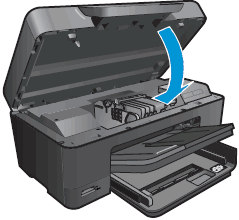
  6. Close the cartridge access door.

    Figure : Close the cartridge access door

    Image: Close the cartridge access door

You cab refer this HP document for more assistance:- Click here


Let me know how it goes.

To thank me for my efforts to help you, please mark my post as an accepted solution so that it benefits several others.

Cheers.

Sandytechy20
I am an HP Employee

† The opinions expressed above are the personal opinions of the authors, not of HP. By using this site, you accept the <a href="https://www8.hp.com/us/en/terms-of-use.html" class="udrlinesmall">Terms of Use</a> and <a href="/t5/custom/page/page-id/hp.rulespage" class="udrlinesmall"> Rules of Participation</a>.