
-
×InformationNeed Windows 11 help?Check documents on compatibility, FAQs, upgrade information and available fixes.
Windows 11 Support Center. -
-
×InformationNeed Windows 11 help?Check documents on compatibility, FAQs, upgrade information and available fixes.
Windows 11 Support Center. -
- HP Community
- Printers
- HP Instant Ink
- I have an Envy 45000

Create an account on the HP Community to personalize your profile and ask a question
Your account also allows you to connect with HP support faster, access a personal dashboard to manage all of your devices in one place, view warranty information, case status and more.
Common problems for INSTANT INK, HP+ PLANS: INK AND TONER
We would like to share some of the most frequently asked questions about Instant Ink. Check out this link: HP INSTANT INK, HP+ PLANS: INK AND TONER. .

09-08-2026 06:44 PM
 HP Recommended
Product: HP ENVY 4500 e-All-in-One Printer
I have used all the avenues, virtual assistant, aisupport, online hp ink support, my hp envy 4500 all in one printer is not able to use my original HP ink cartridge " In the middle of printing a photo, out of the blue it is saying my cartridge is incompatible. (only the black 61) my printer is saying it has the latest update and of course online is no help. I have tried resetting the printer, HP sent me a new cartridge, same error. I am beside myself of what to do. Does any one know of any solutions?
9 REPLIES 9


09-10-2026 07:52 AM
HP Recommended
Hello @Mookie635, Welcome to the HP Support Community.
Thank you for posting your query, I will be glad to help you.
I understand you are facing an issue with your HP Envy 4500 Printer not recognizing the HP new Cartridge, not to worry I will help you to get a resolution to the issue.
Troubleshooting Steps:
Check Cartridge Authenticity:
- Verify that the cartridge is an original HP 61XL cartridge. Look for the holographic HP security label on the box or verify the serial number on the HP Authentication website.
Clean the Cartridge Contacts Again:
- Power off the printer and unplug it.
- Use a lint-free cloth slightly dampened with distilled water or isopropyl alcohol (not dripping).
- Gently clean the copper contacts on both the cartridge and inside the printer where the cartridge sits.
- Allow them to dry completely before reinserting.
Reset the Printer:
- While the printer is turned on, unplug the power cord from the printer and the wall outlet.
- Wait for at least 60 seconds.
- Reconnect the power cord, turn on the printer, and reinstall the cartridge.
Update Printer Firmware:
- Connect the printer to your computer.
- Download the latest firmware update from the HP Support page for the HP ENVY 4500. HP ENVY 4500 e-All-in-One Printer Software and Driver Downloads | HP® Support
- Follow the instructions to update the printer’s firmware, as newer firmware can resolve compatibility issues with cartridges.
Try a Manual Alignment:
- Navigate to your printer’s settings and select Tools > Align Printer.
- Follow the prompts to complete an alignment, which might help the printer recalibrate and recognize the cartridge.
Check Cartridge Warranty:
- HP cartridges have a warranty, which includes defects in materials or workmanship. If the cartridge is defective, you may be eligible for a replacement.
- Locate the date code on the cartridge and verify warranty eligibility on the HP Warranty Check.
Attempt a Printer Reset:
- Turn the printer off.
- Hold the Cancel (X) button and the Start Copy Black button simultaneously.
- While holding these buttons, power on the printer and continue holding them for about 10 seconds until the printer resets.
I hope this helps.
Take care and have a good day.
I'm an HP Employee.
If this reply helped resolve your issue, please select the Accept as Solution as it helps others in the community quickly find the answer they’re looking for.
And if you found this reply helpful, clicking Yes below is a great way to let us know we’re providing the support you need, as it encourages us to keep improving and sharing helpful guidance.
09-18-2026 01:40 PM
HP Recommended
Thank you so much for your response. @Mookie635
Please let us know if the new cartridge works perfectly fine with the printer once received.
Have a great day!
I'm an HP Employee.
If this reply helped resolve your issue, please select the Accept as Solution as it helps others in the community quickly find the answer they’re looking for.
And if you found this reply helpful, clicking Yes below is a great way to let us know we’re providing the support you need, as it encourages us to keep improving and sharing helpful guidance.
09-20-2026 06:19 AM
HP Recommended
Although the support person was to send a black 61xl black cartridge they sent another 61/301 which make 3-$50.00 cartridges that are not accepted by my computer.. I'm livid. I'm contacting them again today.

09-21-2026 01:20 PM
HP Recommended
Thank you so much for your response. @Mookie635
However, please check the image below for the cartridge compatibility according to your region.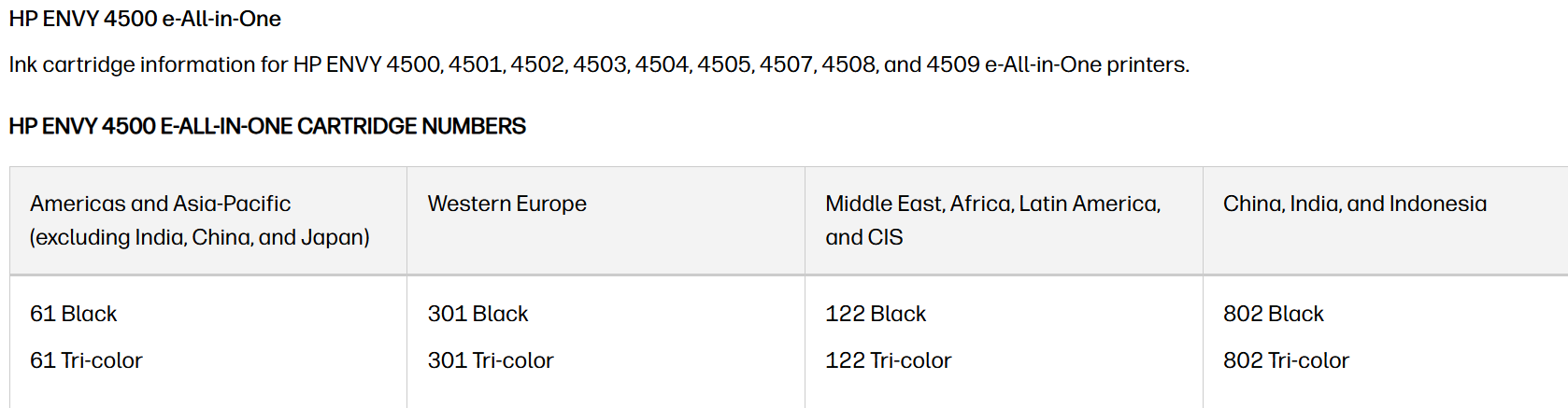
Have a great day!
I'm an HP Employee.
If this reply helped resolve your issue, please select the Accept as Solution as it helps others in the community quickly find the answer they’re looking for.
And if you found this reply helpful, clicking Yes below is a great way to let us know we’re providing the support you need, as it encourages us to keep improving and sharing helpful guidance.
09-21-2026 04:18 PM
HP Recommended
Yes my cartridge for my region is correct. I believe the flaw is when the cartridge changed to 61xl, i believe it caused an error when using the 61/301 which hp ink sent instead of the 61xl I requested.
I hate that I pay for a service and can not get cooperation in solving an issue related to my paid service
09-22-2026 06:48 AM
HP Recommended
Thank you so much for your response. @Mookie635
Could you please share us the instant ink account details on private message so that we can look into it and assist you further? Private Messages - HP Support Community
Have a great day!
I'm an HP Employee.
If this reply helped resolve your issue, please select the Accept as Solution as it helps others in the community quickly find the answer they’re looking for.
And if you found this reply helpful, clicking Yes below is a great way to let us know we’re providing the support you need, as it encourages us to keep improving and sharing helpful guidance.

09-24-2026 02:01 PM
HP Recommended
Thank you for your response. @Mookie635
We will send you the requested information on private message.
Please send us the details.
Have a great day!
I'm an HP Employee.
If this reply helped resolve your issue, please select the Accept as Solution as it helps others in the community quickly find the answer they’re looking for.
And if you found this reply helpful, clicking Yes below is a great way to let us know we’re providing the support you need, as it encourages us to keep improving and sharing helpful guidance.

Be alert for scammers posting fake support phone numbers and/or email addresses on the community.
If you think you have received a fake HP Support message, please report it to us by clicking on "Flag Post".
† The opinions expressed above are the personal opinions of the authors, not of HP. By using this site, you accept the Terms of Use and Rules of Participation.


† The opinions expressed above are the personal opinions of the authors, not of HP. By using this site, you accept the <a href="https://www8.hp.com/us/en/terms-of-use.html" class="udrlinesmall">Terms of Use</a> and <a href="/t5/custom/page/page-id/hp.rulespage" class="udrlinesmall"> Rules of Participation</a>.