• ×
    Information
    Need Windows 11 help?
    Check documents on compatibility, FAQs, upgrade information and available fixes.
    Windows 11 Support Center.
  • post a message
  • ×
    Information
    Need Windows 11 help?
    Check documents on compatibility, FAQs, upgrade information and available fixes.
    Windows 11 Support Center.
  • post a message
Guidelines
Join the HP Community Solve‑a‑thon | Help Others & Share Your Solutions | Live on Zoom | 2:30 PM to 2:30 AM IST | Every Wednesday Click here to know more
HP Recommended
HP LaserJet P1006
Mac OS X 10.10 Yosemite

Says driver not available on apple

1 REPLY 1
HP Recommended

@offsaxophone, Welcome to HP Support Community!


Remove the printer

  1. Click the Apple menu, click System Preferences, and then click Print & Scan or Printers & Scanners.
  2. Check if your printer name displays in the Printers list, If your printer is listed, click the printer name, click the minus sign to delete the printer.
  3. If you see multiple printer queues for the same printer, remove all extra printers by selecting them one at a time, and then clicking the minus button  at the bottom of the list.

Follow the steps below:

  1. If your printer is connected to your Mac with a cable, disconnect the cable from your Mac.
  2. Turn off your printer.
  3. Get software updates for your Mac. Your Mac automatically downloads the latest software for most printers as part of these updates
  4. Reconnect your printer to your Mac, if applicable.
  5. Turn on your printer and wait for it to finish starting up.
  6. Choose Apple () menu > System Preferences, then click Printers & Scanners.
  7. Select your printer in the list of devices.
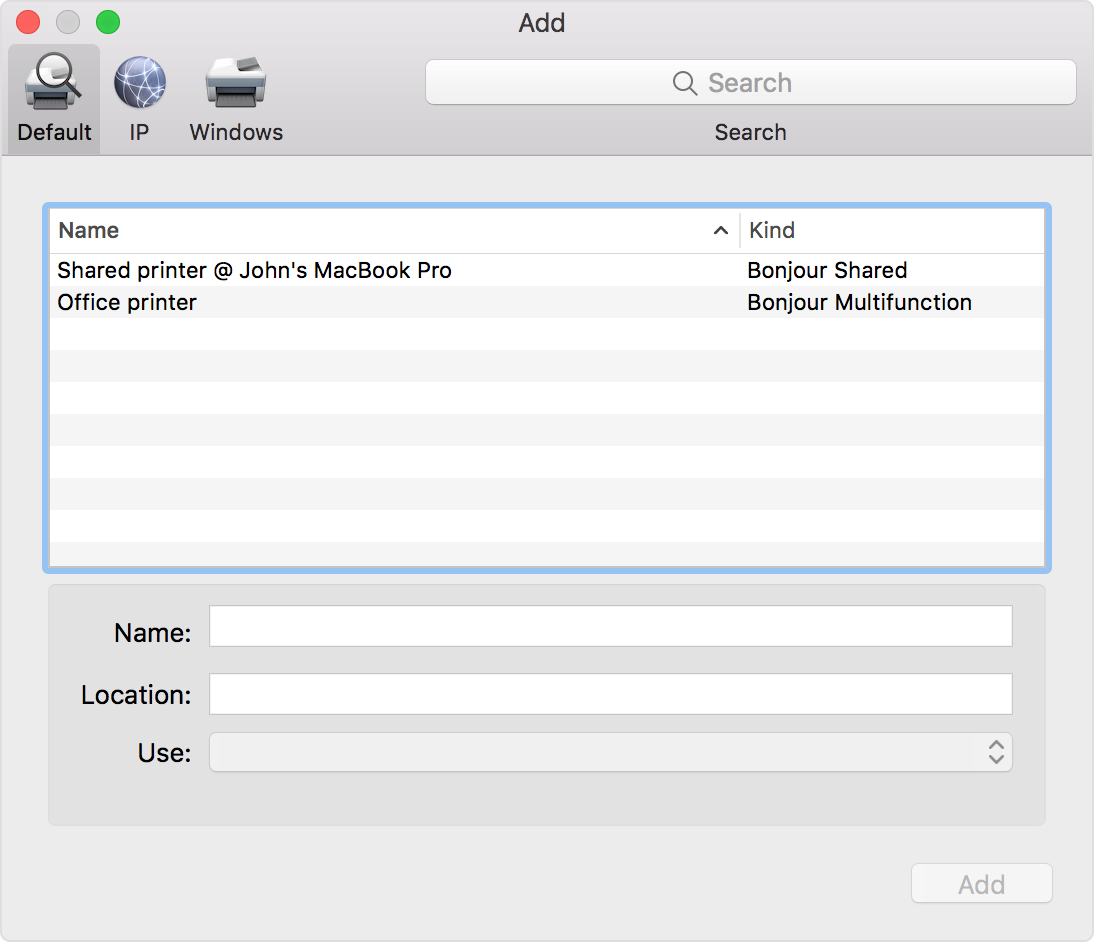
  8. If your printer doesn't appear in the list of devices in Printers & Scanners preferences, click + at the bottom of the list, then choose the command to add a printer or scanner.


Refer to this document HP Printers - Installing a Mac Print Driver Using Apple Software Update


Let me know if this helps.


Please click “Accept as Solution” if you feel my post solved your issue, it will help others find the solution. Click the “Kudos/Thumbs Up" on the bottom right to say “Thanks” for helping!

TEJ1602
I am an HP Employee

† The opinions expressed above are the personal opinions of the authors, not of HP. By using this site, you accept the <a href="https://www8.hp.com/us/en/terms-of-use.html" class="udrlinesmall">Terms of Use</a> and <a href="/t5/custom/page/page-id/hp.rulespage" class="udrlinesmall"> Rules of Participation</a>.