• ×
    Information
    Need Windows 11 help?
    Check documents on compatibility, FAQs, upgrade information and available fixes.
    Windows 11 Support Center.
  • post a message
  • ×
    Information
    Need Windows 11 help?
    Check documents on compatibility, FAQs, upgrade information and available fixes.
    Windows 11 Support Center.
  • post a message
Guidelines
Join the HP Community Solve‑a‑thon | Help Others & Share Your Solutions | Live on Zoom | 2:30 PM to 2:30 AM IST | Every Wednesday Click here to know more
HP Recommended

I am having the same exact issue.


Printers:

HP Color LaserJet Pro M252dw

HP LaserJet Pro MFP M227fdw (New as of 3/29/2019)


I connected both printers to my wireless network.  Both are set up to AirPrint using their respective IP addresses.  On occasion, I can get one or both to print, but then one or the other won’t print due to “printer offline” or “unable to contact printer”.


I have uninstalled and reinstalled apps.  I have the HP Smart app installed, but it is inconvenient to use when the document is on Google docs.


Any recommendations?


Thanks!


1 REPLY 1
HP Recommended

 @Mike_Z,


Thanks for reaching out to the HP Support community!

  • The Wifi network that you have connected, is that a 2.4GHz network or a 5GHz network?
  • Do you have any security software installed on the MAC?

Let's try these steps:

Step1: Restart the Devices

  • Turn off the Wifi Router, wait for 60 seconds, turn it back on.
  • Turn off the Printers, wait for 60 seconds, turn it back on.
  • Restart the MAC
  • Try to print


Step 2: Check connectivity


Before printing please check if the MAC is connected to the same network as the printer.

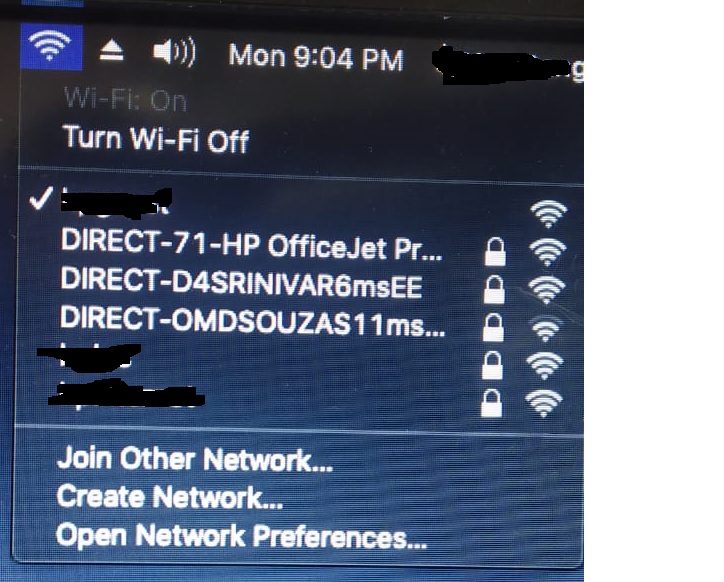
On the MAC click on the WiFi symbol and check the network name to confirm the network before printing.


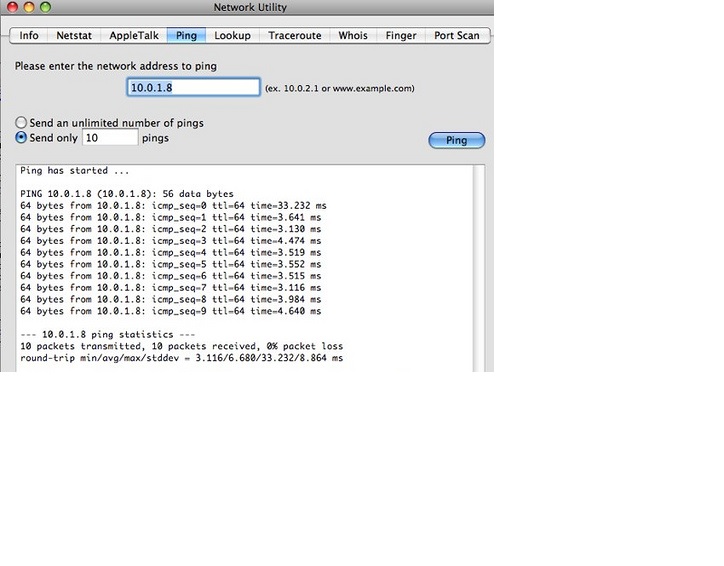
Step 3: Run the Ping Test to test connectivity with your printer

  • Obtain the IP addresses of the two printers by touching the wireless icon.
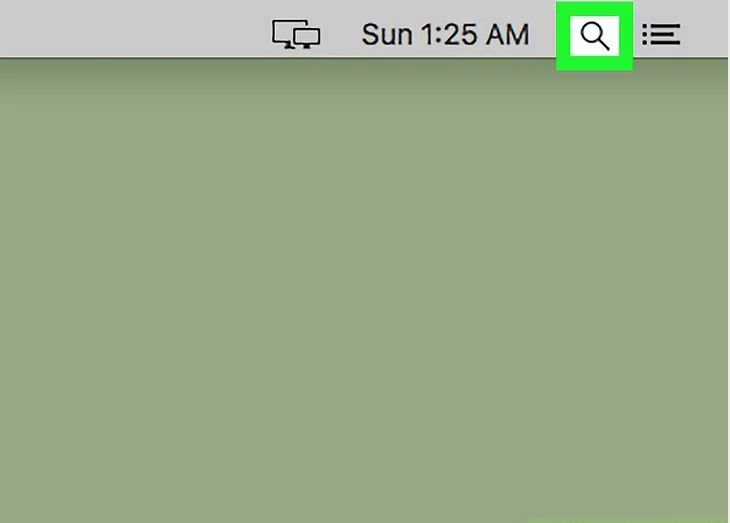
  • Open SpotLight.
    • Click the Spotlight icon, which resembles a magnifying glass, in the top-right corner of the screen.


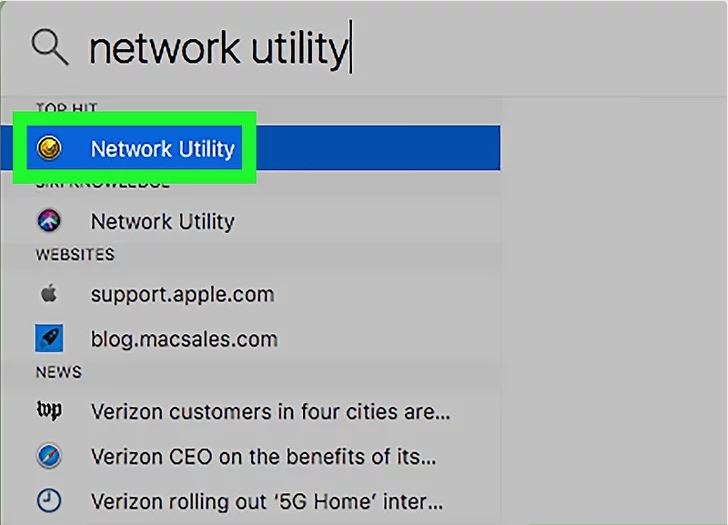
  • Search for Network Utility


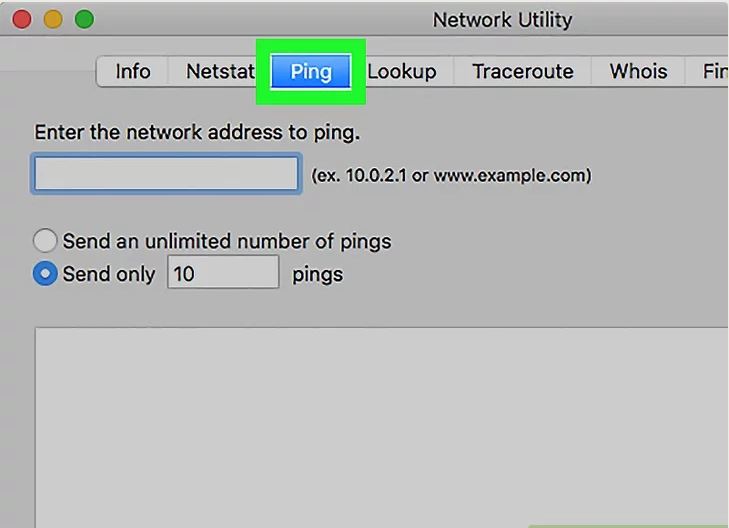
  • Select the 'Ping' Tab.


  • Enter the IP address of the printers to test connectivity.


  • Share the Ping test results if you still face the same issue after restarting the devices. 


Let me know what happens.


Please click “Accept as Solution” if you feel my post solved your issue, it will help others find the solution.

Click the “KudosThumbs Up" on the bottom right to say “Thanks” for helping.

ATHARVA_GP
I am an HP Employee

† The opinions expressed above are the personal opinions of the authors, not of HP. By using this site, you accept the <a href="https://www8.hp.com/us/en/terms-of-use.html" class="udrlinesmall">Terms of Use</a> and <a href="/t5/custom/page/page-id/hp.rulespage" class="udrlinesmall"> Rules of Participation</a>.