
-
×InformationNeed Windows 11 help?Check documents on compatibility, FAQs, upgrade information and available fixes.
Windows 11 Support Center. -
-
×InformationNeed Windows 11 help?Check documents on compatibility, FAQs, upgrade information and available fixes.
Windows 11 Support Center. -
- HP Community
- Printers
- LaserJet Printing
- Re: HP Easy Scan doesn't recognize my HP printer

Create an account on the HP Community to personalize your profile and ask a question
Your account also allows you to connect with HP support faster, access a personal dashboard to manage all of your devices in one place, view warranty information, case status and more.

It has been a while since anyone has replied. Simply ask a new question if you would like to start the discussion again.

05-15-2019 04:57 PM
 HP Recommended
Product: HP Laserjet MFP M28-M31
Operating System: macOS 10.14 Mojave
I have installed a new HP LaserJet MFP printer using a MacBook Air, macOS 10.14. I am able to print but not able to scan. Usually, for installed printers, I can scan from the printer in the settings menu. There's no scan option when I select the HP Laserjet MFP. After reading through dozens of previous support inquiries, I downloaded HP Easy Scan utility but no device is detected and nothing happens when I try to search. I've uninstalled and reinstalled the print drivers and Easy Scan utility but that doesn't help. I've also checked and am on the latest operating system. I've restarted my computer as well. Any other ideas?
Solved! Go to Solution.
1 ACCEPTED SOLUTION
Accepted Solutions


06-01-2019 10:29 AM
HP Recommended
Glad to hear that the issue is resolved. If you need any help, feel free to reach out to us. Have a great day!
Senan6806
I am an HP Employee
9 REPLIES 9
05-16-2019 01:48 PM - edited 05-16-2019 01:48 PM
HP Recommended
Hi @pattyb310,
A warm welcome to HP Community!
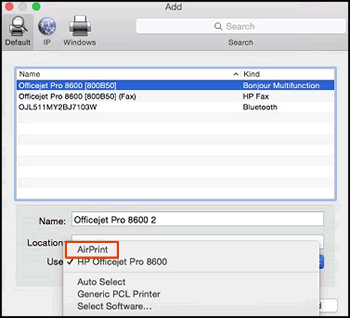
Removing the existing print and scan driver and then setting up the printer with Apple AirPrint should bring the Scan option back in the settings menu. Here is how to do it:
Please ensure that the printer is up to date with its firmware and Mac is up to date with it's software. If you are unsure you may use the links below to update the printer firmware and Mac software:
1.) Click the Apple menu, click System Preferences, and then click Print & Scan or Printers & Scanners.
2.) Check if your printer name displays in the Printers list, If your printer is listed, click the printer name, click the minus sign  to delete the printer.
3.) If you see multiple printer queues for the same printer, remove all extra printers by selecting them one at a time, and then clicking the minus button at the bottom of the list.
4.) Click the plus sign  , click Add Printer or Scanner, click the printer name.
5.) Click the Use or Print Using menu, select AirPrint in the pop-up menu. Then click Add.
6.) Try to print.
Let me know how it goes!
If the information I've provided was helpful, give us some reinforcement by clicking the Accepted Solution and Kudos buttons, that'll help us and others see that we've got the answers!
Have a great day!
Senan6806
I am an HP Employee
05-16-2019 03:28 PM - edited 05-16-2019 03:32 PM
HP Recommended
Thanks for your response. When I try to add my printer, the printer shows up in the list but in the "use" section, I only see a list of printer software. And my printer is not listed there.
05-22-2019 02:55 PM
HP Recommended
The wireless light on the printer is the steady or blinking?
How is the printer connected, USB or wireless?
Do you have any antivirus software installed on your Mac?
Could you send me a screen shot of the Add printer window.
Senan6806
I am an HP Employee

05-29-2019 03:02 PM
HP Recommended
Could you check and let me know if the printer is detected on the USB device tree. Here is how to check if the printer is detected on the USB device tree:
1.) From the Apple menu, choose About This Mac.
2.) Click System Report.
3.) Under the Hardware heading on the left side of the System Information window, click USB.
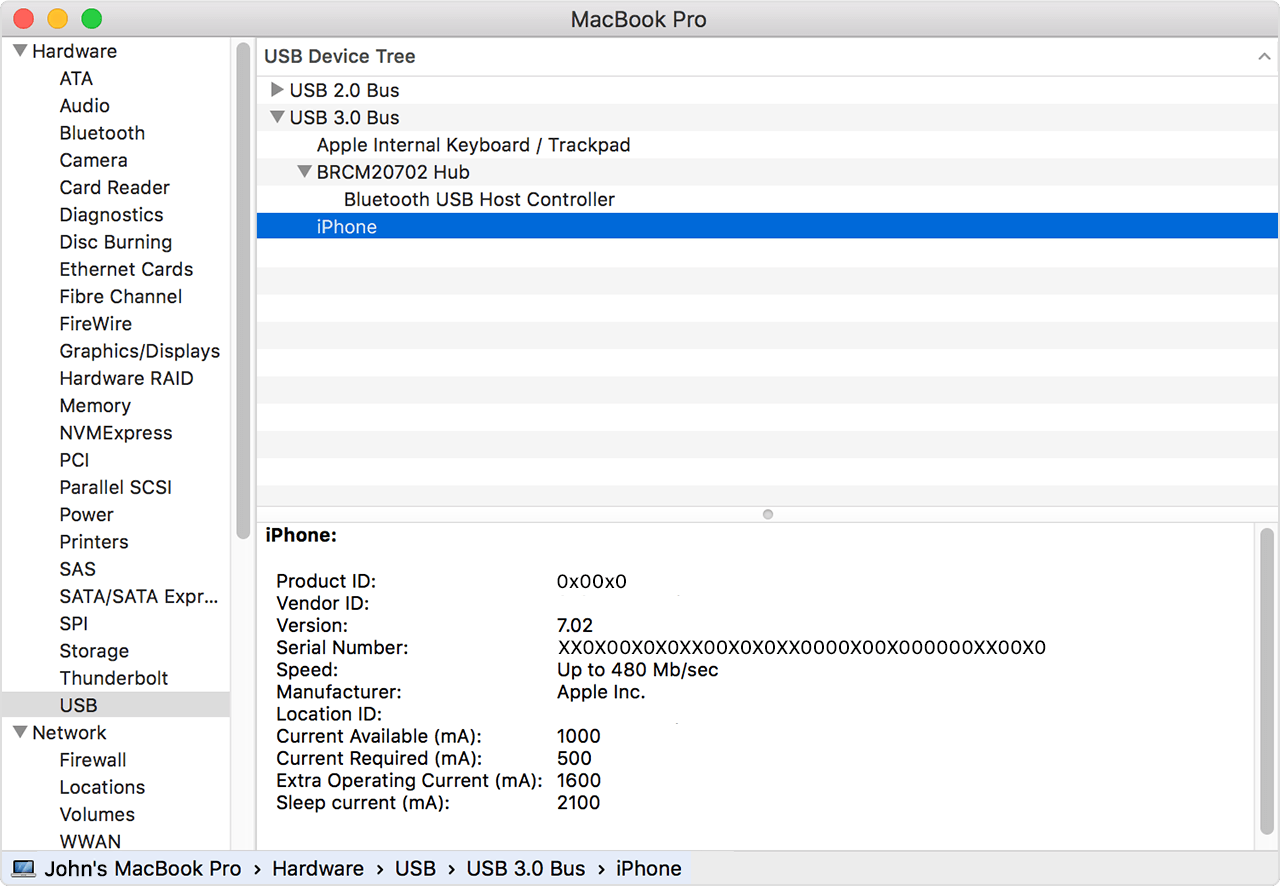
USB 3 devices appear under USB 3.0 Bus, and USB 2 devices appear under USB 2.0 Bus. The printer should be under the USB 2.0 Bus, click the device names to learn more about each one.
Senan6806
I am an HP Employee
05-31-2019 12:23 PM
HP Recommended
Thanks! Please download and run HP Easy Start from here and check if it is able to install the printer software and driver.
Senan6806
I am an HP Employee
06-01-2019 10:29 AM
HP Recommended
Glad to hear that the issue is resolved. If you need any help, feel free to reach out to us. Have a great day!
Senan6806
I am an HP Employee

Be alert for scammers posting fake support phone numbers and/or email addresses on the community.
If you think you have received a fake HP Support message, please report it to us by clicking on "Flag Post".
† The opinions expressed above are the personal opinions of the authors, not of HP. By using this site, you accept the Terms of Use and Rules of Participation.


Didn't find what you were looking for?
Ask the community
† The opinions expressed above are the personal opinions of the authors, not of HP. By using this site, you accept the <a href="https://www8.hp.com/us/en/terms-of-use.html" class="udrlinesmall">Terms of Use</a> and <a href="/t5/custom/page/page-id/hp.rulespage" class="udrlinesmall"> Rules of Participation</a>.