-
×InformationNeed Windows 11 help?Check documents on compatibility, FAQs, upgrade information and available fixes.
Windows 11 Support Center. -

-
×InformationNeed Windows 11 help?Check documents on compatibility, FAQs, upgrade information and available fixes.
Windows 11 Support Center. -
- HP Community
- Printers
- LaserJet Printing
- Re: LaserJet M254dw Mac Duplex Printing

Create an account on the HP Community to personalize your profile and ask a question
03-15-2019 02:05 PM
When attempting to duplex print with Mac Preview, the pages always come out as if they are to be bound on the short edge, i.e. the top of a letter size page when printed in portrait orientation. I have tried both the menu items in Preview's print dialog, and the printer's settings over my LAN, but am unable to duplex print using "long edge" binding. Any help for this?
Solved! Go to Solution.
Accepted Solutions
03-18-2019 03:41 PM - edited 03-18-2019 03:41 PM
Thanks for reaching out to the HP Support community!
Let's try these steps:
Step 1: Open a document to print
Step 2: Go to File >Print
Step 3: Select 'Show Details' menu.
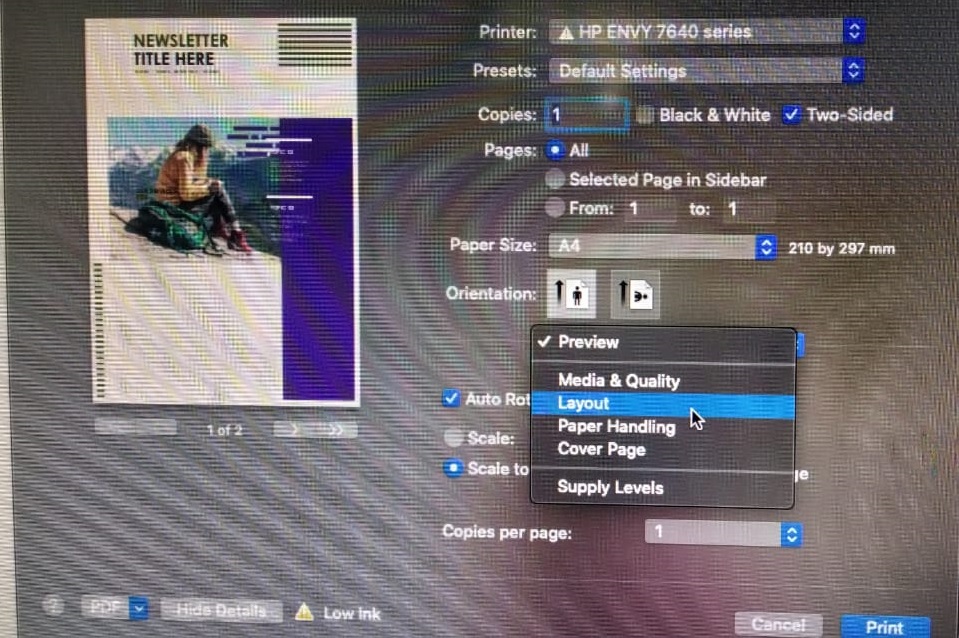
Step 4: In the presets window, select the dropdown menu below 'Orientation'.
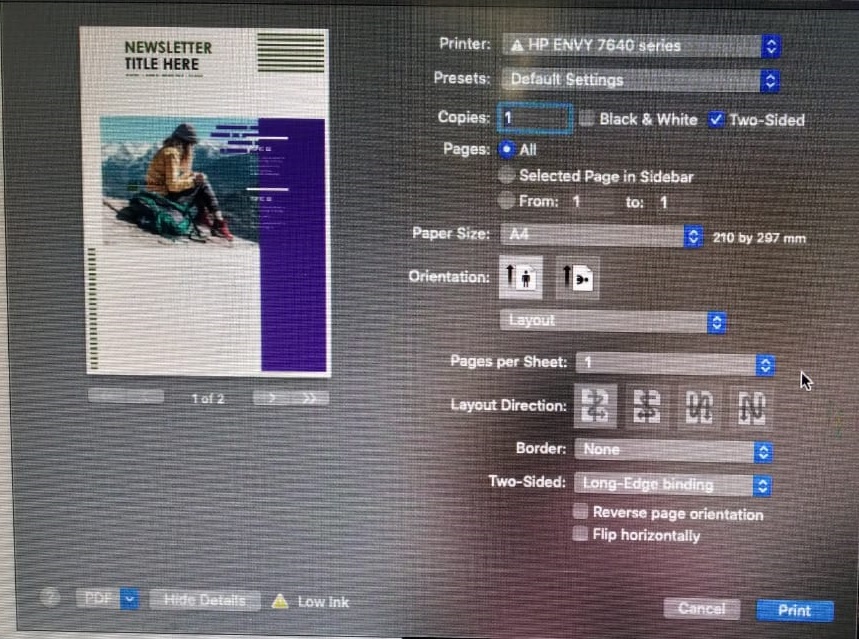
Step 5: Select the 'Layout' menu.

Step 6: In the two-sided menu, select Long-Edge binding
Step 7: Click on print.
Let me know if this helps.
Please click “Accept as Solution” if you feel my post solved your issue, it will help others find the solution.
Click the “Kudos, Thumbs Up" on the bottom right to say “Thanks” for helping.
ATHARVA_GP
I am an HP Employee
03-18-2019 03:41 PM - edited 03-18-2019 03:41 PM
Thanks for reaching out to the HP Support community!
Let's try these steps:
Step 1: Open a document to print
Step 2: Go to File >Print
Step 3: Select 'Show Details' menu.
Step 4: In the presets window, select the dropdown menu below 'Orientation'.
Step 5: Select the 'Layout' menu.

Step 6: In the two-sided menu, select Long-Edge binding
Step 7: Click on print.
Let me know if this helps.
Please click “Accept as Solution” if you feel my post solved your issue, it will help others find the solution.
Click the “Kudos, Thumbs Up" on the bottom right to say “Thanks” for helping.
ATHARVA_GP
I am an HP Employee