• ×
    Information
    Need Windows 11 help?
    Check documents on compatibility, FAQs, upgrade information and available fixes.
    Windows 11 Support Center.
  • post a message
  • ×
    Information
    Need Windows 11 help?
    Check documents on compatibility, FAQs, upgrade information and available fixes.
    Windows 11 Support Center.
  • post a message
Guidelines
Join the HP Community Solve‑a‑thon | Help Others & Share Your Solutions | Live on Zoom | 2:30 PM to 2:30 AM IST | Every Wednesday Click here to know more
HP Recommended
HP LASER JET 1007
Microsoft Windows 7 (64-bit)

MY PRINTER IS PRINTING LIGHTLY 1007 PLZ GIVE ME SOLUTION

1 REPLY 1
HP Recommended

@RAHUL61


Greetings!
 
Welcome to the HP Support Community. This is a great place to get support, find answers and tips to your technical queries. I have reviewed your post and I understand there's an issue with the print quality.


Appreciate you trying the steps. Don't worry, I'm here to help! To better assist you - 


1) Are you using genuine HP ink? 
2) Have you tried any troubleshooting steps before posting here? 


While you respond to that, let's try these steps -


Step 1 Printer Reset -
1) Take out the cartridges. 
2) Unplug the power cord from the printer & wall. 
3) Wait for 30 seconds.  
4) Plug the power cord back into the printer and wall, ensure the printer is plugged into the wall & not to a surge protector. 
5) Insert the cartridges back into the printer.


Step 2 Check the estimated ink levels -
Check the ink levels and replace the ink if low. Please refer to this document for steps to check the ink levels. 


Step 3 Print a test page -

1) Search Windows for devices, and click Devices and Printers in the list of results.
2) Right-click the product icon, and click Properties.
3) On the General tab, click Print Test Page.


Evaluate the page -

  • If there are no defects found, try step# 4.
  • If there are defects found, try step# 5 and 6.

Step 4 Re-install the printer driver -

1) In the search box, type and open "Uninstall a Program". 
2) Look for HP Printer software. 
3) Right-click to uninstall. 
4) In the search box, type and open “Devices and printers”. 
5) In the Devices and Printers, look for your HP printer. If you see it listed right-click on it and choose “Delete” or “Remove Device”. 
6) Open the run command with the "Windows key + R" key combo.  
7) Type printui.exe /s and click Ok. (Note: there is a space in between “printui.exe” and “/s”). 
8) Click on the "Drivers" tab. 
9) Look for HP Printer driver. If you see it Click on it and click “Remove” at the bottom. 
10) Select Ok. 
11) Select Apply and Ok on the Print Server Properties windows. 
12) Close Devices and Printers Once the software and drivers are removed. 
13) Restart the computer. 
14) Download and install the software and drivers from here.


Step 5 Print a cleaning page -
1) Load paper in the input tray.
2) Make sure that the product is idle and that the Ready light is on steady.
3) Search Windows for devices, and click Devices and Printers in the list of results.
4) Right-click the product icon, and click Properties.
5) Click the Configure tab.
6) In the Cleaning Page section, click Start to begin the cleaning.


Step 6 Clean the pickup roller -
1) Turn off the product, disconnect the power cord, and then wait for the product to cool.
2) Open the print cartridge door, remove the print cartridge, and then find the pickup roller.
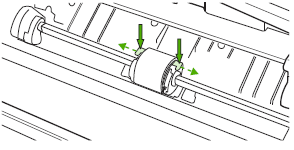
3) Release and remove the pickup roller.

  • Pull the small, white tabs on either side of the pickup roller outward.

Releasing the pickup roller (graphic)

  • Rotate the pickup roller toward the front.
  • Gently pull the pickup roller up and out.

4) Clean the pickup roller with a lint-free cloth, lightly moistened with water.
5) Allow the pickup roller to dry completely.
6) Replace the pickup roller.

  • Position the pickup roller in the slot.
  • Rotate the top of the pickup roller away from you until both sides snap into place.

Reinstalling the pickup roller (graphic)

7) Close the access door, reconnect the power cord, turn on the product, and then try again to print.


Hope this helps!


Let me know how that goes.


To thank us for our efforts to help you, click here to access your public post and Select - "Accept as solution" and click on the  "Thumbs up". 


Have a great day ahead 🙂

Asmita
I am an HP Employee

† The opinions expressed above are the personal opinions of the authors, not of HP. By using this site, you accept the <a href="https://www8.hp.com/us/en/terms-of-use.html" class="udrlinesmall">Terms of Use</a> and <a href="/t5/custom/page/page-id/hp.rulespage" class="udrlinesmall"> Rules of Participation</a>.