
-
×InformationNeed Windows 11 help?Check documents on compatibility, FAQs, upgrade information and available fixes.
Windows 11 Support Center. -
-
×InformationNeed Windows 11 help?Check documents on compatibility, FAQs, upgrade information and available fixes.
Windows 11 Support Center. -
- HP Community
- Printers
- LaserJet Printing
- Re: Software update failed

Create an account on the HP Community to personalize your profile and ask a question
Your account also allows you to connect with HP support faster, access a personal dashboard to manage all of your devices in one place, view warranty information, case status and more.

It has been a while since anyone has replied. Simply ask a new question if you would like to start the discussion again.

04-18-2020 02:38 AM
 HP Recommended
Product: LaserJet Pro MFP M281fwd
Operating System: Microsoft Windows 10 (64-bit)
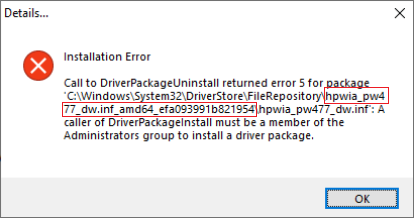
Hi, I tried to update the software as required but when I install it an error appears in a window. So i decide to unistal everything and install it again but the installation software fail again showing me the same error. I used evry HP help software but i get always the same problem. I enclose screenshot error on my pc. Thank you to help me.
Solved! Go to Solution.
1 ACCEPTED SOLUTION
Accepted Solutions


04-18-2020 05:12 AM
HP Recommended
Please try using an S switch instead, which indicates Si and let me know if that may provide different results:
Non-HP PC:
takeown /f %windir%\System32\DriverStore\FileRepository /r /d S
icacls "%windir%\System32\DriverStore\FileRepository" /grant %username%:(OI)(CI)F /T
for /d %G in ("%windir%\System32\DriverStore\FileRepository\hp*") do rd /s /q "%~G"
takeown /f %windir%\System32\DriverStore\FileRepository /A /r /d S
HP PC:
takeown /f %windir%\System32\DriverStore\FileRepository /r /d S
icacls "%windir%\System32\DriverStore\FileRepository" /grant %username%:(OI)(CI)F /T
takeown /f %windir%\System32\DriverStore\FileRepository /A /r /d S
May you see any difference now?
If not, please type takeown/? in the CMD prompt, and evaluate if you may need a different switch for Italian, like below screenshot of the /D value as below example:

Providing a picture of your results could be much helpful to point you any further.
Shlomi


Click the Yes button to reply that the response was helpful or to say thanks.
If my post resolve your problem please mark it as an Accepted Solution 🙂
4 REPLIES 4
04-18-2020 04:06 AM
HP Recommended
Hi,
Please follow the below steps to resolve a such:
Note: if you have an HP Computer, follow the steps within the HP PC Solution section and do not follow any further steps within this section
- From the search bar type CMD, right-click on Command Prompt and select Run as Administrator.
- Copy the following command, then right-click the Command Prompt dialog and select Paste, then press Enter till any command completes
- processing:
takeown /f %windir%\System32\DriverStore\FileRepository /r /d y icacls "%windir%\System32\DriverStore\FileRepository" /grant %username%:(OI)(CI)F /T
Note: This provides your user full permissions to the File Repository system folder and deletes all HP's folders from within the system folder
for /d %G in ("%windir%\System32\DriverStore\FileRepository\hp*") do rd /s /q "%~G" takeown /f %windir%\System32\DriverStore\FileRepository /A /r /d y
Note: if you receive any Syntax error and your operating system language is in a different language than English, review the following Takeown command documentation from Microsoft for your language and modify the syntax accordingly. - From the Start menu click the Gear icon, select Apps and uninstall the HP Basic Device Software for your printer.
- Download and install the latest HP Basic Device Software for your printer as necessary:
https://support.hp.com/us-en/drivers/printers
HP PC Solution
- From the search bar type CMD, right-click on Command Prompt and select Run as Administrator.
- Copy the following command, then right-click the Command Prompt dialog and select Paste, then press Enter till any command completes processing:
takeown /f %windir%\System32\DriverStore\FileRepository /r /d y icacls "%windir%\System32\DriverStore\FileRepository" /grant %username%:(OI)(CI)F /T takeown /f %windir%\System32\DriverStore\FileRepository /A /r /d y
Note: This provides your user full permissions to the File Repository system folder
Note: if you receive any Syntax error and your operating system language is in a different language than English, review the following Takeown command documentation from Microsoft for your language and modify the syntax accordingly. - From the Start menu click the Gear icon, select Apps and uninstall the HP Basic Device Software for your printer and evaluate the error message, then close the Uninstall dialog.
Right-click the Start button and select Run, then paste the following path and press OK:
%windir%\System32\DriverStore\FileRepository
- Locate and delete only the HP Folder listed in the error message.
Example: following below error message, delete the hpwia_pw477dw.inf_amd64_efa093991b821954 folder as an example: - From the Start menu click the Gear icon, select Apps and uninstall the HP Basic Device Software for your printer.
- Download and install the latest HP Basic Device Software for your printer as necessary:
https://support.hp.com/us-en/drivers/printers
Regards,
Shlomi
Click the Yes button to reply that the response was helpful or to say thanks.
If my post resolve your problem please mark it as an Accepted Solution 🙂
04-18-2020 04:51 AM
HP Recommended
Thank you very much but i am not so expert with dos and i have problems to follow your instructions :-(.
From the black windows i get message that is not permitted to use Y value for /D options ....and i can't continue.
i am sorry, but than you very much because you have understood the problem!!!.
04-18-2020 05:12 AM
HP Recommended
Please try using an S switch instead, which indicates Si and let me know if that may provide different results:
Non-HP PC:
takeown /f %windir%\System32\DriverStore\FileRepository /r /d S
icacls "%windir%\System32\DriverStore\FileRepository" /grant %username%:(OI)(CI)F /T
for /d %G in ("%windir%\System32\DriverStore\FileRepository\hp*") do rd /s /q "%~G"
takeown /f %windir%\System32\DriverStore\FileRepository /A /r /d S
HP PC:
takeown /f %windir%\System32\DriverStore\FileRepository /r /d S
icacls "%windir%\System32\DriverStore\FileRepository" /grant %username%:(OI)(CI)F /T
takeown /f %windir%\System32\DriverStore\FileRepository /A /r /d S
May you see any difference now?
If not, please type takeown/? in the CMD prompt, and evaluate if you may need a different switch for Italian, like below screenshot of the /D value as below example:
Providing a picture of your results could be much helpful to point you any further.
Shlomi
Click the Yes button to reply that the response was helpful or to say thanks.
If my post resolve your problem please mark it as an Accepted Solution 🙂

Be alert for scammers posting fake support phone numbers and/or email addresses on the community.
If you think you have received a fake HP Support message, please report it to us by clicking on "Flag Post".
† The opinions expressed above are the personal opinions of the authors, not of HP. By using this site, you accept the Terms of Use and Rules of Participation.


Didn't find what you were looking for?
Ask the community
† The opinions expressed above are the personal opinions of the authors, not of HP. By using this site, you accept the <a href="https://www8.hp.com/us/en/terms-of-use.html" class="udrlinesmall">Terms of Use</a> and <a href="/t5/custom/page/page-id/hp.rulespage" class="udrlinesmall"> Rules of Participation</a>.