
-
×InformationNeed Windows 11 help?Check documents on compatibility, FAQs, upgrade information and available fixes.
Windows 11 Support Center. -
-
×InformationNeed Windows 11 help?Check documents on compatibility, FAQs, upgrade information and available fixes.
Windows 11 Support Center. -
- HP Community
- Printers
- LaserJet Printing
- Re: duplex printing issue

Create an account on the HP Community to personalize your profile and ask a question
Your account also allows you to connect with HP support faster, access a personal dashboard to manage all of your devices in one place, view warranty information, case status and more.

It has been a while since anyone has replied. Simply ask a new question if you would like to start the discussion again.

03-21-2018 04:38 PM
 HP Recommended
Product: MFP M227fdn
Operating System: macOS 10.13 High Sierra
When printing in duplex mode, the second page starts printing from the middle of the page, not the top of the page as you expect. This happens when the second page is less than full page. Is there a setting somewhere on that can be adjusted?
Solved! Go to Solution.
1 ACCEPTED SOLUTION
Accepted Solutions

03-24-2018 09:49 AM - edited 03-24-2018 09:49 AM
HP Recommended
It looks like you were interacting with sandytechy20, but he is out for the day & I'll be glad to help you out. I'm KrazyToad & I'm at your service.
Let's Reset the Printing System and check if that works.
Click the Apple menu, and then click System Preferences.
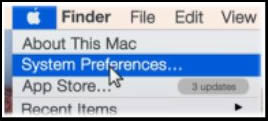
Click Printers & Scanners, Print & Scan, or Print & Fax.
Right-click (or Control + click) anywhere inside the Printers window, and then click Reset printing system.
Figure : Clicking Reset printing system

Click Reset or OK.
If prompted, type your username and password, and then click OK.
The printing system resets.
Turn off the printer, wait 5 seconds, and then turn on the printer.
Wait until the printer is idle and silent.
In the Printers window on the Mac, click the Add button
 .
.Select your printer from the list, and then click Add.
It might take a few seconds before your printer displays in the Printers list.
You can also reefer to this Link: https://support.hp.com/my-en/product/HP-DeskJet-Ink-Advantage-4670-All-in-One-Printer-series/7317523...
Keep me posted how it goes and let me know if you need further assistance
Thank you. 🙂
If the information I've provided was helpful, give us some reinforcement by clicking the "Solution Accepted"
KrazyToad
I Am An HP Employee
5 REPLIES 5

03-22-2018 04:29 PM
HP Recommended
Thanks for taking an interest in the HP Support Forums After reading your post I see that your printer prints the second page from the middle. I will be a delight to assist you here.
Superb analysis and brilliant diagnosis of the issue before posting. 🙂 Kudos to you on that score.:)
For better clarity and to assist you better I would require more information regarding this:
- When did this issue start?
Meanwhile
Remove and Add the printer again with Airprint
-
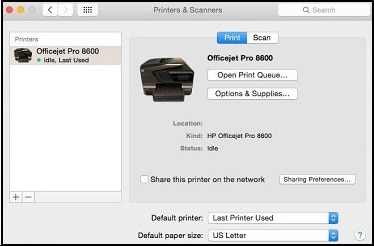
Click the Apple menu, click System Preferences, and then click Print & Scan or Printers & Scanners.
Figure : Example of the Printers & Scanners window
-
Check if your printer name displays in the Printers list, and then do one of the following steps.
-
If your printer is listed, remove and re-add the printer to confirm it is set up for AirPrint. Click the printer name, click the minus sign
 to delete the printer, click the plus sign
  , click Add Printer or Scanner, click the printer name and then continue to the next step.
 -
If your printer is not listed, click the plus sign, click Add Printer or Scanner, click the name of your printer, and then continue to the next step.
-
-
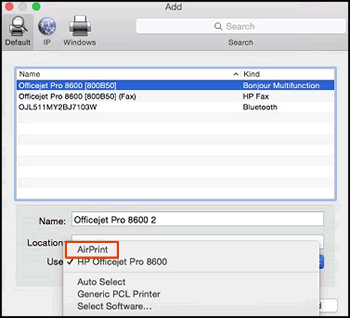
Confirm AirPrint or Secure AirPrint displays in the Use or Print Using menu, and then click Add.
Figure : AirPrint displays in the Use menu
-
Open a document or photo, click File, and then click Print.
Let me know if that helps.
Cheers.
Sandytechy20
I am an HP Employee
03-24-2018 09:49 AM - edited 03-24-2018 09:49 AM
HP Recommended
It looks like you were interacting with sandytechy20, but he is out for the day & I'll be glad to help you out. I'm KrazyToad & I'm at your service.
Let's Reset the Printing System and check if that works.
Click the Apple menu, and then click System Preferences.
Click Printers & Scanners, Print & Scan, or Print & Fax.
Right-click (or Control + click) anywhere inside the Printers window, and then click Reset printing system.
Figure : Clicking Reset printing system
Click Reset or OK.
If prompted, type your username and password, and then click OK.
The printing system resets.
Turn off the printer, wait 5 seconds, and then turn on the printer.
Wait until the printer is idle and silent.
In the Printers window on the Mac, click the Add button
.Select your printer from the list, and then click Add.
It might take a few seconds before your printer displays in the Printers list.
You can also reefer to this Link: https://support.hp.com/my-en/product/HP-DeskJet-Ink-Advantage-4670-All-in-One-Printer-series/7317523...
Keep me posted how it goes and let me know if you need further assistance
Thank you. 🙂
If the information I've provided was helpful, give us some reinforcement by clicking the "Solution Accepted"
KrazyToad
I Am An HP Employee

Be alert for scammers posting fake support phone numbers and/or email addresses on the community.
If you think you have received a fake HP Support message, please report it to us by clicking on "Flag Post".
† The opinions expressed above are the personal opinions of the authors, not of HP. By using this site, you accept the Terms of Use and Rules of Participation.


Didn't find what you were looking for?
Ask the community
† The opinions expressed above are the personal opinions of the authors, not of HP. By using this site, you accept the <a href="https://www8.hp.com/us/en/terms-of-use.html" class="udrlinesmall">Terms of Use</a> and <a href="/t5/custom/page/page-id/hp.rulespage" class="udrlinesmall"> Rules of Participation</a>.