-
×InformationNeed Windows 11 help?Check documents on compatibility, FAQs, upgrade information and available fixes.
Windows 11 Support Center. -

-
×InformationNeed Windows 11 help?Check documents on compatibility, FAQs, upgrade information and available fixes.
Windows 11 Support Center. -
- HP Community
- Printers
- Mobile Printing & Cloud Printing
- Re: 8620 printer having printhead issues. Repair or replace?

Create an account on the HP Community to personalize your profile and ask a question
09-20-2019 05:31 PM
I suggest you do a Hard Reset on the printer
(1) Turn the printer on, if it is not already on.
(2) Wait until the printer is idle and silent before you continue.
(3) With the printer turned on, disconnect the power cord from the rear of the printer.
(4) Unplug the power cord from the wall outlet.
(5) Wait at least 60 seconds.
(6) Plug the power cord back into the wall outlet.
NOTE: HP recommends connecting the printer power cord directly to the wall outlet.
(7) Reconnect the power cord to the rear of the printer.
(8) Turn on the printer, if it does not automatically turn on.
The printer might go through a warm-up period. The printer lights might flash, and the carriage might move.
Wait until the warm-up period finishes and your printer is idle and silent before you proceed.
Reseat the printhead
Follow these steps to reseat the printhead.
NOTE:You do not need to remove the printhead from the carriage.
Step 1: Unseat the printhead
-
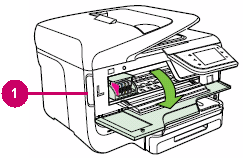
Slip your fingers into the slot on the left side of the printer, and then pull forward to open the cartridge access door. The carriage moves to the left side of the printer. Wait until the carriage is idle and silent before proceeding.
Figure : Open the cartridge access door

-
Slot on the left side of the printer
-
-
Unplug the power cord from the rear of the printer. Unplugging the printer prevents the carriage from moving.
WARNING:
You must disconnect the power cord before reaching inside the printer to avoid risk of injuries or electric shock.
-
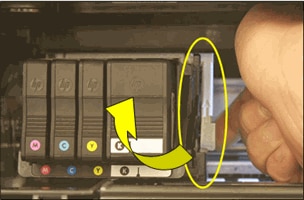
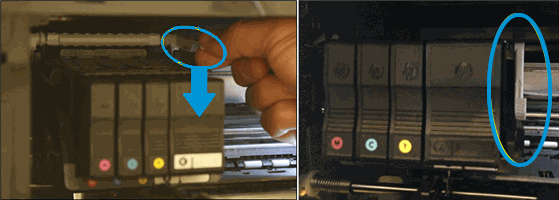
Lift the carriage latch.
Figure : Lift the carriage latch

-
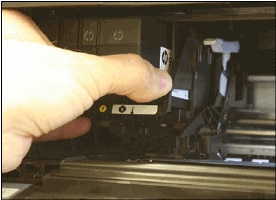
Grasp the sides of the printhead, and then slightly lift the printhead without fully removing it from the carriage.
Figure : Slightly lift the printhead

Step 2: Reseat the printhead, and then lower the carriage latch
-
Reinsert the printhead into the carriage to reseat it. As you guide the printhead into the carriage, it settles into the carriage as it seats.
Figure : Reseat the printhead

-
Gently rock the printhead to the left and right to make sure that the printhead fully seats in the carriage.
-
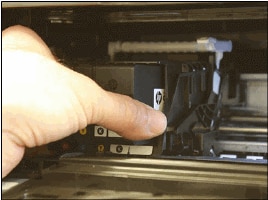
Lower the carriage latch.
Figure : Lower the carriage latch

-
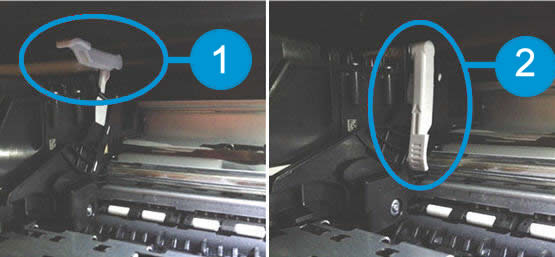
Make sure that the carriage latch is down.
Figure : Carriage latch positions

-
Carriage latch is up
-
Carriage latch is down
-
-
Close the ink cartridge access door.
-
Reconnect the power cord to the rear of the printer.
-
If the printer does not turn on by itself, press the Power button to turn it on.
-
Wait until the warm-up period finishes and your printer is idle and silent before you proceed.
-
If these steps resolved the issue, there is no need to continue troubleshooting.
-
If the issue persists, see the next step.
Step 3: Reseat the printhead up to three times
Sometimes error messages persist after inserting the printhead. To clear any error messages, reseat the printhead by repeating all steps in this solution up to three times.
Keep me posted, how it goes!
If the information I've provided was helpful, give us some reinforcement by clicking the Accepted Solution and Kudos buttons, that'll help us and others see that we've got the answers!
Thank you for joining the HP Community.
Have a great day!
Cheers:)
Raj1788
I am an HP Employee