• ×
    Information
    Need Windows 11 help?
    Check documents on compatibility, FAQs, upgrade information and available fixes.
    Windows 11 Support Center.
  • post a message
  • ×
    Information
    Need Windows 11 help?
    Check documents on compatibility, FAQs, upgrade information and available fixes.
    Windows 11 Support Center.
  • post a message
Guidelines
Join the HP Community Solve‑a‑thon | Help Others & Share Your Solutions | Live on Zoom | 2:30 PM to 2:30 AM IST | Every Wednesday Click here to know more
Check some of the most frequent questions about Instant Ink: HP INSTANT INK, HP+ PLANS: INK AND TONER.


Check out our WINDOWS 11 Support Center info about: OPTIMIZATION, KNOWN ISSUES, FAQs AND MORE.
HP Recommended
HP C4780
macOS 10.14 Mojave

I AM HAVING A PROBLEM CONNECTING MY MAC AND MY I PHONES TO MY WIRELESS ROUTE

2 REPLIES 2
HP Recommended

@LAWRIC70, Welcome to the HP Support Community!


Are you trying to connect the printer wirelessly to your router and MAC?

Use WPS method to connect the printer to the wireless network

  1. Locate the WPS button on your router, but do not press it yet.

    If your router does not support WPS, skip to the next step to connect the printer with the HP Smart app.

  2. Turn on the printer. If the printer is in sleep mode, press the Cancel button on the control panel.

  3. On the printer control panel, press the Wireless button  > Restore Network Defaults and then select WPS > Push Button

  4. On the router, press and hold the WPS button for 3 to 5 seconds or until it shows that the WPS connection process has started.

    note:

    The printer stops searching for a WPS connection two minutes after the wireless button is pressed. If you were unable to press the WPS button within that timeframe, attempt these steps again.

    Once the printer connects to the wireless network, the blue Wireless light on the control panel turns on solid.

HP Photosmart C4780 All-in-One Printer is not AirPrint compatible. Install the printer driver via Apple software update.


1.) Use the steps available here to update the software on Mac.

2.) Click the Apple menu, click System Preferences, and then click Print & Scan or Printers & Scanners.

3.) Check if your printer name displays in the Printers list, If your printer is listed, click the printer name, click the minus sign to delete the printer.

4.) If you see multiple printer queues for the same printer, remove all extra printers by selecting them one at a time, and then clicking the minus button  at the bottom of the list.

5.) Click the plus sign , click Add Printer or Scanner, click the printer name.
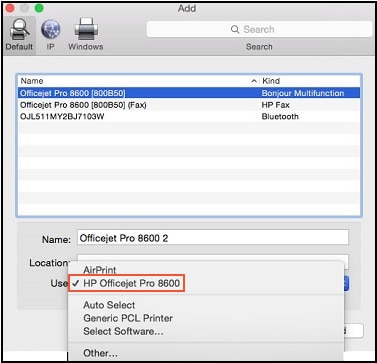
6.) Click the Use or Print Using menu, select the name of your printer in the pop-up menu. Then click Add.

Select the name of your printer in the Use menu

7.) Try to print.


Let me know how this goes.


If you feel my post solved your issue, please click “Accept as Solution”, it will help others find the solution. Click the “Kudos/Thumbs Up" on the bottom right to say “Thanks” for helping!

KUMAR0307
I am an HP Employee

HP Recommended

This is never going to connect.........please stop emailing me

† The opinions expressed above are the personal opinions of the authors, not of HP. By using this site, you accept the <a href="https://www8.hp.com/us/en/terms-of-use.html" class="udrlinesmall">Terms of Use</a> and <a href="/t5/custom/page/page-id/hp.rulespage" class="udrlinesmall"> Rules of Participation</a>.


