• ×
    Information
    Need Windows 11 help?
    Check documents on compatibility, FAQs, upgrade information and available fixes.
    Windows 11 Support Center.
  • post a message
  • ×
    Information
    Need Windows 11 help?
    Check documents on compatibility, FAQs, upgrade information and available fixes.
    Windows 11 Support Center.
  • post a message
Guidelines
Join the HP Community Solve‑a‑thon | Help Others & Share Your Solutions | Live on Zoom | 2:30 PM to 2:30 AM IST | Every Wednesday Click here to know more
Check some of the most frequent questions about Instant Ink: HP INSTANT INK, HP+ PLANS: INK AND TONER.


Check out our WINDOWS 11 Support Center info about: OPTIMIZATION, KNOWN ISSUES, FAQs AND MORE.
HP Recommended

I have a HP 4512 all in one printer. Trying to print from my phone, it has been working fine previously. I keep getting the error of no air printers found even though Wi-Fi is connected and they are on the same network. Everything has been shut off and restarted. Still no luck please help

1 REPLY 1
HP Recommended

@Rbk38683, Welcome to HP Support Community!


I see that you are unable to print from your iOS device, follow the steps below-


Make sure AirPrint is enabled on the printer

Your printer has its own website for printer configuration called the Embedded Web Server (EWS). Open the EWS to check if AirPrint is enabled.

  1. In the Wireless menu on the printer or on the Wireless Test Report, you previously printed, find the printer IP Address.

  2. Open the Safari browser on your Apple device.

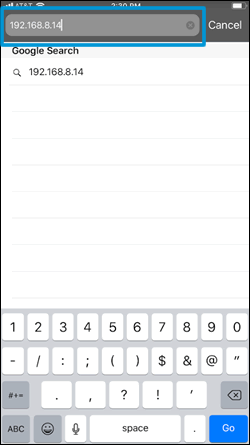
  3. Type the IP address in the search bar, and then tap Go to open the EWS.

    Enter the printer IP address in Safari

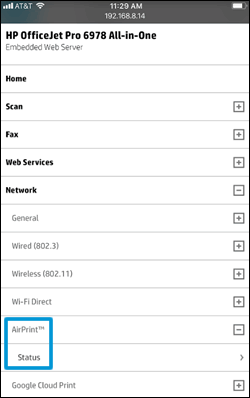
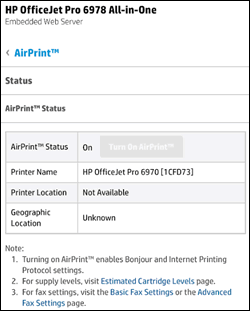
  4. Tap Network, tap AirPrint, and then tap Status.

    AirPrint Status menu in the printer Embedded Web Server on an iOS device

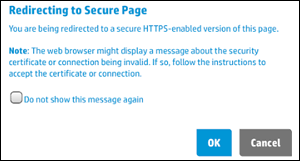
  5. In the Redirecting to Secure Page message, tap OK.

    Embedded Web Server redirect to secure page message on an iOS device

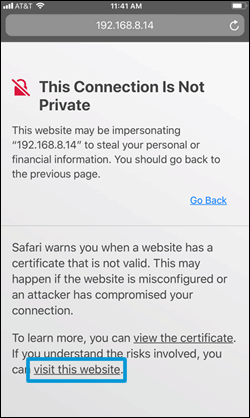
  6. In the This Connection is Not Private window, tap Show Details, and then tap visit this website to view the AirPrint status settings.

    Embedded Web Server connection message on an iOS device

  7. If the status is Off, tap Turn on AirPrint.

    Embedded Web Server AirPrint status on an  iOS device

Try to print. If the issue persists, continue to the next step.


Use an alternate printing method

Go to 123.hp.com to install the HP Smart app. Follow the guided setup to connect and use the printer.

If the printer connection fails over the local wireless network, continue with these steps to set up the Wi-Fi Direct printer connection to your Apple device.

NOTE: 

The following steps temporarily disconnect your Apple device from the Internet. If you are printing web-based content such as a webpage, cloud-based document, or an email, open it before proceeding.

  1. On the printer, touch the Wi-Fi Direct/HP wireless direct icon  to confirm the feature is on.

  2. On your Apple device, tap Settings, and then tap Wi-Fi.

  3. Under Choose a network, select your printer with DIRECT in the name.

  4. If prompted for a password, type 12345678. This is the default password to log in.

  5. Try to print.

  6. Reconnect to your local Wi-Fi network after the print job completes.

Hope this helps! Keep me posted. 


Please click “Accepted Solution” if you feel my post solved your issue, it will help others find the solution. Click the “Kudos/Thumbs Up" on the bottom right to say “Thanks” for helping!

TEJ1602
I am an HP Employee

† The opinions expressed above are the personal opinions of the authors, not of HP. By using this site, you accept the <a href="https://www8.hp.com/us/en/terms-of-use.html" class="udrlinesmall">Terms of Use</a> and <a href="/t5/custom/page/page-id/hp.rulespage" class="udrlinesmall"> Rules of Participation</a>.