• ×
    Information
    Need Windows 11 help?
    Check documents on compatibility, FAQs, upgrade information and available fixes.
    Windows 11 Support Center.
  • post a message
  • ×
    Information
    Need Windows 11 help?
    Check documents on compatibility, FAQs, upgrade information and available fixes.
    Windows 11 Support Center.
  • post a message
Guidelines
Join the HP Community Solve‑a‑thon | Help Others & Share Your Solutions | Live on Zoom | 2:30 PM to 2:30 AM IST | Every Wednesday Click here to know more
Check some of the most frequent questions about Instant Ink: HP INSTANT INK, HP+ PLANS: INK AND TONER.


Check out our WINDOWS 11 Support Center info about: OPTIMIZATION, KNOWN ISSUES, FAQs AND MORE.
HP Recommended
PHOTOSMART B110
Microsoft Windows 10 (64-bit)

Printer showing Status Offline.

Wireless Network Test Report showing multiple (5 using 4 different channels) repetitions of same SSID number, I've got 5 access points because wireless coverage is variable depending on where you are in the property. Otherwise Wireless report has PASS on everything but No FILTERING which has FAIL


I've powered off printer but still no luck.


Any advice?

George

1 REPLY 1
HP Recommended

@GeoDoh1984


Welcome to the HP support community.


Meanwhile:


Use HP Print and Scan Doctor to check connectivity

Download HP Print and Scan Doctor.

  1. Run HPPSdr.exe from the download location on your computer.

  2. Once HP Print and Scan Doctor opens, click Start, and then select your printer.

    • If your printer in not in the list, turn it off and on, and then click Retry.

    • If there is a connection problem, follow the instructions in HP Print and Scan Doctor.

  3. If a screen prompts you to turn on printer updates, click Yes.

  4. If a screen prompts you to make your printer the default printer, click Yes.

  5. Try to print.

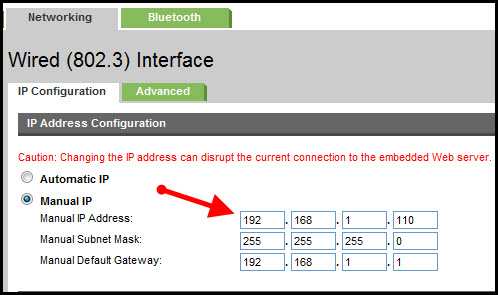
Assign a manual IP address and that should fix the issue.

  1. Follow these steps to print a network configuration page and find printer IP address.

  2. Touch the button () next to the Setup icon () in the lower-left corner of the HP product control panel. The Setup menu displays.

  3. Touch the Right Arrow button () to scroll through the options and select Wireless, and then touch OK. The Wireless menu displays.
  4. Touch the Right Arrow button () to scroll through the options and select Wireless Settings, and then touch OK. The Wireless Settings menu displays.

  5. Touch the Right Arrow button () to scroll through the options and select Print Network Configuration Page, and then touch OK.

Setting a Static IP Address

Once you know your printer’s IP address, entering it is pretty easy. Here’s what you do:

HP Printer Static IP Address

  1. Run your Web browser.
  2. In the Web browser’s address bar, type the IP address of your printer and press Enter. Assuming you entered the right address, the HP printer control panel should appear.
  3. Click the Networking tab.
  4. Under Connections, click Wireless.
  5. Under IP Address Configuration, click Manual IP.
  6. Enter the IP address, subnet mask, and default gateway in the appropriate boxes.
  7. Click Apply.

You can refer this HP document for more assistance:- Click here


Let me know how it goes.

To thank me for my efforts to help you, please mark my post as an accepted solution so that it benefits several others.

Cheers.

Sandytechy20
I am an HP Employee

† The opinions expressed above are the personal opinions of the authors, not of HP. By using this site, you accept the <a href="https://www8.hp.com/us/en/terms-of-use.html" class="udrlinesmall">Terms of Use</a> and <a href="/t5/custom/page/page-id/hp.rulespage" class="udrlinesmall"> Rules of Participation</a>.


