• ×
    Information
    Need Windows 11 help?
    Check documents on compatibility, FAQs, upgrade information and available fixes.
    Windows 11 Support Center.
  • post a message
  • ×
    Information
    Need Windows 11 help?
    Check documents on compatibility, FAQs, upgrade information and available fixes.
    Windows 11 Support Center.
  • post a message
Guidelines
Join the HP Community Solve‑a‑thon | Help Others & Share Your Solutions | Live on Zoom | 2:30 PM to 2:30 AM IST | Every Wednesday Click here to know more
Check some of the most frequent questions about Instant Ink: HP INSTANT INK, HP+ PLANS: INK AND TONER.


Check out our WINDOWS 11 Support Center info about: OPTIMIZATION, KNOWN ISSUES, FAQs AND MORE.
HP Recommended
HP Envy
Microsoft Windows 10 (32-bit)

I need to move the email address associated with my old printer to my new printer so I can email to print. How? 

1 REPLY 1
HP Recommended

@Lee130, Welcome to the HP Support Community!


Use your HP account to change your HP ePrint email address.

  1. Sign in to HP Smart.

    If you have not set up an HP account, go to Set Up an HP Smart Website Account.

  2. Select your printer, if necessary.

  3. Scroll down to the ePrint settings, and then click ePrint Address, if necessary.

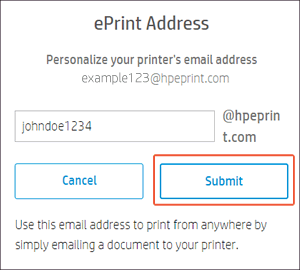
  4. Type the address you want use, and then click Submit.

    Clicking Submit to change an HP ePrint email address

  5. If the address is not available, type a different address, and then click Submit.

  6. Inform any other users of the new HP ePrint email address.

if you encounter any errors, the custom HP ePrint email address might still be assigned to the printer on another HP account.

  • If you have access to the other account, remove the printer from that account, and then add it to your account. Do not turn off Web Services during the transfer or the custom address cannot be used again for six months.

  • If you do not have access to the other account, create a new custom email address. You can reuse the previous email address in six months.

Hope this helps! Keep me posted. 


Please click “Accept as Solution” if you feel my post solved your issue, it will help others find the solution.

Click the “Kudos, Thumbs Up" on the bottom right to say “Thanks” for helping!

Have a great day! 

KUMAR0307
I am an HP Employee

† The opinions expressed above are the personal opinions of the authors, not of HP. By using this site, you accept the <a href="https://www8.hp.com/us/en/terms-of-use.html" class="udrlinesmall">Terms of Use</a> and <a href="/t5/custom/page/page-id/hp.rulespage" class="udrlinesmall"> Rules of Participation</a>.