• ×
    Information
    Need Windows 11 help?
    Check documents on compatibility, FAQs, upgrade information and available fixes.
    Windows 11 Support Center.
  • post a message
  • ×
    Information
    Need Windows 11 help?
    Check documents on compatibility, FAQs, upgrade information and available fixes.
    Windows 11 Support Center.
  • post a message
Guidelines
Join the HP Community Solve‑a‑thon | Help Others & Share Your Solutions | Live on Zoom | 2:30 PM to 2:30 AM IST | Every Wednesday Click here to know more
Check some of the most frequent questions about Instant Ink: HP INSTANT INK, HP+ PLANS: INK AND TONER.


Check out our WINDOWS 11 Support Center info about: OPTIMIZATION, KNOWN ISSUES, FAQs AND MORE.
HP Recommended
hp pro 8715
Microsoft Windows 10 (64-bit)

In trying to solve the my printing problems, my devices and PC tell me various things regarding printer being 'offline'.

1 REPLY 1
HP Recommended

@TurnerSign Welcome to HP Community!


I understand that your computer keeps going Offline.


I'd like to help.


Please update the Firmware from Here


Then assign a Manual IP Address.


  1. Print a Network Configuration Report or Wireless Test Report from your printer.

    • Print the report from the network settings or network setup menu.

  2. On the report printout, look at the network status for your network connection type (wired or wireless.)

    Figure : Example of a correctly connected wireless network status

    Image: Example of a connected wireless network status.
    • If status is connected, continue with these steps.

    • If status is anything other than connected, such as Off or Disabled, then the printer is disconnected from your network. This is the reason your printer is offline. You must connect the printer to your network before you continue. For more help on how to set up a connection to your network, see the User Guide, search the HP website for your printer model and wireless or wired network install, or use the wireless setup wizard from the control panel of your printer if available.

  3. On the report, find the IP Addresssubnet mask, and Default Gateway for your active (connected) network connection type. If your report has separate numbers for IPv4 and IPv6, then use the numbers listed in the IPv4 section.

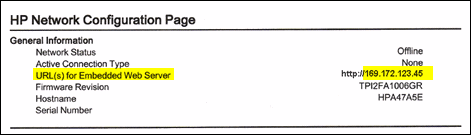
  4. From a computer connected to your network, find the URL(s) for Embedded Web Server (EWS) on the report and enter the URL into your Internet browser. If the webpage appears blank, use a different Internet browser.

    Figure : Example of the URL for the EWS

    Example of the URL for the EWS
  5. Click the Network or Networking tab, and then open the section or page for your network type: wired or wireless.

  6. Click Manual IP.

    • If you see a Suggest a Manual IP Address button, click Manual IP address, and the Manual IP addresses are automatically filled out for you.

    • If your page does not have a button to suggest a manual IP address, type the IP address, subnet mask, and default gateway using the numbers shown in the report you printed.

    Figure : Example of setting up a Manual IP configuration

     Embedded Web Server on Network page with Manual IP selected
  7. Write these new numbers on a piece of paper. You might need to use them later when adding a second printer device.

  8. Click Apply, and then wait until the changes are confirmed.

You can also follow the other troubleshooting steps in this Link if the issue persists.


Keep us posted,

If you would like to thank us for our efforts to help you, 


Give us a virtual high-five by clicking the 'Thumbs Up' icon below, followed by clicking on the "Accept as solution" on this post, 


Have a great day!

† The opinions expressed above are the personal opinions of the authors, not of HP. By using this site, you accept the <a href="https://www8.hp.com/us/en/terms-of-use.html" class="udrlinesmall">Terms of Use</a> and <a href="/t5/custom/page/page-id/hp.rulespage" class="udrlinesmall"> Rules of Participation</a>.