
-
×InformationNeed Windows 11 help?Check documents on compatibility, FAQs, upgrade information and available fixes.
Windows 11 Support Center. -
-
×InformationNeed Windows 11 help?Check documents on compatibility, FAQs, upgrade information and available fixes.
Windows 11 Support Center. -
- HP Community
- Notebooks
- Notebook Audio
- Re: CONEXANT HD SMARTAUDIO 221

Create an account on the HP Community to personalize your profile and ask a question
Your account also allows you to connect with HP support faster, access a personal dashboard to manage all of your devices in one place, view warranty information, case status and more.
Check out our WINDOWS 11 Support Center info about: OPTIMIZATION, KNOWN ISSUES, FAQs, VIDEOS AND MORE.

It has been a while since anyone has replied. Simply ask a new question if you would like to start the discussion again.


06-25-2018 06:02 PM
 HP Recommended
Thanks for your reply.
The link is here: https://support.hp.com/in-en/document/c01912228
It would be great if once more the audio drivers could be uninstalled from the device manager and then reinstalled via this HP link.
In the device manager, in "sound, video and game controllers" you may uninstall the audio drivers and then reinstall them. The laptop needs to be restarted after the audio drivers are successfully installed.
The steps from this HP document should also help.
Hope this information helps. Keep me posted.
Cheers! 🙂

07-05-2018 12:54 PM
HP Recommended
Ok Mkazi thanks for the reply. Again sorry for the delay. I did what you said. Uninstalled and reinstalled the drivers again. Restarted and still no result.
I accessed the new link you posted.... https://support.hp.com/in-en/document/c01912228 and did the steps from Control Panel. However this page I posted below DID NOT show up.
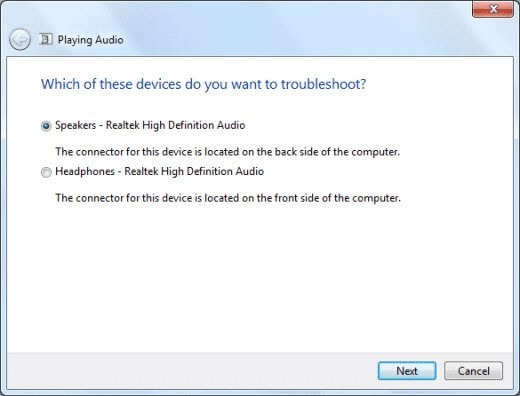
I was looking forward to seeing this page because of the headphones option. But it didn't show up. A page showed up that said it couldn't find any problems. And you know I'm thinking how could the computer not find any problems when I get no sound from my headphones.
I get computer sound...the speakers work fine. The headphones I'm using are new. Use them for my other computer and they work fine. Also thought about the trouble being the headphone jack on the computer but I can't really confidently say that's the problem when the actual audio software of the system isn't giving me a headphones option. If I had a headphones option and could adjust volume...then if the headphones still didn't work..I could then assume that maybe there is a problem with the headphone jack.
Aaarrrgggh! Starting to really frustrate me. Not you guys fault. It's just that it seems like I've tried everything and still no solution. I just want to be confident it's not a hardware problem...and the solution rests with software...program, driver updating, etc..
Thanks for your help MK!
07-05-2018 06:28 PM
HP Recommended
I can understand your concern and will do my best.
Let us run a hardware test on the audio. But before that, please download and install the HP UEFI hardware diagnostics menu via this HP link.
Please restart the laptop after the installation is successful.
The following steps should help in initiating the hardware est on the audio:
- Shutdown the laptop.
-
Turn on the laptop and immediately press F2 key repeatedly for about 7-8 times
-
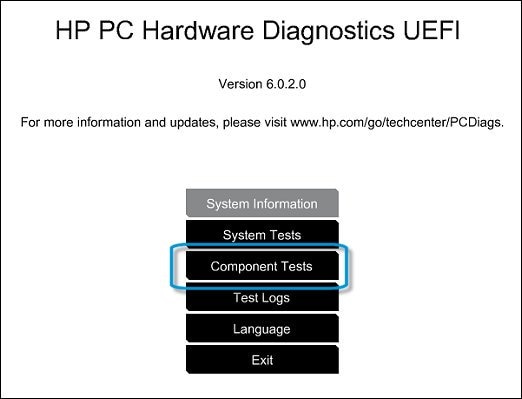
On the main menu, click Component Tests.
Figure : Selecting Component Tests from the main menu
-
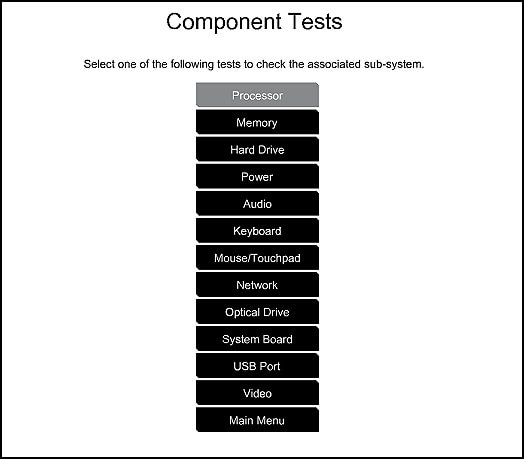
The Component Tests menu displays. Your Component Tests menu might be different, depending on the components installed on your computer.
Figure : Sample list of Component Tests
-
Audio Test - The Audio Playback Test checks your system to make sure the audio device is functioning properly. During the test, a few music notes are played in sequence and then repeated. This test takes 1 minute to complete.
To run the test, click Audio, and then click Run once. Choose either the speakers or the headphones. When asked, enter the number of notes you heard.
Hope this helps. Keep me posted.
Thanks again!
07-11-2018 02:01 PM
HP Recommended
Hi MK. I did exactly what you said. I downloaded and installed the HP UEFI hardware diagnostics menu via the HP link you provided. The installation was successful and I restarted the laptop.
Then I shutdown the laptop. Turned it back on while pressing the F2 tab repeatedly as you said.
Then the System Diagnostics main menu came up as you said. But it looked like this...
System Diagnostics
F1 System Information
F2 Start-up Test
F3 Run-in Test
F4 Hard Disk Test
F11 Error Log
ESC Exit
For more information, please visit: www.hp.com/go/techcenter/startup
That's it. There was no Component Tests tab. I didn't want to click any tab I was not specifically told by you to click. So I exited out. Now I'll be waiting for further instructions. 🙂
Thanks a lot MK 🙂
07-11-2018 05:50 PM
HP Recommended
You're most welcome.
I understand that option run the audio test does not exist after installing the HP UEFI hardware diagnostics menu.
Let us run the audio troubleshooter through Windows:
-
Click Start
 , and then click Control Panel.
 -
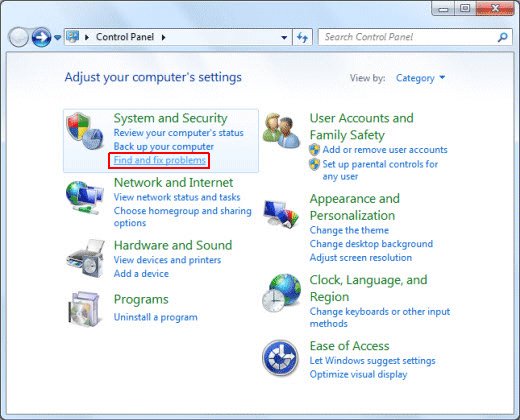
Under System and Security, click Find and fix problems.
Figure : Opening the troubleshooter
-
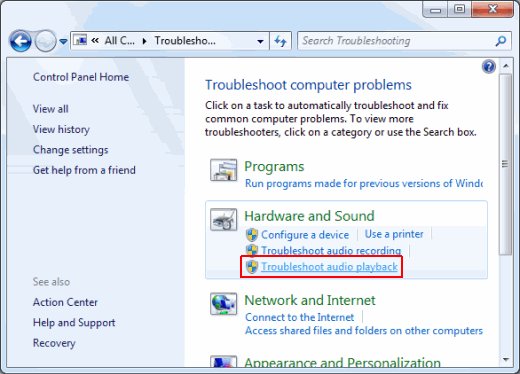
The Troubleshoot computer problems page opens. Under Hardware and Sound, click Troubleshoot audio playback.
Figure : Troubleshooting audio playback
-
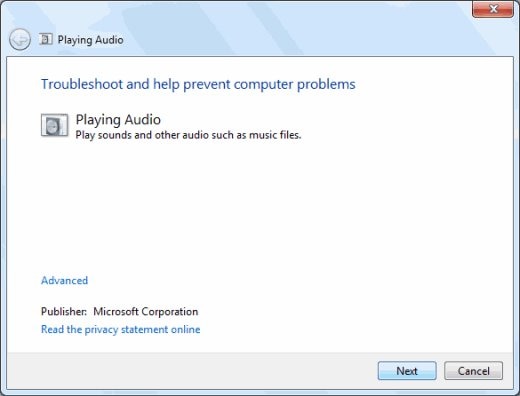
The Playing audio troubleshooting page displays. Click Next to continue.
Figure : Playing Audio troubleshooter
-
Wait while the troubleshooter checks the computer for problems.
Figure : Checking for audio problems

-
If multiple audio devices are connected, select the device you want to troubleshoot, such as speakers, and then click Next.
Figure : Selecting a device to troubleshoot
-
Wait while the troubleshooter detects problems and makes changes.
Figure : Detecting problems

-
When the troubleshooter is done, the Troubleshooting has completed page displays listing any problems found and what changes were made to the computer. Click Close.
NOTE:
For detailed information about the troubleshooting, click View detailed information.
Figure : Troubleshooting completed

If the issue persists then please perform step 5, step 8, step 9 and step 10 from this HP document.
Hope this information helps. Let me know. Thanks!
- « Previous
-
- 1
- 2
- Next »

Be alert for scammers posting fake support phone numbers and/or email addresses on the community.
If you think you have received a fake HP Support message, please report it to us by clicking on "Flag Post".
† The opinions expressed above are the personal opinions of the authors, not of HP. By using this site, you accept the Terms of Use and Rules of Participation.


Didn't find what you were looking for?
Ask the community
† The opinions expressed above are the personal opinions of the authors, not of HP. By using this site, you accept the <a href="https://www8.hp.com/us/en/terms-of-use.html" class="udrlinesmall">Terms of Use</a> and <a href="/t5/custom/page/page-id/hp.rulespage" class="udrlinesmall"> Rules of Participation</a>.