• ×
    Information
    Need Windows 11 help?
    Check documents on compatibility, FAQs, upgrade information and available fixes.
    Windows 11 Support Center.
  • post a message
  • ×
    Information
    Need Windows 11 help?
    Check documents on compatibility, FAQs, upgrade information and available fixes.
    Windows 11 Support Center.
  • post a message
Guidelines
Join the HP Community Solve‑a‑thon | Help Others & Share Your Solutions | Live on Zoom | 2:30 PM to 2:30 AM IST | Every Wednesday Click here to know more
Check out our WINDOWS 11 Support Center info about: OPTIMIZATION, KNOWN ISSUES, FAQs, VIDEOS AND MORE.
HP Recommended
Spectre x360 15-ch011dx
Microsoft Windows 10 (64-bit)

So, I recently bought my Spectre about a month ago. The laptop is quite amazing, loving the battery life and graphical/processing perfomance of it. But since the beginning, the upfiring speakers right under the display does not work, the speakers that are under the base of the keyboard are working fine, however.


I figured I'd just mess around with it, continue to try and get drivers updated, hoping that HP just had a hiccup and fixed it along the way, but it is getting annoying at this point... nothing is working.


A month later, and I find nothing. Does anybody know the fix for this?


Things i've tried so far:

  • Attempted driver updates
  • Attempted removing drivers, including removing driver software from the computer
  • Attempted disabling/reenabling the drivers
  • Reinstalled Windows using the built in reset tool in Windows
  • Placed a clean copy of windows on the computer, straight from microsoft, completely wiping the HP image from the pc (just earlier today)

Still nothing. I'd really appreciate if someone has insight on this problem.

3 REPLIES 3
HP Recommended

@19qhenry,


Welcome to the HP Forums 🙂 I would like to take a moment and thank you for using this forum, it is a great place to find answers. For you to have the best experience on the HP forum, you could also visit our HP Forums Guide for First Time Here? Learn How to Post and More. I see from your post that you're having issues related to speaker not working properly on your new HP Spectre notebook. Don't worry we'll work together to help you find a solution.


Splendid effort and fabulous description of the issue before posting. Kudos to you on that score.  You are a valued HP customer and it is paramount to assist you here. I take it as a privilege to share this platform with you. 


As you have already exhausted all possible troubleshooting steps from updating the drivers to reinstalling the OS and still having the issue. 

In this scenario, I would suggest here is to run the audio test from the F2 (Please remember to capture the failure ID for further assistance).

  • Hold the power button for at least five seconds to turn off the computer.

  • Turn on the computer and immediately press the F2 key repeatedly, about once every second.

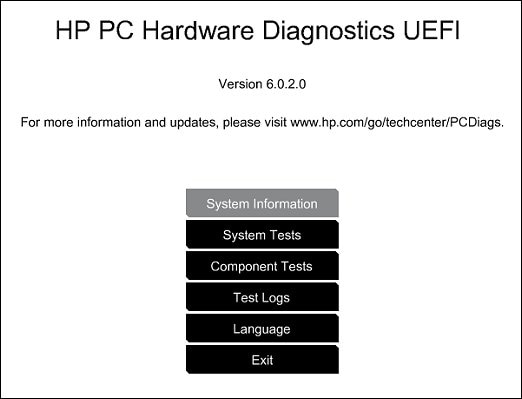
  • The HP PC Hardware Diagnostics (UEFI) main menu is displayed.

HP PC Hardware Diagnostic UEFI screen

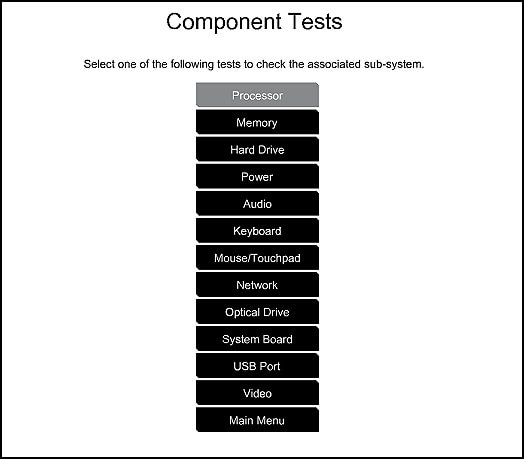
  • Select Component tests.

List of the Component tests

  • Please initiate a test on the Audio - The Audio Playback Test checks your system to make sure the audio device is functioning properly. During the test, a few music notes are played in sequence and then repeated. This test takes 1 minute to complete. Click Audio, then click Run once. Choose either the speakers or the headphones. When asked, enter the number of notes you heard.

Could you please respond to this post with the details and with the results of the troubleshooting as this will help me in further assisting you.

Eagerly waiting for your response!

that said, If the information I've provided was helpful, 

give us some reinforcement by clicking the solution and kudos buttons, 

that'll help us and others see that we've got the answers!

Good Luck.

Jeet_Singh
I am an HP Employee

HP Recommended

Thank you for the response! Some problems when trying this diagnostic test...


I shut down the computer, and attempted to load the diagnostic tool via the F2 key, as well as trying the Escape key to pause startup and select F2 from there. Both of these methods to get to diagnostics didn't show what you have screenshotted in your reply. What came up is the picture below:20181229_170623.jpg


After this came up with nothing to help me, I checked to make sure my BIOS is up to date, and it is with the version number: F.24 REV A. I did reference that to the HP driver page for this model, and it is definitely up to date from what i can tell.


So, I then proceeded to check the BIOS settings as a last resort to find the diagnostics for the hardware... nothing of any help was in there. Am I missing something? Or were those screenshots of the diagnostics page from a different computer?


Thanks again for your reponse in advance!

HP Recommended

@19qhenry,


Thank you for replying,


After reviewing your post thoroughly, I would suggest you need to go ahead and install the latest version of Hardware diagnostics on your PC.


Please click here to download and install the latest version of Hardware diagnostics on your PC

Once done, run the test and do get back to us with the results of the troubleshooting as this will help me in further assisting you.


Eagerly waiting for your response!

Regards

Jeet_Singh
I am an HP Employee

† The opinions expressed above are the personal opinions of the authors, not of HP. By using this site, you accept the <a href="https://www8.hp.com/us/en/terms-of-use.html" class="udrlinesmall">Terms of Use</a> and <a href="/t5/custom/page/page-id/hp.rulespage" class="udrlinesmall"> Rules of Participation</a>.