
-
×InformationNeed Windows 11 help?Check documents on compatibility, FAQs, upgrade information and available fixes.
Windows 11 Support Center. -
-
×InformationNeed Windows 11 help?Check documents on compatibility, FAQs, upgrade information and available fixes.
Windows 11 Support Center. -
- HP Community
- Notebooks
- Notebook Boot and Lockup
- Re: Constant lockups

Create an account on the HP Community to personalize your profile and ask a question
Your account also allows you to connect with HP support faster, access a personal dashboard to manage all of your devices in one place, view warranty information, case status and more.

It has been a while since anyone has replied. Simply ask a new question if you would like to start the discussion again.

6 REPLIES 6


12-16-2018 12:26 PM
 HP Recommended
Welcome to HP Forums,
This is a great place to get support, find answers and tips,
Thank you for posting your query, I'll be more than glad to help you out 🙂
I see that you're expressing performance issue after bios update,
Don't worry as I'll be glad to help, however, to provide an accurate resolution, I need a few more details:
- Have you tried any troubleshooting steps?
- Have you restarted the computer after bios update?
While you respond to that, I recommend you to perform the following steps to isolate the issue and arrive at a fix:
Update the graphics driver using Device Manager:
-
In Windows, search for and open Device Manager.
-
In the list of devices, expand Display adapters.
-
Right-click the graphics device, then select Update driver.
-
Click Search automatically for updated driver software, then follow the onscreen instructions to install the updated driver.
-
Restart your computer to complete the installation of the updates.
Also, You can perform Bios rollback.
-
Turn off the computer, and then connect the power cord.
-
Press and hold the Windows key
 and the B key at the same time, and then press and hold the power button for 2 to 3 seconds.
 -
Release the Power button but continue pressing the Windows and B keys. You might hear a series of beeps.
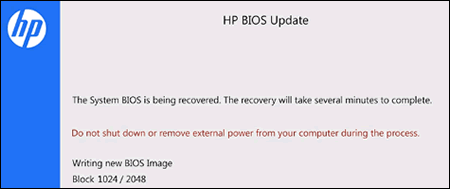
The HP BIOS Update screen displays and the recovery begins automatically. Follow any on-screen prompts to continue the startup to complete the recovery.
-
If the HP BIOS Update screen does not display, repeat the previous steps but press the Windows key and the V key. If the screen still does not display, your computer might not support the feature or there is a hard drive issue. Continue to the next step to install a BIOS recovery file from the HP website.
-
If the Power light turns off, the Power button was held too long. Repeat the previous steps, making sure to hold the button for only 2 to 3 seconds.
-
If a BIOS recovery message repeatedly displays, continue to the next step to install an updated BIOS version.
-
If a message that the computer improperly shut down or a boot problem is detected displays, follow the on-screen instructions to resolve the error.
-
If Windows starts, update to the latest BIOS version. Go to HP Notebook PCs - Updating the BIOS.
-
Hope this helps! Keep me posted for further assistance.
If I have helped you resolve the issue, feel free to give me a virtual high-five by clicking the 'Thumbs Up' icon below,
Followed by clicking on "Accept as solution" from the drop-down menu on the upper right corner,
Thank you for posting in the HP Support Forum. Have a great day!
ECHO_LAKE
I am an HP Employee
12-16-2018 12:48 PM
HP Recommended
Hi yes I've updated graphics driver and I tried the rollback of bios but it's the same bios that it offers on the roll back, it's definitely a bios/graphics problem as Microsoft edge gets the error edge has been banned from using graphics hardware, is there anyway to downgrade the bios to previous version as this only happened after bios update it ran great previously
12-16-2018 04:17 PM
HP Recommended
@ChazGall
Thank you for posting back.
I appreciate your efforts to try and resolve the issue.
Let's try creating a USB recovery drive:
-
Obtain the product number for the original notebook that requires a BIOS recovery. This number is typically found on a label on the bottom of the notebook or on the box it shipped in. Go to How Do I Find My Model Number or Product Number? for additional options.
NOTE: The general family name near the keyboard or on the frame around the display is not specific enough for identifying correct download files.

-
Insert a blank USB flash drive into an available port on the second computer.
-
Go to HP Software & Driver Downloads and enter the product number of the original computer.
NOTE: If you upgraded the original computer to a new Windows version, in the Selected operating system pane, click Change, select the original operating system that came with your computer, and then click Change.
-
Click BIOS, and then review the details of the latest available version or the specific version recommended for the recovery. Confirm it is the correct BIOS update before proceeding.
-
Click Download, and then click Run.
-
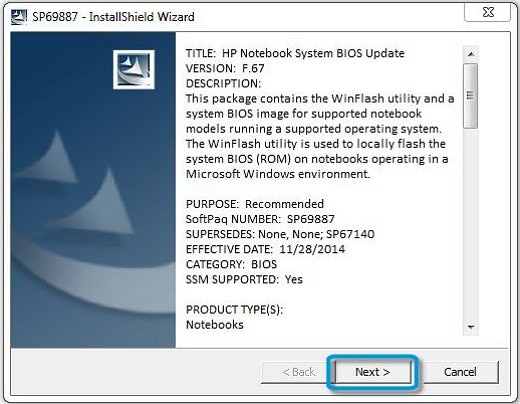
In the InstallShield Wizard window, click Next.
-
Select I accept the terms in the license agreement, and then click Next.
-
Choose to remove or keep the files after the recovery, and then click Next to open the HP BIOS Update and Recovery window.
-
Select Create Recovery USB flash drive, and then click Next.

-
Select your USB flash drive, and then click Next to copy the BIOS file to the drive.
-
When 'The recovery flash drive was created successfully' displays, click Finish.
-
Remove the flash drive from the computer.
Install bios recovery files:
-
Turn off the notebook that requires the BIOS recovery, and then wait 5 to 10 seconds.
-
Make sure the power cord is connected to the notebook. Keep it connected during the recovery process.
-
Insert the USB flash drive with the BIOS file into an available USB port on the notebook.
-
Press and hold the Windows key
and the B key at the same time, and then press and hold the power button for 2 to 3 seconds.NOTE: On some notebook models, it might be necessary to press and hold the Windows key and the V key.
-
Release the Power button but continue pressing the Windows and B keys. You might hear a series of beeps.
The HP BIOS Update screen displays and the recovery begins automatically. Follow any on-screen prompts to continue the startup and to complete the recovery.
-
If a message displays that the computer improperly shut down or a boot problem is detected, follow the on-screen instructions to resolve the error.
-
Hope this helps! Keep me posted for further assistance.
ECHO_LAKE
I am an HP Employee
12-20-2018 12:17 PM
HP Recommended
I've tried that but I keep getting the error bios update failed, cannot open bios image file, I see bios f.19 has been removed from updates was it a faulty bios? Is there anything else I can do to rollback or update my bios as my notebook is unusable at the minute, thanks in advance
12-21-2018 10:57 AM
HP Recommended
Thank you for posting back.
I'm sending out a Private message to assist you with the next course of action.
Please check your Private message icon on the upper right corner of your HP Forums profile
Next, to your profile Name, you should see a little blue envelope, please click on it or simply click on this link: https://h30434.www3.hp.com/t5/notes/privatenotespage
ECHO_LAKE
I am an HP Employee

Be alert for scammers posting fake support phone numbers and/or email addresses on the community.
If you think you have received a fake HP Support message, please report it to us by clicking on "Flag Post".
† The opinions expressed above are the personal opinions of the authors, not of HP. By using this site, you accept the Terms of Use and Rules of Participation.


Didn't find what you were looking for?
Ask the community
† The opinions expressed above are the personal opinions of the authors, not of HP. By using this site, you accept the <a href="https://www8.hp.com/us/en/terms-of-use.html" class="udrlinesmall">Terms of Use</a> and <a href="/t5/custom/page/page-id/hp.rulespage" class="udrlinesmall"> Rules of Participation</a>.