• ×
    Information
    Need Windows 11 help?
    Check documents on compatibility, FAQs, upgrade information and available fixes.
    Windows 11 Support Center.
  • post a message
  • ×
    Information
    Need Windows 11 help?
    Check documents on compatibility, FAQs, upgrade information and available fixes.
    Windows 11 Support Center.
  • post a message
Guidelines
Join the HP Community Solve‑a‑thon | Help Others & Share Your Solutions | Live on Zoom | 2:30 PM to 2:30 AM IST | Every Wednesday Click here to know more
HP Recommended

I used my laptop it worked fine, shut it down properly,  and the next day it was stuck on this black screen trying to reboot. I have ran a diagnostic and it passed everything. I have done a force reboot numerous time. I even left it sitting for over a month unplugged with the hopes of draining the battery. I have tried f8, f8 + shift, f11, and esc keys nothing has worked. All the forums say to get it to the Windows Logo, my laptop is not getting that screen. It was also suggested to put it in safe mode and enter the command prompts, again my laptop will not get that far. It did run the 'automatic repair' and then 'will restart for you' appeared and the loop unfortunately continues. I maintain the necessary updates, I just have not idea what to do. 

3 REPLIES 3
HP Recommended

 try to get into windows safe mode and see if the device manager shows any errors.  


You need to boot into safe mode to fix the problem.
Click here to see how to start your system in safe mode.

Bring up the Windows Device Manager and look for errors
Sometimes you can just delete the defective device and reboot to have Windows find the correct one.
If Windows put the wrong one in then you need to roll back the driver to the previous one.


You might also try a "restore point" if one was created before problem occured.


Before doing check to see if there might be an actual hardware problem:  memory or disk


Tap the ESC key after powering on.
Tap it once a second after you see the LEDs on the keyboard flash.
When you see the startup menu, press F2 to run diagnostics.
If a component fails during the UEFI test then
Click here to check warranty and Click here for world-wide contact info


Since Windows cannot start then you need to enter Windows safe mode from outside of Windows

Hold down the shift key and turn the power on. If windows does not start in safe mode then read this article about safe mode. Skip down to 'Enter safe mode from outside windows. If F11 does not get you into system recovery then try turning the power on and off three or more times in a row.

BeemerBiker_0-1781633144230.png


Since the startup repair fails then do the restore point.
This video describes how to use a restore point.


Thank you for using HP products and posting to the community.
I am a community volunteer and do not work for HP. If you find
this post useful click the Yes button. If I helped solve your
problem please mark this as a solution so others can find it
HP Recommended

Thank you for your quick response!  I am unable to get into Windows. F11 does not work to get my laptop into safe mode. I have tried turning on/off as soon as it powers on multiple times. 

HP Recommended

You can try booting windows 10 or 11 and running the repair from the USB.


You tried the windows repair, it did not work, and you cannot get your system to boot. Try a windows install with the option to keep files

Basically you download the latest window 10 (should work for 11), create a USB boot drive, boot up the USB version of Windows, do the install, but select the option that preserves all your data. You will need to know if using Windows Home, Pro or some other version.


Using another system go here and download the windows installation media. Specify the 16gb flash and be sure to check the 'Create installation media (USB)' and uncheck the 'Use the recommended options for this PC'


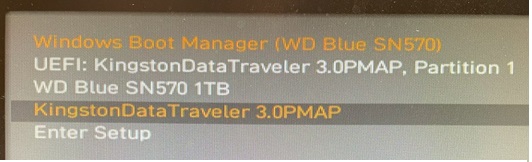
Insert the USB in to the system you need to repair and turn it on. Press ESC or DEL or F12 so that you can get into the bios and change the boot device. For example, the one with the dark bar highlight.


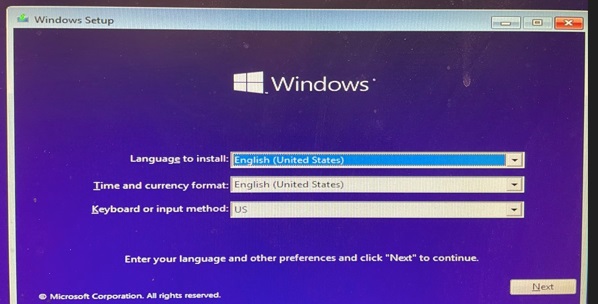
After the USB boots up select the language and agree to the fine print, if any.


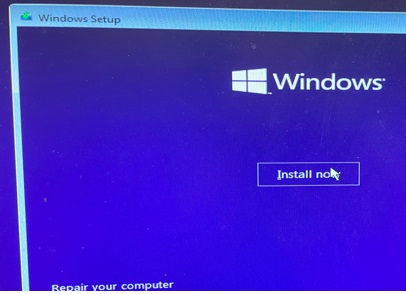
Once you agree the option to either install or repair will be shown. Since the repair did not work then chose install.


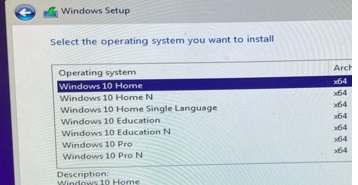
You must then pick the OS that was licensed. If there is no option for the correct OS you forgot to uncheck the 'Use the recommended options' earlier.


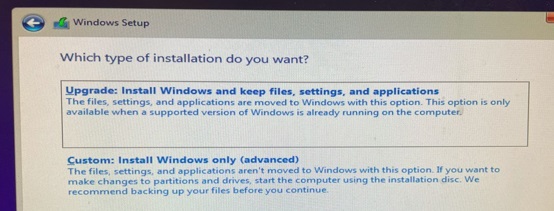
The next screen will ask if you want to upgrade and preserve files or do a clean install and lose all your stuff.


Log into windows using your Microsoft account (or your email) credentials. Use whatever credential you used to activate windows originally. Install the HP support assistant and let it download drivers.


Thank you for using HP products and posting to the community.
I am a community volunteer and do not work for HP. If you find
this post useful click the Yes button. If I helped solve your
problem please mark this as a solution so others can find it
† The opinions expressed above are the personal opinions of the authors, not of HP. By using this site, you accept the <a href="https://www8.hp.com/us/en/terms-of-use.html" class="udrlinesmall">Terms of Use</a> and <a href="/t5/custom/page/page-id/hp.rulespage" class="udrlinesmall"> Rules of Participation</a>.