• ×
    Information
    Need Windows 11 help?
    Check documents on compatibility, FAQs, upgrade information and available fixes.
    Windows 11 Support Center.
  • post a message
  • ×
    Information
    Need Windows 11 help?
    Check documents on compatibility, FAQs, upgrade information and available fixes.
    Windows 11 Support Center.
  • post a message
Guidelines
Seize the moment! nominate yourself or a tech enthusiast you admire & join the HP Community Experts!
HP Recommended
HP Silver Ghost 15
Microsoft Windows 10 (64-bit)

Hello, I have an extremely important issue here. Every time I close my laptop's lid, the computer will sleep for maybe five to ten minutes. Then randomly power back on with the kids still closed. This is especially troublesome when I'm travelling. I'll leave the house on a full battery only to discover I have twenty percent left because my computer has been running without my say-so.


I've already checked for viruses, it's clean. Nothing is connected, I have nothing else. It's been like this months!!! Can someone please help, I don't want to have to send this thing around during this time epidemic!

1 REPLY 1
HP Recommended

@markeldud3

Thank you for posting on HP Support Community.

Don't worry as I'll be glad to help, I have a few troubleshooting steps we could try to fix the issue:  


Step 1: Change device settings in Windows

  1. In Windows, search for and open the Device Manager.

  2. Click the arrow next to the device that needs to be adjusted.

    • To check the keyboard settings, select Keyboards.

    • If you are using an optical mouse, select Mice and other pointing devices.

      NOTE: If you prevent the mouse from being able to wake the computer, you can still wake the computer by pressing the Space bar on the keyboard or the Power button on the front of the computer.
    • If the computer is using an "always-on" Internet connection, select Network Adapters.

    • To check the high definition audio settings, click Sound, video, and game controllers.

  3. Double-click the name of the device to open the Properties window.

  4. Click the Power Management tab.

    • If the Power Management tab is not available, click the Change Settings button. The same Properties window opens with the Power Management tab available.

    • If you are prompted for an Administrator password or confirmation, type the password or provide confirmation.

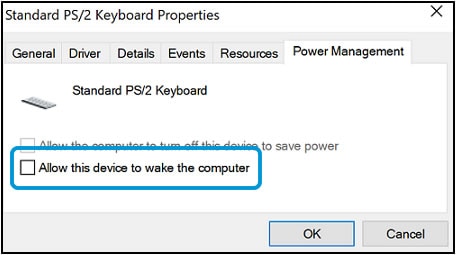
  5. Deselect the box next to Allow this device to wake the computer.

    Allow this device to wake the computer option in the Power Management tab

  6. Click OK, close any open windows, and then restart the computer.

  7. Repeat these steps for additional devices, if needed. You might need to do this for each of the devices listed: mice, keyboards, network adapters, and sound.

If the issue persists after changing hardware settings, continue to the next step.

Step 2: Check for a problem with a connected device

Some devices can cause sleep or standby issues. Disconnect the devices to test if they are causing the issue.

  1. Disconnect all non-essential connected devices (printers, scanners, USB drives, etc.).

  2. Restart the computer with only the original mouse, monitor, and keyboard connected.

    • If disconnecting devices resolves the sleep/standby issue, one of the connected devices was causing the problem. Replace one device and test to see if the issue occurs again. Continue adding devices and testing until you find the device that is causing the problem.

    • If the issue still persists after non-essential devices are disconnected, continue to the next step.

Step 3: Update antivirus software definitions and scan the computer for viruses

Some viruses and other malicious applications can cause sleep or hibernate issues. Update the antivirus software definitions, and then scan the computer for viruses.

NOTE: If antivirus software is not installed, HP recommends you install antivirus software.

For more information about updating antivirus applications and definitions and running a virus scan, go to Computer Might Be Infected by a Virus or Malware (Windows 10, 😎.


Hope this helps! Keep me posted for further assistance.
Please click “
Accept as Solution” if you feel my post solved your issue, it will help others find the solution.

ECHO_LAKE
I am an HP Employee

† The opinions expressed above are the personal opinions of the authors, not of HP. By using this site, you accept the <a href="https://www8.hp.com/us/en/terms-of-use.html" class="udrlinesmall">Terms of Use</a> and <a href="/t5/custom/page/page-id/hp.rulespage" class="udrlinesmall"> Rules of Participation</a>.