
-
×InformationNeed Windows 11 help?Check documents on compatibility, FAQs, upgrade information and available fixes.
Windows 11 Support Center. -
-
×InformationNeed Windows 11 help?Check documents on compatibility, FAQs, upgrade information and available fixes.
Windows 11 Support Center. -
- HP Community
- Notebooks
- Notebook Boot and Lockup
- Re: New Computer is stuck on Just a minute screen

Create an account on the HP Community to personalize your profile and ask a question
Your account also allows you to connect with HP support faster, access a personal dashboard to manage all of your devices in one place, view warranty information, case status and more.

It has been a while since anyone has replied. Simply ask a new question if you would like to start the discussion again.

06-17-2017 07:02 PM
 HP Recommended
Product: HP Pavilion Notebook 15-au020w
Operating System: Microsoft Windows 10 (64-bit)
Bought this computer a few days ago. Plugged it in to charge. Came back to it when a couple days later when i had time to use it for the first time. Started answering the first time start up questions. An error occured at some point and gathered the details to send to HP. Screen came back and I continued "registering" and then another error, but this one the computer has not recovered from. It has been sitting at just a minute for 2 days. Every once and I while a new screen appears with a 😞 face to tell me an error occured.
I have held the power botton down a few times to restart. It just comes back to the just a minute screen or black hp screen and then to the just a minute screen.
I read something about safe mode...I never made it to the start menu. :o(
I am running a system extensive test...it has 4 hours left. How is this happening, I literally have done nothing on it but give it my informtion and connected it to the internet...like it told me to.
Solved! Go to Solution.
1 ACCEPTED SOLUTION
Accepted Solutions

06-17-2017 07:32 PM
HP Recommended
Hopefully just a flaky install of Windows. Try doing a fresh install.
- Turn on the computer and repeatedly press the F11 key about once every second until the Choose and option screen is displayed, and then continue.
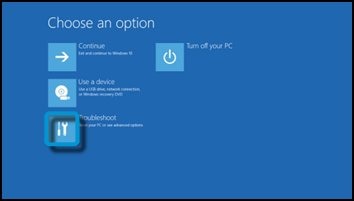
- On the Choose an Option screen, click Troubleshoot.Figure : Choose an option with Troubleshoot selected
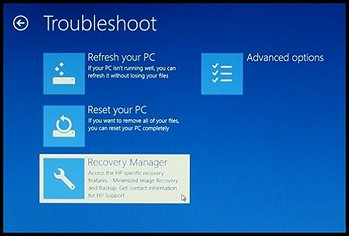
- On the Troubleshoot screen, click Recovery Manager.Figure : Troubleshoot with Recovery Manager selected
- Under Help, click System Recovery.Figure : Help with System Recovery selected

- When Recovery Manager prompts you to back up your files, select a backup option:
NOTE:
Depending on the version of Windows, the following screens might appear slightly different.Follow the instructions to backup your files and recover the system.- If you have already backed up personal files or you do not want to back up personal files, select Recover without backing up your files, and then click Next. Continue to the next step.
- If you want to back up your personal files, follow these steps to create a backup.
- The Welcome to HP Recovery Manager screen is displayed. Read the on-screen information, and then disconnect any connected devices and cables, such as Personal Media Drives, USB drives, printers, and faxes.
- Remove media from internal drives, and remove any recently added internal hardware.Do not disconnect the monitor, keyboard, mouse, or power cord.
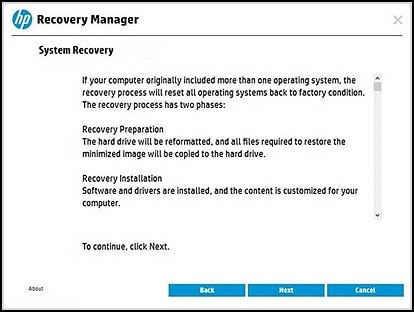
- Click Next to continue.Figure : HP Recovery Manager screen
 HP Recovery Manager prepares the computer for recovery.
NOTE:
This process can take as long as 30 to 45 minutes. Do not interrupt HP Recovery Manager during the recovery process.Figure : Recovery preparation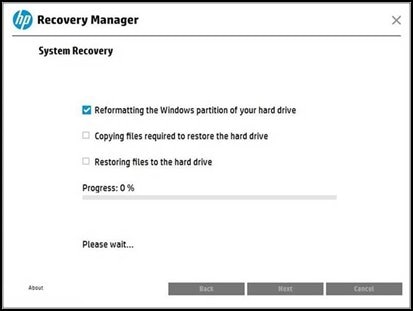
- When recovery preparation is complete, click Continue to proceed to the installation phase of the recovery process. The computer restarts several times during the recovery. This is normal. Do not close, shut down, or disconnect the computer while HP Recovery runs.Figure : Recovery preparation is complete
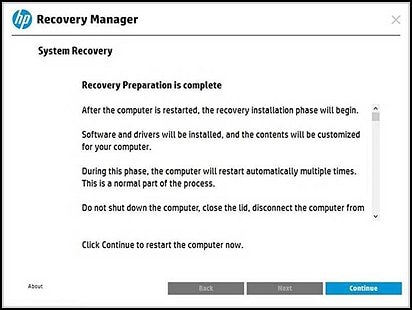
- Recovery Manager reformats the Windows partition and reinstalls the original software.
- After the system recovery is complete, click Finish to restart the computer. Complete the setup screens and wait until the computer finishes the setup.
**Click Accept as Solution on a Reply that solves your issue**
***Click the "YES" button if you think this response was helpful.***
3 REPLIES 3
06-17-2017 07:32 PM
HP Recommended
Hopefully just a flaky install of Windows. Try doing a fresh install.
- Turn on the computer and repeatedly press the F11 key about once every second until the Choose and option screen is displayed, and then continue.
- On the Choose an Option screen, click Troubleshoot.Figure : Choose an option with Troubleshoot selected
- On the Troubleshoot screen, click Recovery Manager.Figure : Troubleshoot with Recovery Manager selected
- Under Help, click System Recovery.Figure : Help with System Recovery selected
- When Recovery Manager prompts you to back up your files, select a backup option:
NOTE:
Depending on the version of Windows, the following screens might appear slightly different.Follow the instructions to backup your files and recover the system.- If you have already backed up personal files or you do not want to back up personal files, select Recover without backing up your files, and then click Next. Continue to the next step.
- If you want to back up your personal files, follow these steps to create a backup.
- The Welcome to HP Recovery Manager screen is displayed. Read the on-screen information, and then disconnect any connected devices and cables, such as Personal Media Drives, USB drives, printers, and faxes.
- Remove media from internal drives, and remove any recently added internal hardware.Do not disconnect the monitor, keyboard, mouse, or power cord.
- Click Next to continue.Figure : HP Recovery Manager screenHP Recovery Manager prepares the computer for recovery.
NOTE:
This process can take as long as 30 to 45 minutes. Do not interrupt HP Recovery Manager during the recovery process.Figure : Recovery preparation - When recovery preparation is complete, click Continue to proceed to the installation phase of the recovery process. The computer restarts several times during the recovery. This is normal. Do not close, shut down, or disconnect the computer while HP Recovery runs.Figure : Recovery preparation is complete
- Recovery Manager reformats the Windows partition and reinstalls the original software.
- After the system recovery is complete, click Finish to restart the computer. Complete the setup screens and wait until the computer finishes the setup.
**Click Accept as Solution on a Reply that solves your issue**
***Click the "YES" button if you think this response was helpful.***

Be alert for scammers posting fake support phone numbers and/or email addresses on the community.
If you think you have received a fake HP Support message, please report it to us by clicking on "Flag Post".
† The opinions expressed above are the personal opinions of the authors, not of HP. By using this site, you accept the Terms of Use and Rules of Participation.


Didn't find what you were looking for?
Ask the community
† The opinions expressed above are the personal opinions of the authors, not of HP. By using this site, you accept the <a href="https://www8.hp.com/us/en/terms-of-use.html" class="udrlinesmall">Terms of Use</a> and <a href="/t5/custom/page/page-id/hp.rulespage" class="udrlinesmall"> Rules of Participation</a>.