• ×
    Information
    Need Windows 11 help?
    Check documents on compatibility, FAQs, upgrade information and available fixes.
    Windows 11 Support Center.
  • post a message
  • ×
    Information
    Need Windows 11 help?
    Check documents on compatibility, FAQs, upgrade information and available fixes.
    Windows 11 Support Center.
  • post a message
Guidelines
Seize the moment! nominate yourself or a tech enthusiast you admire & join the HP Community Experts!
HP Recommended
HP mt44 Mobile Thin Client
Microsoft Windows 10 (64-bit)
  1.  My mt44 had bios ver. Q79. After fail bios update, my mt44 screen off when It's power on. Then i took it to the hp customers service centre in my local area. They had worked and after that i found that it’s bios version Q81 instead of Q79. At present it works. But my mt44 touch doesn't work. How can i back to the previous bios version Q79 from Q81?
2 REPLIES 2
HP Recommended

Hello @Nyaeem .
You can do the following:
Simultaneously press the Windows key + l to enter the "Settings" section.
Click on "Update and Security" and select "Recovery" located on the left bar.
Under Advanced Startup there is an option that says "Restart Now" and click on it.
When the computer restarts, a blue screen will appear with advanced troubleshooting options.
Select "Troubleshoot" and click "Advanced Options" when the new options appear.
Choose "UEFI Firmware Settings" and click "Restart" to continue.


Another option:
Go to the Hp drivers page:
https://support.hp.com/us-en/drivers
Enter your computer model and go to the BIOS section and download an older version.
You can then run the .exe from Windows or you can follow the instructions for bios recovery so you can use an older version:
Recover BIOS with a recovery USB drive.
Video instructions:
https://www.youtube.com/watch?v=qpiGUojtr3E


I am proudly Mexican, a Computer Systems Engineer and a community volunteer.
If you found the answer helpful and/or you want to say “thanks”? Click the “ Yes ” box below Did I help solve the problem? don´t forget to click “ Accept as a solution” , someone who has the same query may find this solution and be helped by it.


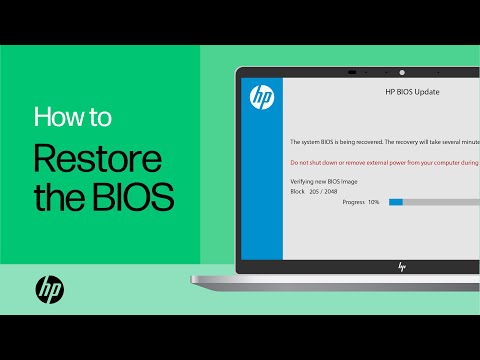
In this video, you will see how to restore the BIOS on your HP computer. Many HP computers allow you to recover the last known working version of the BIOS from the hard drive in case of an issue. Follow the simple steps in this video to restore your BIOS with ease. Chapters: 00:00 Introduction ...
HP Recommended

It looks like the service center has replaced the system board of your MT44 unit and since the System boards are compatible may have used one from EliteBook models. the Q81 Series BIOS are used for EliteBook 735/745/755 G5 series. There is no way to go back to the Q79 bios since that would damage the current system board.

Touch functionality is not BIOS dependent, its controlled by other factors that are reprogrammed after replacing the system board. It looks like the repair center did not complete the reprogramming. Touch and other functions are controlled by FeatureByte that you will find in the BIOS system info. 

goto http://partsurfer.hp.com/search.aspx

Enter the SN of your unit and check if the FeatureByte on the website matches the one in your unit. If it does not take the unit back to service center and ask to get it reprogrammed.  (Featurebyte on the unit should not have any spaces)

**Click the thumb up on the left to say 'Thanks'**
Make it easier for other people to find solutions by marking a Reply 'Accept as Solution' if it solves your problem.
† The opinions expressed above are the personal opinions of the authors, not of HP. By using this site, you accept the <a href="https://www8.hp.com/us/en/terms-of-use.html" class="udrlinesmall">Terms of Use</a> and <a href="/t5/custom/page/page-id/hp.rulespage" class="udrlinesmall"> Rules of Participation</a>.